15
Preparing to Use the W-E1
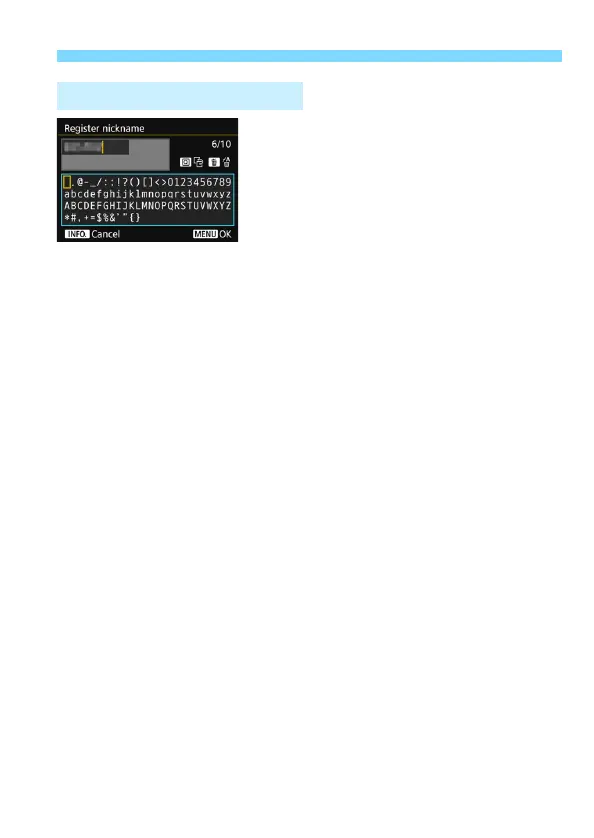
Changing the entry area
Press the <Q> button to toggle
between the top and bottom entry
areas.
Moving the cursor
Use <5> or <9> in the top area to
move the cursor.
Entering text
In the bottom area, use <5> or <9> to select a character, then
press <0> to enter it.
You can check how many characters you have entered and how
many more can be entered by referring to [*/*] on the upper right of
the screen.
Deleting a character
Press the <L> button to delete one character.
Finishing the text entry
Press the <M> button to confirm what you have entered and exit.
If a confirmation dialog is displayed, select [OK] to exit.
Canceling the text entry
Press the <B> button to cancel text entry and exit. If a
confirmation dialog is displayed, select [OK] to exit.
Virtual Keyboard Operation


 To Next Page