Using the Menus
28
To use the joystick
1 Press the MENU button.
2 Push the joystick (Þ) to select the icon of the desired setup menu.
• In the example, the B icon, corresponding to the [System Setup] menu.
• If one of the icons in the top row is not selected when you open the menu, first push the joystick
(
Ý) to move the orange selection frame to one of the icons.
3 Push the joystick (Ý) to select the desired menu item ([Language ], in the example)
and then press SET.
• If the desired menu item does not appear in the menu page displayed, push the joystick (Þ)
to scroll through other menu pages.
• For main procedures, the page number may be given in the manual (!, in the example), making
it easier to find the desired menu page.
4 Push the joystick (Ý) to select the desired setting option and then press SET.
5 Press the MENU button to close the menu.
• You can push the joystick to highlight the [L] button and press SET to return to the previous
menu page. You can also highlight the [X] button and press SET to close the menu.
• Touching [X] or pressing the MENU button at any time closes the menu.
• Unavailable items may appear grayed out.
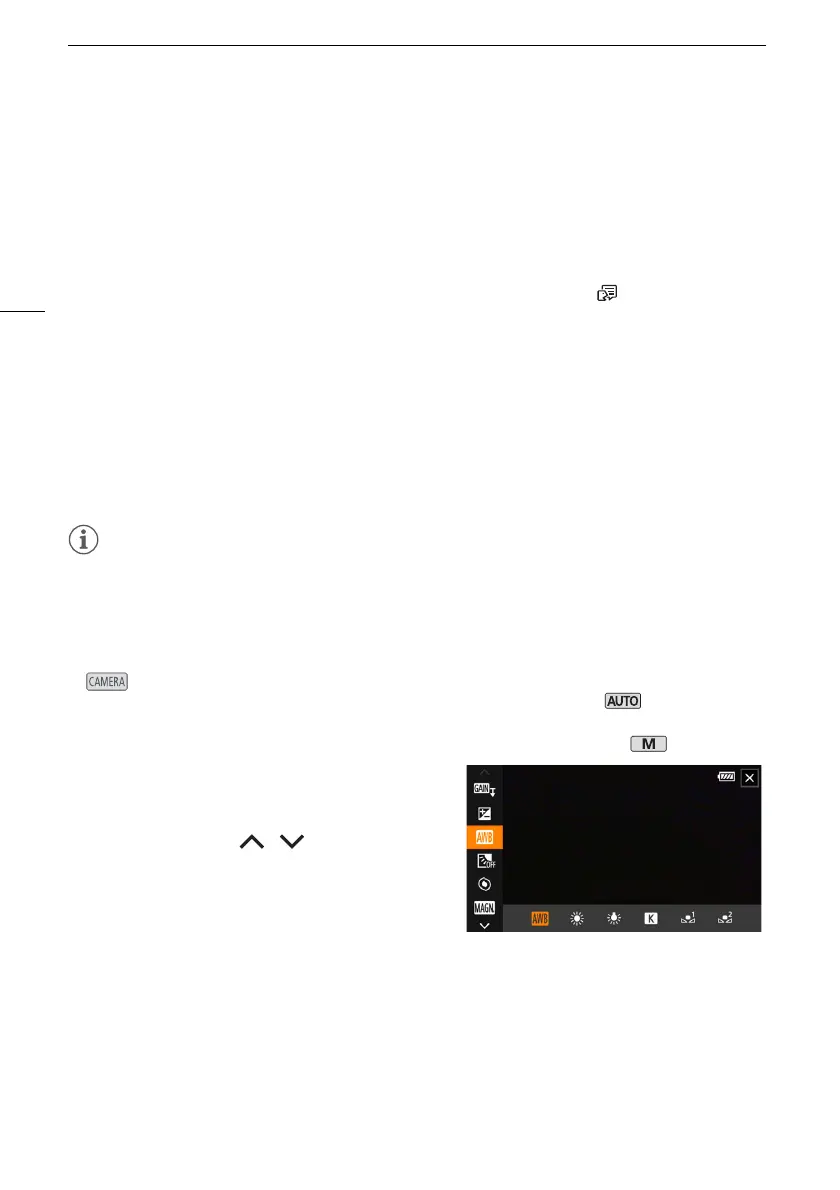
FUNC Menu
In mode, the FUNC menu offers a quick way to control various shooting related functions such
as white balance, exposure, focus, etc. Available functions are more limited in mode.
To use the touch panel
1 Touch [FUNC] on the shooting screen.
2 Touch the icon of the desired function on the
left column.
• If necessary, touch [ ]/[ ] to scroll up/down.
3 Touch the icon of the desired setting on the
bottom row.
4Touch [X] to close the FUNC menu or [L] to
return to the left column.


 To Next Page