EasyManua.ls Logo

Cardinal 210 - User Manual

Cardinal 210
47 pages
Print Icon
To Next Page IconTo Next Page
Loading...
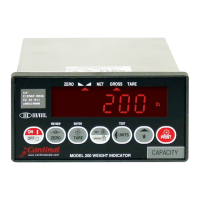
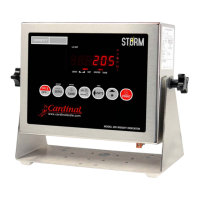
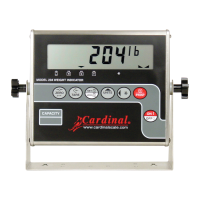
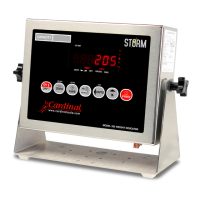
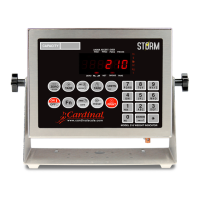
200 SERIES
WEIGHT INDICATING INSTRUMENT
MODELS 200, 205 and 210
TECHNICAL and OPERATION MANUAL
8200-M024-O1 Rev D
PO BOX 151 WEBB CITY, MO 64870
Printed in USA
04/01
PH
(
417
)
673-4631 FAX
(
417
)
673-5001
http://www.cardinalscale.com

Other manuals for Cardinal 210

Questions and Answers

  • L
    Linda LeblancAug 20, 2025
    What to do if Cardinal Accessories display shows oCAP (over Capacity)?
    • M
      Mr. Ian ShortAug 20, 2025
      If the Cardinal Accessories display shows 'oCAP', it means the load on the scale exceeds the scale capacity plus nine divisions. You should remove the excess load from the scale platform. This may also indicate miscalibration.
  • B
    barryjesseAug 22, 2025
    What does ErrAh (Error Analog high) mean on Cardinal Accessories, and how to fix it?
    • C
      Christine ScottAug 22, 2025
      If you see 'ErrAh' on your Cardinal Accessories, it indicates that the load cell input is above the range of the indicator. Check for improper load cell wiring, excessive load, and ensure the output is between 1 to 40mV. If the issue persists, it may be due to load cell or circuit failure.
  • L
    Lauren BrockAug 25, 2025
    What does ErrAL (Error Analog Low) mean on Cardinal 210, and how do I resolve it?
    • L
      lisamitchellAug 25, 2025
      If your Cardinal Accessories display shows 'ErrAL', it means the load cell input is below the range of the indicator. Check for improper load cell wiring and ensure the output is between 1 to 40mV. If the issue continues, it could be a load cell or circuit failure.
  • K
    Kelly ThomasAug 27, 2025
    How to resolve incorrect weight displayed on Cardinal 210?
    • A
      Alexandria WashingtonAug 27, 2025
      If your Cardinal Accessories are displaying an incorrect weight, ensure the indicator has been calibrated. Also, check that the scale platform isn't touching any adjacent objects and inspect the load cell connector wiring. If you're using four-wire load cells, make sure the sense lead jumpers (J6 & J9) are installed. Finally, verify that proper operating procedures have been followed.
  • P
    pooledanielleAug 28, 2025
    What does '-oF- (overflow)' mean on Cardinal 210 Accessories and how can I fix it?
    • S
      Stephanie NelsonAug 28, 2025
      If your Cardinal Accessories displays '-oF-', it means the indicator is attempting to display a positive number greater than six digits in length or a negative number of more than five digits. Return to Gross Weight mode and review the Tare value. This issue may also indicate miscalibration.
  • S
    Susan RobertsAug 29, 2025
    How to fix UnStb (Unstable) message on Cardinal 210 Accessories?
    • J
      Jill BakerAug 30, 2025
      If your Cardinal Accessories displays 'UnStb', it means there's motion present when trying to perform a print function. Wait for a stable weight display, indicated by the 'STABLE' annunciator being on, before proceeding.
  • G
    gabriela50Aug 31, 2025
    How to resolve E[2]PROM checksum failure in Cardinal Accessories?
    • J
      James RiveraAug 31, 2025
      If you encounter an 'E[2]PROM checksum failure' message on your Cardinal Accessories, recalibrate the device using a calibrated test weight.
  • G
    George NorrisSep 2, 2025
    What does EEFAiL (External EEPROM memory write/read failure) mean for Cardinal 210?
    • D
      Donna LaneSep 2, 2025
      If your Cardinal Accessories displays 'EEFAiL', it indicates an external EEPROM memory write/read failure. Press any key to continue. No other action is necessary if ID storage is not used.
  • P
    pamela56Sep 4, 2025
    What does EE Err (External EEPROM memory retention error) mean on Cardinal 210 Accessories?
    • I
      ibarrachristopherSep 4, 2025
      If your Cardinal Accessories displays 'EE Err', it indicates an external EEPROM memory retention error. Press any key to continue. No other action is necessary if ID storage is not used.
  • C
    caseypaulSep 6, 2025
    What does iiCErr (IIC bus failure) mean on Cardinal Accessories?
    • D
      David SchroederSep 6, 2025
      If your Cardinal Accessories displays 'iiCErr', it indicates an IIC bus failure. Press any key to continue.

Summary

Static Electricity Precautions

Specifications

Standard Features

Core functionalities and capabilities included with the standard instrument models.

Site Preparation Requirements

Electrical Power

Requirements and precautions for connecting the instrument to the electrical power supply.

Precautions

Installation

Mounting the Model 200

Guidance on how to physically mount the Model 200 enclosure.

Mounting the Models 205 and 210

Instructions for wall or desk mounting the Models 205 and 210 enclosures.

Load Cell Connection

Procedure for connecting the load cells to the instrument.

Serial I;O Cable Installation

Preset Weight Comparator;Checkweigher Output

Keypad Functions - Model 200 and 205

Annunciators - Models 200 and 205

Keypad Functions - Model 210

Preset Key Functions

Annunciators - Model 210

Setup and Calibration

Models 200 and 205 Setup Procedures

Step-by-step guide to setting up parameters for Models 200 and 205.

Model 210 Setup Procedures

Setup Modes (USA, LFt)

Digital Output and Sleep Mode (d out, SLEEP)

Analog to Digital Filtering (dFLt)

Calibration

Calibration Procedures (CAL1, CAL2)

Step-by-step process for applying calibration weights.

Serial Input;Output Configuration (Sio)

Configuring serial port settings for data communication.

Continuous Output Configuration (Cont1, tyPE)

Weight On Demand

Print Tab Settings (Print?)

Configuring settings related to printing data and reports.

Fine Span Adjustment (F SPAn)

Setup Review

Calibration C Numbers

Before You Call For Service

Error Codes

Optional Battery Pack Operation

Appendix A - Analog Output Option (DAC) Board

Calibration of the Analog Output

Cardinal 210 Specifications

General IconGeneral
BrandCardinal
Model210
CategoryAccessories
LanguageEnglish

Related product manuals