12
5.7 - Set the schedule
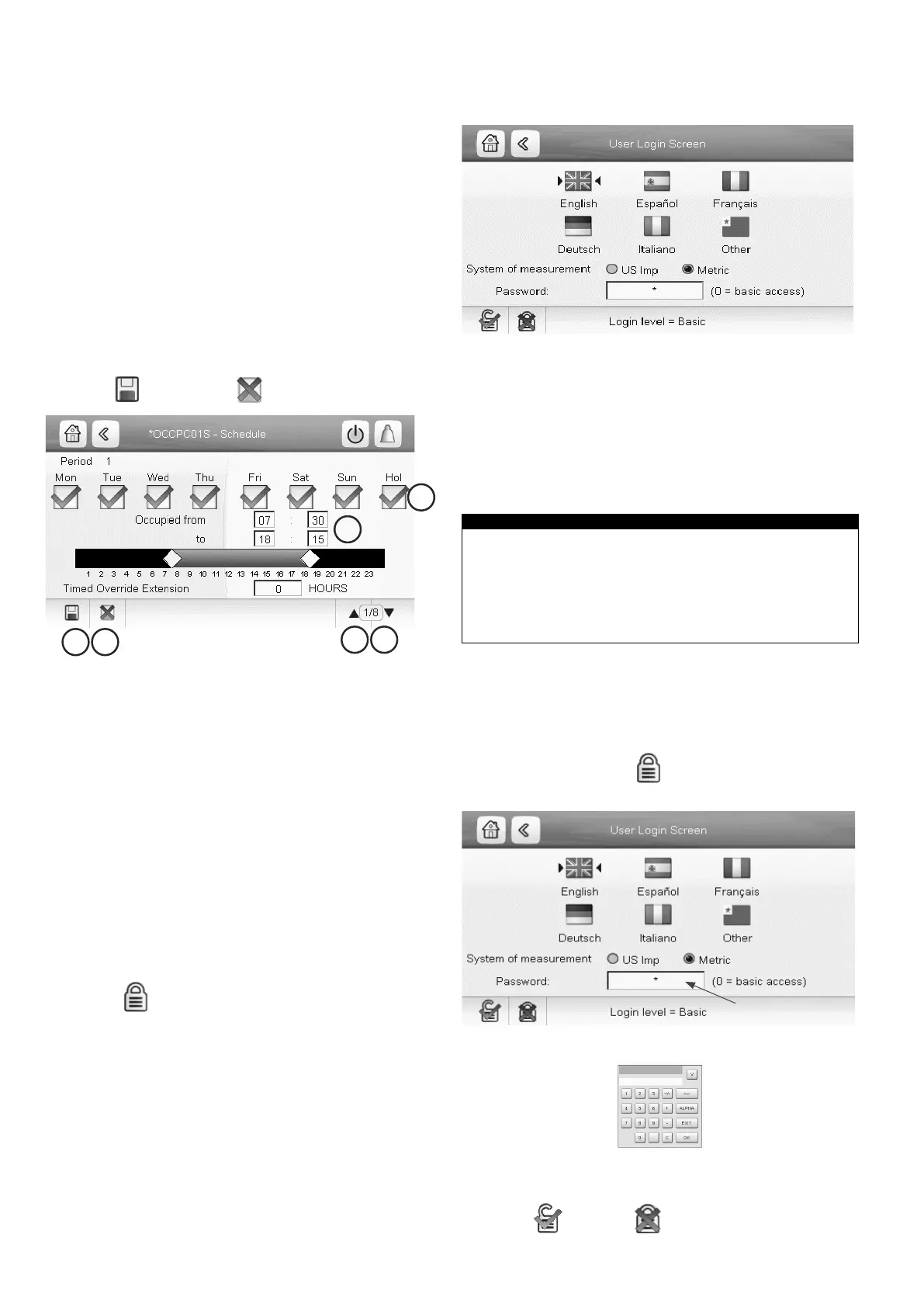
The control incorporates two time schedules, where the
rst one (OCCPC01S) is used for controlling the unit start/
stop, whereas the second one (OCCPC02S) is used for
controlling the dual setpoint. The control offers the user
the possibility of setting eight occupancy periods.
To set the unit start/stop schedule:
1. Navigate to the Conguration menu and select
Schedule (SCHEDULE).
2. Go to OCCPC01S.
3. Select appropriate check boxes to set the unit
occupancy on specic days.
4. Dene the time of occupancy.
5. When the time schedule is set, the selected period will
be presented in the form of the green band on the
timeline.
6. Press
to conrm or to cancel changes.
1 Selection of days for the time schedule
2 Start/end of the schedule
3 Save
4 Cancel
5 Previous time period
6 Next time period
IMPORTANT: Only logged-in users are allowed to
access the Conguration menu.
5.8 - Manage display settings
The User Login screen allows the user to select the
language of the controller, change the system of
measurement (imperial or metric) and enter a password to
gain access to more control options.
To access the User Login screen, press the
Log button
in the upper-right corner of the screen (see
also section 5.4).
5.8.1 - Security access settings
User-level security ensures that only authorised users are
allowed to modify critical unit parameters.
1 Cursor indicating the selected language
2 Logged-in button
3 Logged-o button
4 System of measurement: Metric/Imperial
5 Password dialog box
IMPORTANT: Only logged-in users are allowed to
access the Conguration menu.
It is strongly recommended to change the default
password of the user interface to exclude the possibility
of changing any parameters by an unqualied person.
Only people qualied to manage the unit should be
familiarized with the password.
User login
Only logged-in users can access congurable unit
parameters. By default, user password is 11.
To log in as user:
1. Press the Log button
to open User Login Screen.
2. Press the Password box.
3. A dialog box appears.
4. Provide the password (11) and press OK.
5. The User Login screen appears.
6. Press
to save or to cancel changes.
Password box



 To Next Page