9
JUNIOR USER INTERFACE
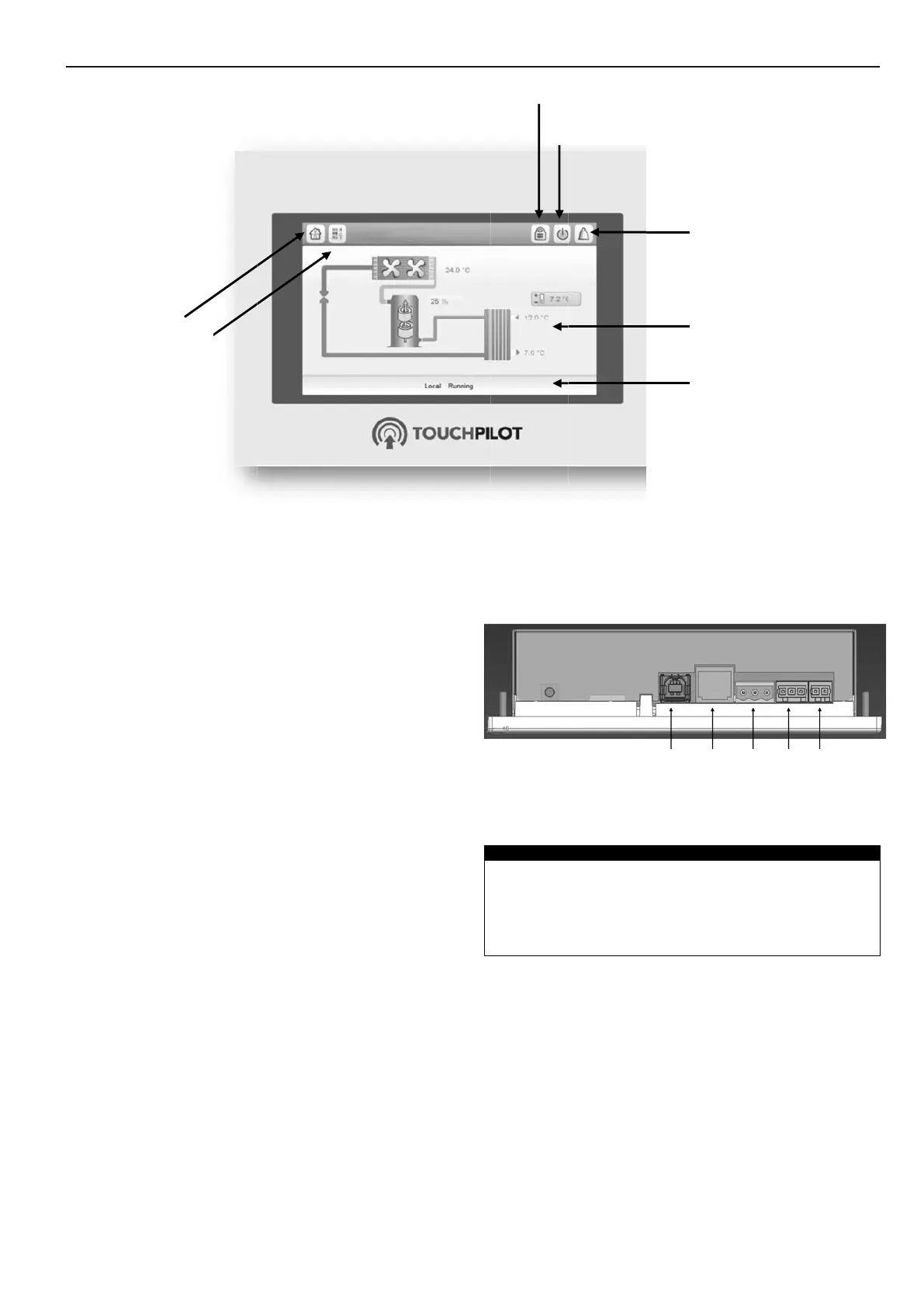
Connections
Connections are located on the back side of the controller.
USB ETH ERN ET CCN LEN
POW ER SUPPLY
( 2 4 V AC)
Home
button
Main
butto
enu
Log in / Lo
U
g out
it status
Cu
dis
Cu
not
Ala
rent menu
la
rent
ifications
rm display
Main
butto
enu
Figure 2: Touch Pilot Junior user interface display
Features of Touch Pilot
Junior user interface
• 4.3"colour touch screen with quick display of alarms,
current unit operating status, etc.
• Resistive touch screen technology
• Web connectivity
• Custom language support
5.1 - Touch Pilot Junior overview
Touch Pilot Junior provides access to the following
screens:
• Welcome screen
• Synoptic screen
• Operating mode selection screen
• Data/conguration screens
• Password entry and language selection screen
• Alarms screen
• Parameter modication screen
• Time schedule screen
If the Touch Pilot user interface is not used for a long
period, the Welcome screen is displayed, and then it goes
blank. The control is always active and the operating
mode remains unchanged. Press anywhere on the screen
and the Welcome screen will be displayed.



 To Next Page