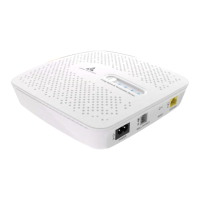
The Casa Systems Pebble is a low-power RF emitting eNodeB (evolved Node B) designed for LTE (Long-Term Evolution) RAN (Radio Access Network) deployments. It supports one LTE radio sector with two 50 MW (17 dBm) radio streams, providing 4G connectivity. This device is responsible for radio transmission and reception from User Equipment (UEs) within an LTE network. The Pebble unit offers radio coverage for LTE-enabled devices and handsets within a residential or enterprise coverage area, incorporating all the capabilities and functions of a standard eNodeB.
Function Description:
The primary function of the Casa Systems Pebble is to provide LTE radio coverage. It acts as a small cell base station, extending 4G network services to specific indoor environments. The device is designed for ease of installation and operation, supporting both Ethernet and Wi-Fi connections for network backhaul. Its plug-and-play Ethernet connection simplifies setup, while Wi-Fi connectivity requires a straightforward configuration process. The Pebble unit integrates with the Casa Systems Axyom Element Management System (AeMS) for comprehensive management, including operational costs, speed, time to market, and customer experience optimization.
Important Technical Specifications:
- Radio Technology: LTE RAN
- Radio Sector Support: One LTE radio sector
- Radio Streams: Two 50 MW (17 dBm) radio streams
- Network Connectivity: Ethernet (plug-and-play), Wi-Fi (2.4 GHz and 5 GHz)
- GPS: Requires external GPS antenna for location lock and LTE network connection.
- Power Supply: External power supply (details not specified, but implied by "Plug in the Pebble unit power supply").
- Management System: Integrates with Casa Systems Axyom Element Management System (AeMS).
- Software Releases: Supports various software versions, including 4.3.1, 4.3.7, 4.5.3, and 4.6.2. The installation guide is specific to version 4.6.2.
- Device Number: 12-digit device number found on the Pebble label, used for initial login password creation.
Usage Features:
- Network Connection Options:
- Ethernet Connection: A plug-and-play option. Users connect the GPS antenna cable to the GPS port, position the GPS antenna puck near a window for clear sky view, connect an Ethernet cable to the LAN port on the Pebble unit, and then connect the other end to a LAN port on a home router or an Ethernet outlet with service. Finally, plug in the power supply.
- Wi-Fi Connection (for the first time): This requires setup. The Pebble unit supports both 2.4 GHz and 5 GHz Wi-Fi access.
- SSID Selection: The default SSIDs are "SprintPebble_2.4G_XXXX" and "SprintPebble_5G_XXXX". Users select the Pebble unit's Wi-Fi network from their phone or PC.
- Connection: Connect to the chosen Wi-Fi network.
- Web Interface Access: Open a web browser and enter the URL "casawifi.com".
- First-Time Login: Click "Immediate experience" when logging in for the first time.
- Admin Password Setup: Create a login password using the 12-digit device number from the Pebble label. This step is mandatory.
- Wi-Fi Band Selection: If the Wi-Fi network supports 5GHz, select "5G". Otherwise, select "2.4G". Enter the password for the Wi-Fi network router (not the admin password created earlier).
- Wireless Name and Password Synchronization: Check the box "Synchronize the wireless name and password of the target device" and click "Complete".
- Reboot: The Pebble unit will reboot after configuration is complete.
- PnP Process: After reboot, the PnP (Plug and Play) process starts, GPS connects, and the LED turns solid green, indicating service readiness.
- Logging into the Pebble unit after initial setup:
- From a PC or phone, select the SSID of the Pebble unit Wi-Fi (e.g., TP-Link_D8E2_5G_5GEXT).
- Connect to this Wi-Fi network.
- Open a browser and enter "casawifi.com".
- Enter the web access password (the one set during initial setup).
- Optional: Turn off unused Wi-Fi radio: If using 5G Wi-Fi, the 2.4G Wi-Fi radio can be turned off by navigating to "Wireless" and clicking the blue button next to "Wireless function" for the 2.4G wireless network.
- LED Behavior: Provides visual status indicators for the device:
- Device Startup: Fixed red.
- Device Activating: Blinking blue.
- Activation Complete: Fixed green.
- Device in Use: Blinking green.
- Error Condition (GPS puck not near a window): Blinking red.
Maintenance Features:
- Changing the Login Password:
- Log in to the Pebble unit.
- Navigate to "More" in the top menu.
- Under "Network settings", click "System management".
- Select "Modify login password".
- Enter the current password, then the new password twice, and click "Save".
- Manually Reset the Pebble: The Pebble reset button (located on the device) supports two types of resets:
- 1-second short-press reset: Reboots both Wi-Fi and LTE.
- 10-second long-press reset: Performs a factory reset for both Wi-Fi and LTE.
- Factory Reset Pebble Wi-Fi:
- Log in to the Pebble unit.
- Navigate to "More" in the top menu.
- Under "Network settings", click "System management".
- Select "Reboot and factory reset".
- Click "Restore the factory settings".
- Confirm the factory reset by clicking "Restore settings directly" in the pop-up window. The Pebble unit will reboot after one minute.
The Casa Systems Pebble is designed to be a reliable and efficient solution for extending 4G LTE coverage in various environments, with user-friendly installation and maintenance procedures.

 Need help?
 General

 To Next Page