SECTION 2 - CONTROLS, INSTRUMENTS AND OPERATION
2ï70
SCREEN MENUS
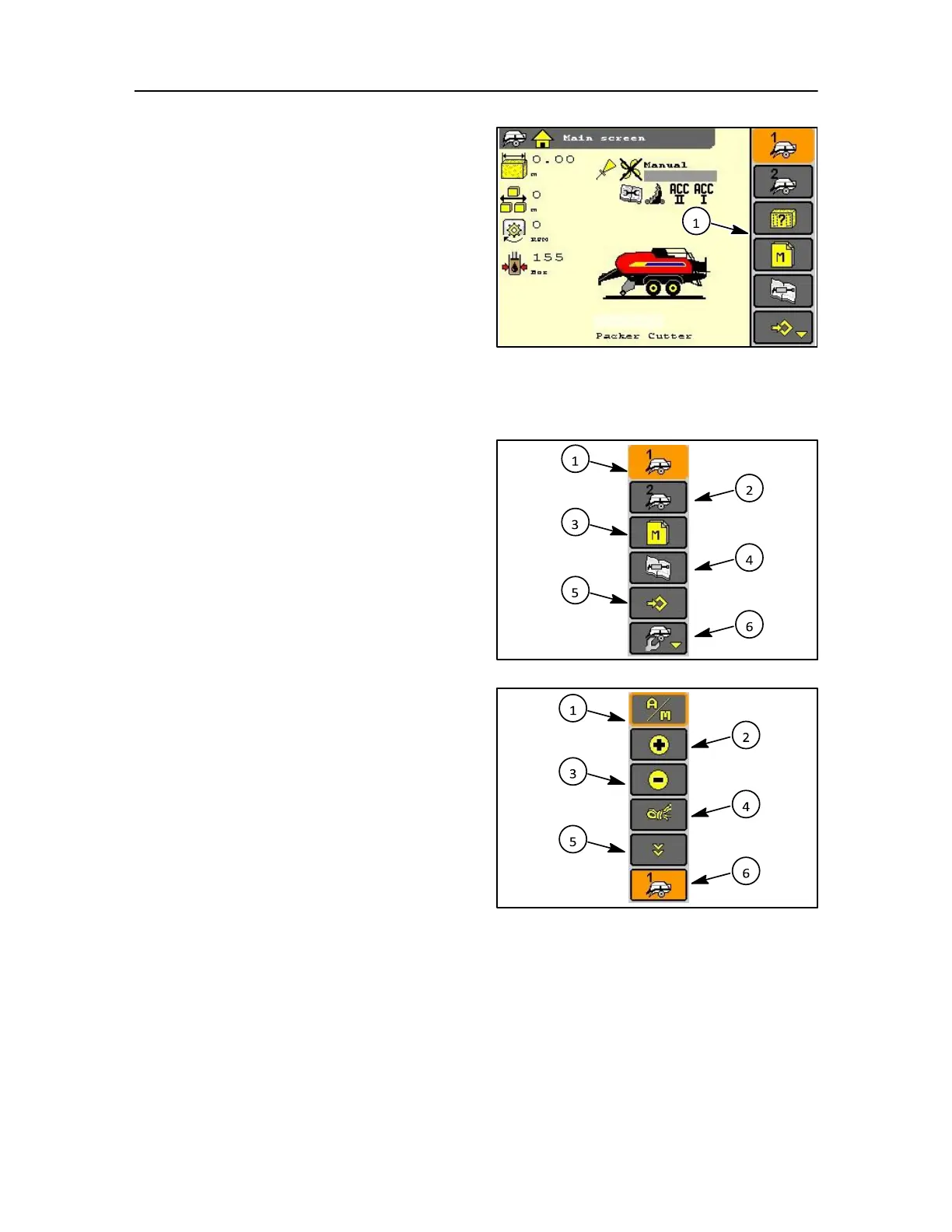
On the right hand side of the display is the menu bar
(1). When the respective ICON is selected using the
adjacent soft key, or touch screen a new screen will
open or an action to the selection will take place.
IMPORTANT: As the screens change the menu bar will
change from which the operator can select all available
options.
Understand that the screen menus change depending
upon many factors: PTO speed, options installed, operator
preferences and much more.
152
Only examples of possible screens are now reviewed, as
options are installed and software changes made new
screens may appear that will not have been discussed
here.
Main Screen menu bar (Screen selection icons)
1. Baler working 1
2. Baler working 2
3. Memory
4. Service
5. User setting
6. Machine settings
NOTE: The user setting ICON has a small down arrow in
the bottom right hand corner. This shows that the menu
continues below the user setting ICON. Main screen menu
bar (Direct access icons)
IMPORTANT: When this direct icon list is displayed
selection of a soft key, encoder, or touch screen to the
icon will activate that selection
1. Automatic or Manual density selection
2. Bale density increase
3. Bale density decrease
4. Manual knotting symbol
5. Appears when more than five buttons are in this
direct access key list, with more options below
6. Return to baler work screen



 To Next Page