SECTION 2 - CONTROLS, INSTRUMENTS AND OPERATION
2ï69
CONTROLS SELECTION
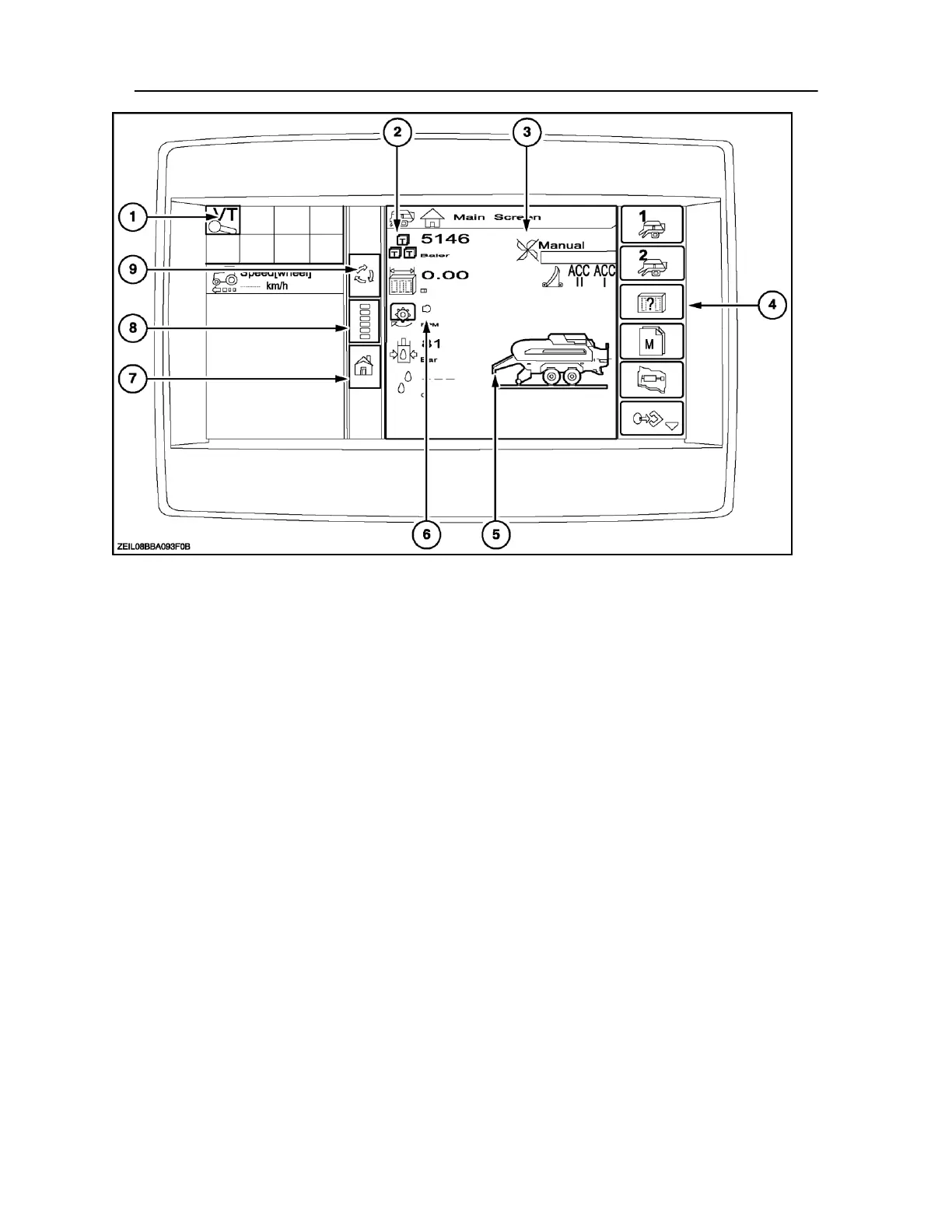
1. Data input display: This area displays input of any
new data found at the time of key on (a save
Icon, or object pool etc, may appear while
downloading new data).
2. Bale status area: Displays cut, daily, and total bale
counts, date and time, and much more.
3. Machine Status area: Displays the status of
operations.
4. Menu bar: Displays a variety of ICON options for
operator selection. A small arrow in the 1st or last
ICON denotes more screen selections are
available above or below those shown.
5. Baler image and model
NOTE: The baler image will only appear when the baler is
running below < 600 rpm, above > 600 rpm the screen
will
change
to an
operational status and the baler image disappears.
6. Monitor screen: These are selectable fields that
the user can control and decide what information
can be seen.
NOTE: The following items 7, 8 and 9 are part of the tool bar
on this monitor only.
This tool bar (by using the tool box icon on the main
screen) can be positioned either to the left or the right
hand side of the display. Refer to page 2-54 in this section.
7. Home screen: Return to home screen
8. Switch selection: between Run and Menu
9. Next implement key: Used when multiple
implements are installed (Monitor function)
An optional camera is available from your dealer of which
this monitor has the ability to run.



 To Next Page