14-64
u To display the animation table
To display the animation table you generated with the procedure under “To add columns to the
animation table”, perform the following operation: 6(Animate) – 8:Display Table.
u To save an animation table column to a list
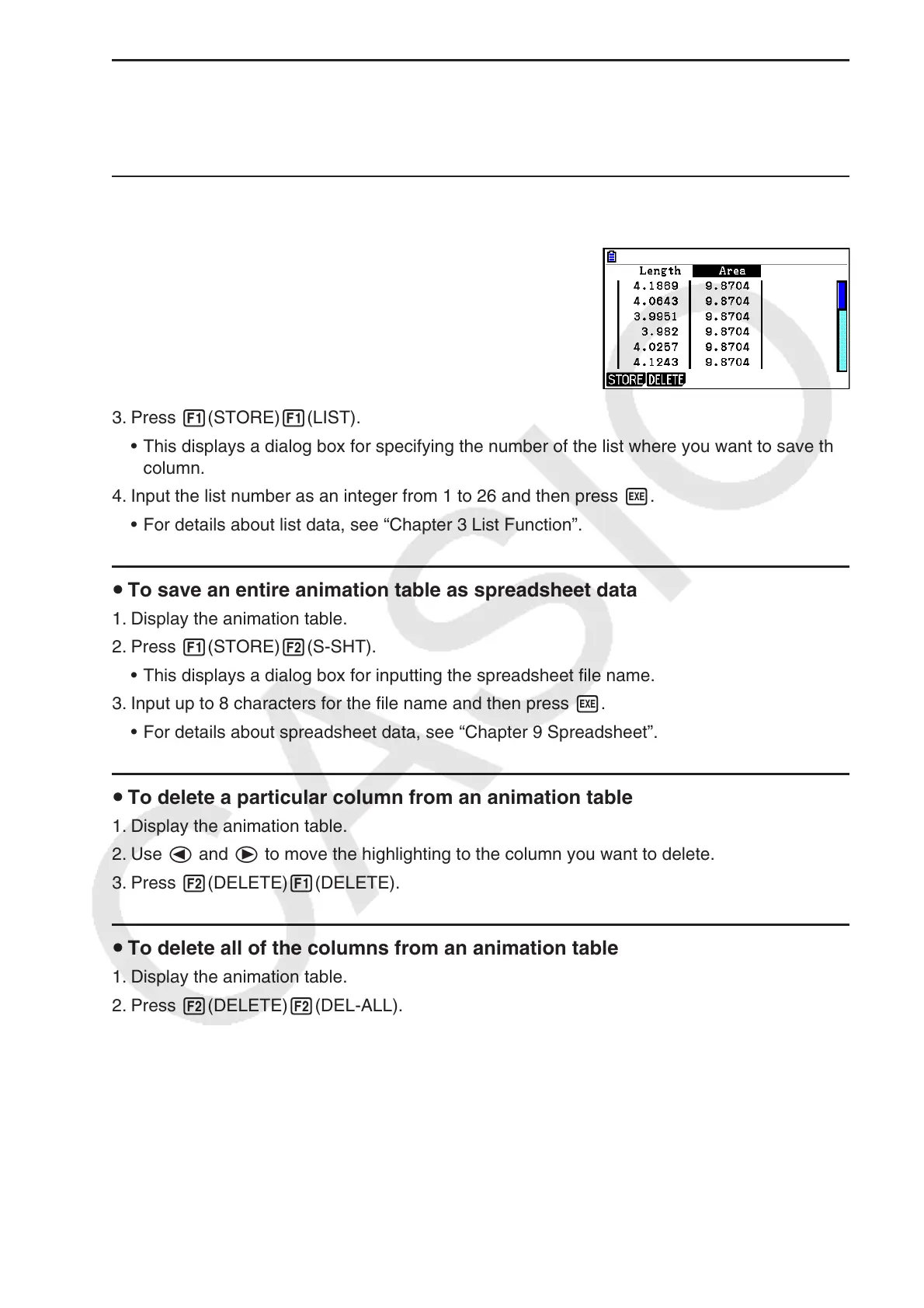
1. Display the animation table.
2. Use d and e to move the highlighting to the column
you want to save as list data.
3. Press 1(STORE)1(LIST).
• This displays a dialog box for specifying the number of the list where you want to save the
column.
4. Input the list number as an integer from 1 to 26 and then press w.
• For details about list data, see “Chapter 3 List Function”.
u To save an entire animation table as spreadsheet data
1. Display the animation table.
2. Press 1(STORE)2(S-SHT).
• This displays a dialog box for inputting the spreadsheet file name.
3. Input up to 8 characters for the file name and then press w.
• For details about spreadsheet data, see “Chapter 9 Spreadsheet”.
u To delete a particular column from an animation table
1. Display the animation table.
2. Use d and e to move the highlighting to the column you want to delete.
3. Press 2(DELETE)1(DELETE).
u To delete all of the columns from an animation table
1. Display the animation table.
2. Press 2(DELETE)2(DEL-ALL).
• This causes a confirmation dialog box to appear.
3. Press 1(Yes) to delete the selected file or 6(No) to cancel the delete operation.














 To Next Page