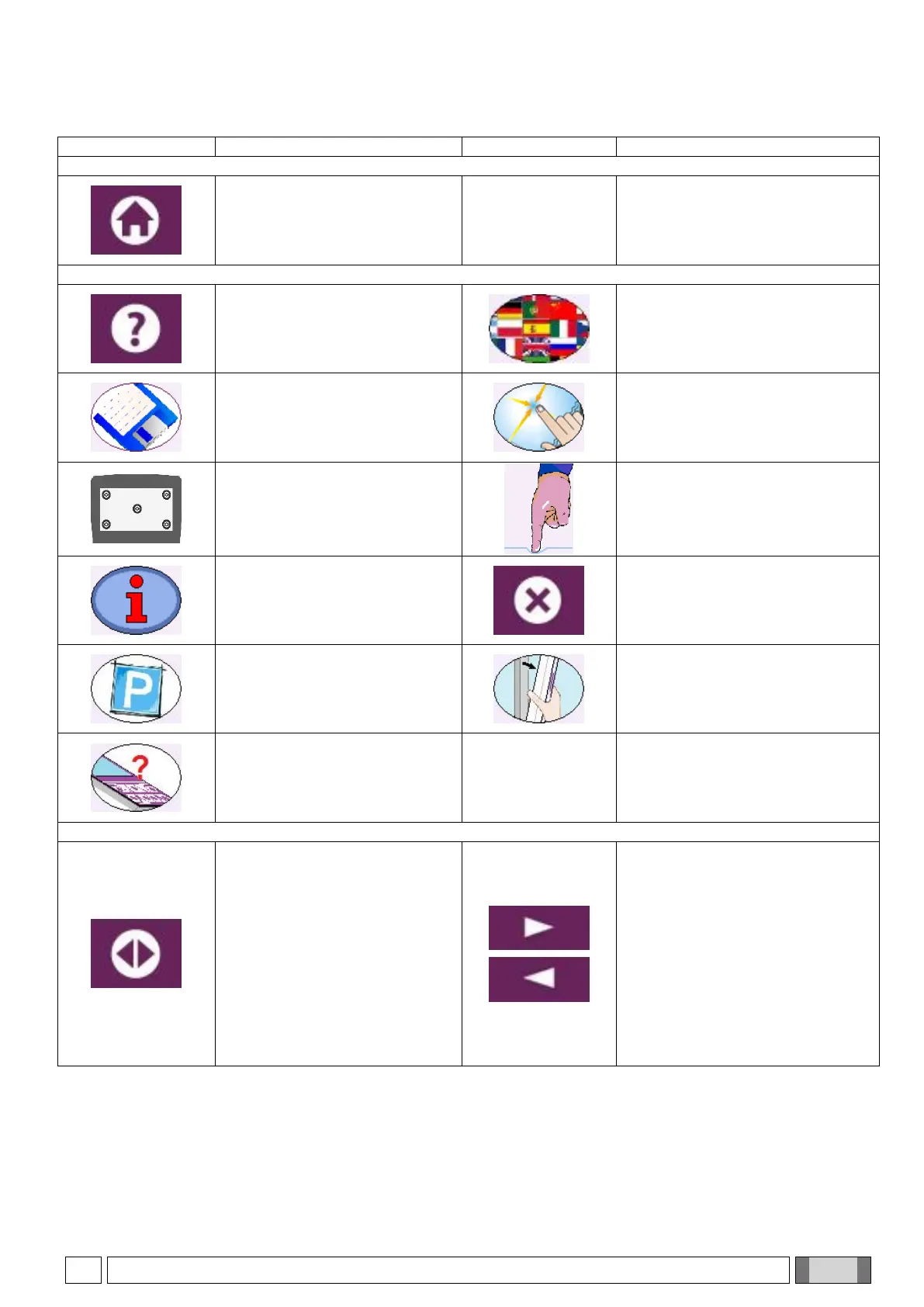
8.2. TOUCH SCREEN DISPLAY ICON
CONSOLE CONFIGURATION menu
By pressing this icon, the
CONSOLE CONFIGURATION
menu can be accessed
Current language selection
Touchscreen configuration menu
selection
Calibration button
Touch the centre of the blue
circle displayed with your
fingertip, until calibration is
completed
Touchscreen button sensitivity
Increase(+): higher sensitivity
Decrease(-): lower sensitivity, a
more vigorous touch is required to
activate the button
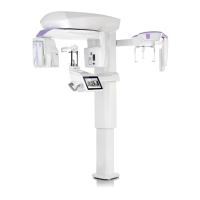
General information about the X-
ray device
CANCEL:
action cancellation performed
The display shows the previous
screen
Parking positioning: mechanical
axes position to minimise the
overall dimensions
2D sensor unhook positioning:
removable detector supports set
for sensor hooking/unhooking
Control panel test: utility to
check the proper operation of
LEDs and control buttons (for
technical service use only)
CURRENT Examination Screen Icons
This icon activates the
examination manual selection
mode, scrolling a list through
two arrow buttons in place of
PAN, DENT, TMJ, SIN, CEPH,
3D icons and allowing the
selection of diagnostic programs
without using graphical icons
It is also used as an alternative
method to choose among the
possible view fields
N.B.: the use of arrows is always
optional
It is possible to access all machine
functions by touching the relevant
icons with your fingertip


 To Next Page