5.2.3. SETTING THE PROJECTION TYPE
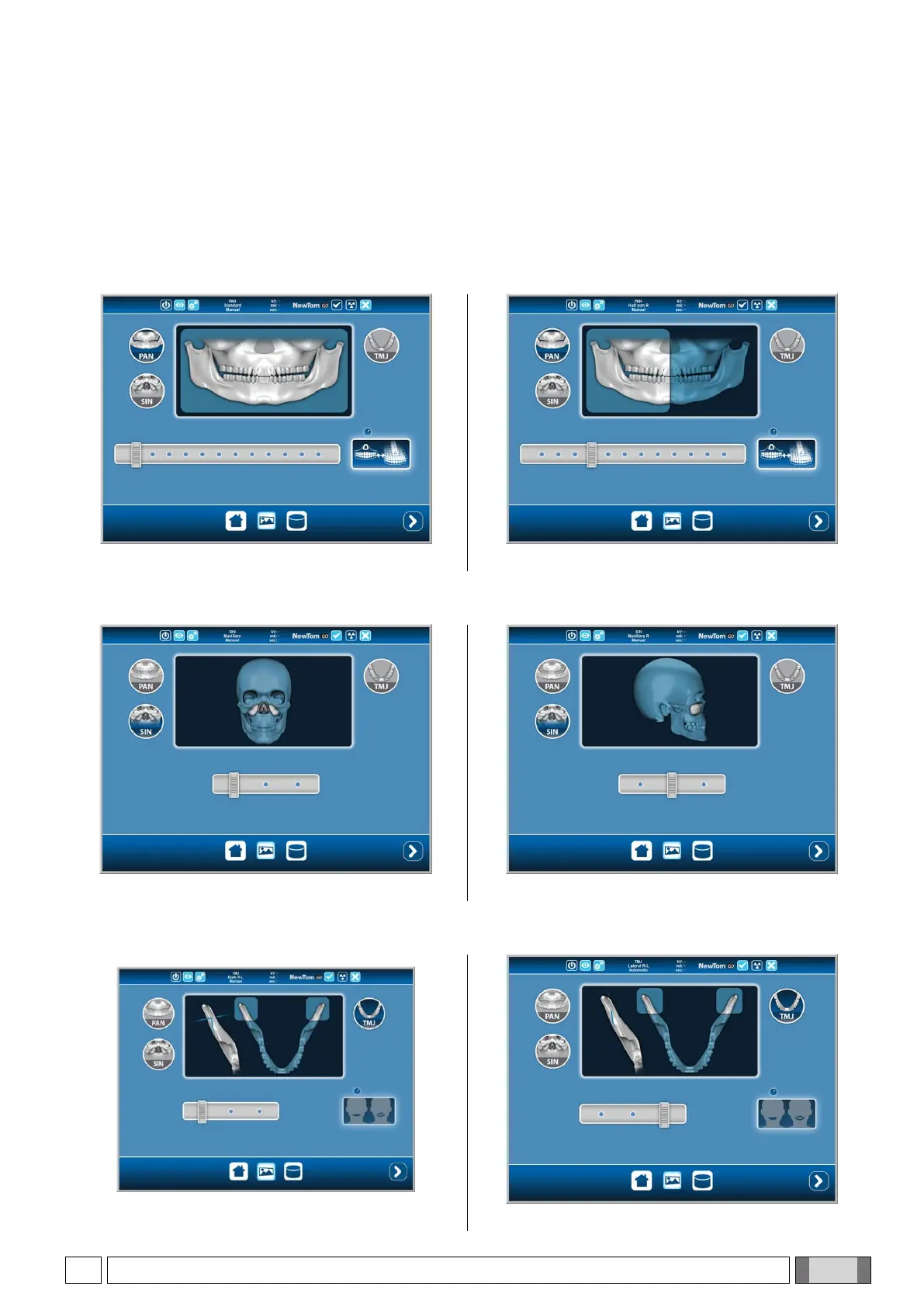
Inside the examination families, different projection types are available. Select one of three projections icon: PAN,
SIN and TMJ and then select the purple dots showing the name on the functional bar until the desired projection type
appears.
PAN
It is possible to choose among 9 types of panoramic X-rays. For a panoramic pediatric projection or panoramic
dentition, select PAN and then select the purple dots for PAN CHILD or PAN DENTITION. The figure appears as
blue and changes to white. Click on the dot as shown in the two examples below:
SIN
For SIN examinations, it is possible to choose among 3 types, clicking on a dot as shown in the two examples below:
TMJ
For TMJ exams, it is possible to choose among 3 types, clicking on a dot as shown in the two examples below:



 To Next Page