Chapter 9 –UFED Report Manager Software
32 UFED System
2. Run UFED Report Manager on PC
Launch the UFED Report Manager program on your PC. It
can be found on the Start menu under Programs / Cellebrite
Mobile Synchronization/ UFED Report Manager.
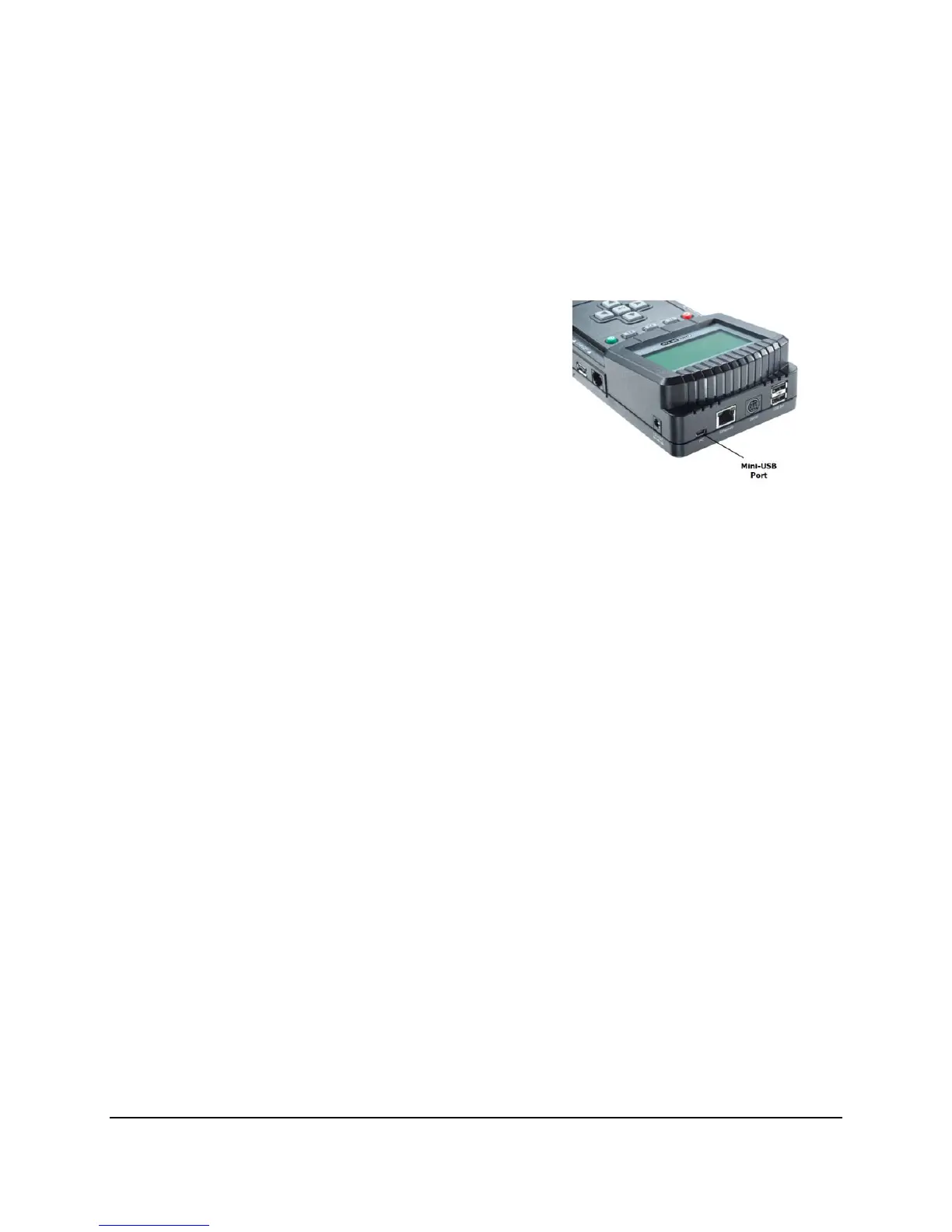
3. Connect the UFED to the PC using mini-
USB cable
Use the mini-USB cable that comes
in the UFED kit to connect the UFED
device to your computer. The small
end of the cable connects to the
UFED mini-USB port, labeled PC.
NOTE: The connection between the UFED device and the
PC is necessary only if you will be performing
extractions directly to PC. If you perform extraction
to USB or SD card, you do not this connection.
UFED Device Driver Installation
A USB device driver is necessary in order for the PC to recognize the
UFED device. In most cases, Windows will automatically pop up a
window, asking to install the device driver. Insert the installation CD
in the CD drive of the computer, and follow the steps of this wizard,
selecting Find on Installation CD.
Launch the UFED Report Manager program on your PC. It can be found on
the Start menu under Programs / Cellebrite / UFED Report Manager.



 To Next Page