Chapter 11 - Upgrade
User Manual 49
4. Upgrade
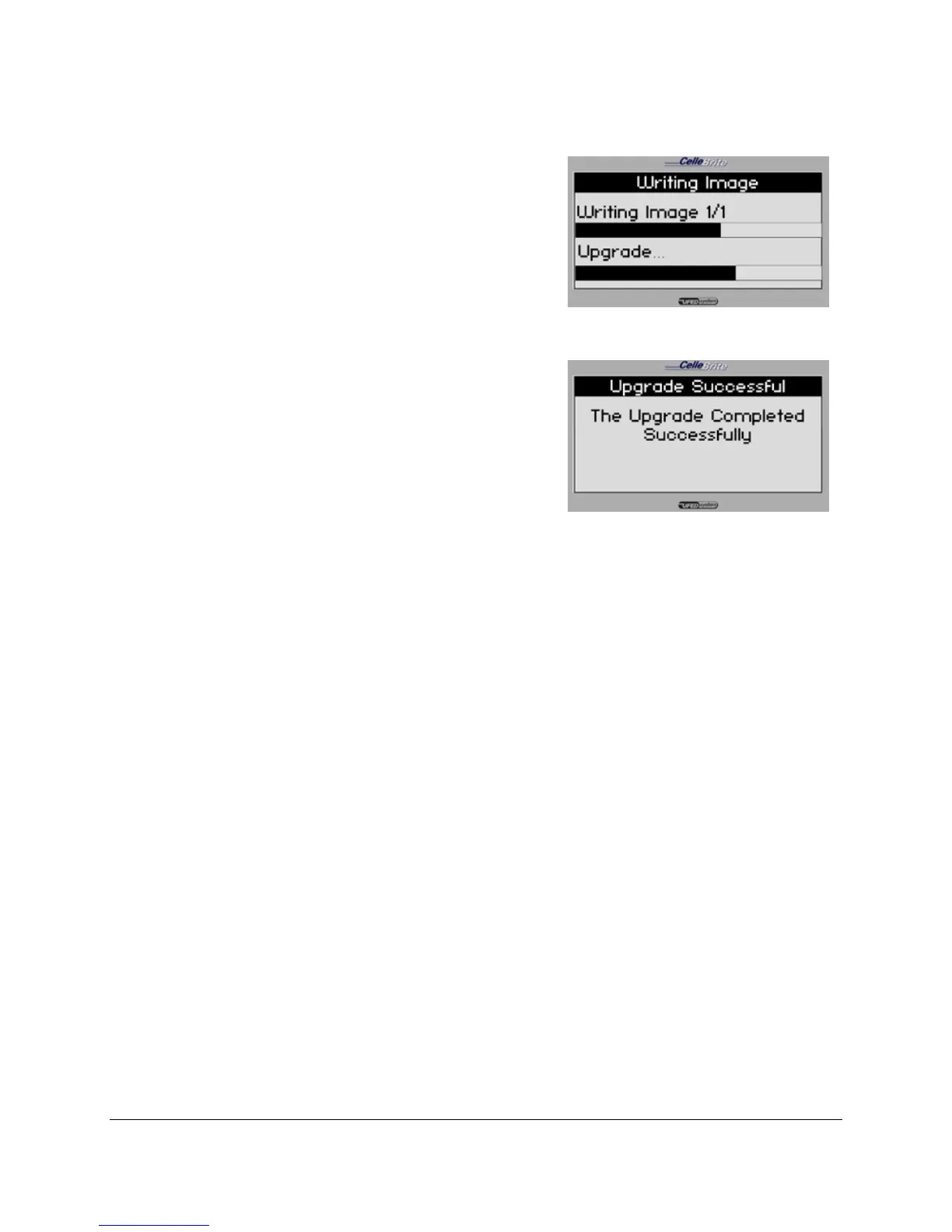
The UFED now performs the
upgrade, by fetching the upgrade
files from the HTTP server. Do not
interrupt the UFED until the full
process is complete.
5. Finish
After finishing the upgrade process,
the UFED displays a message
indicating that it completed the
update. It will then restart
automatically, and return to the main
menu.
11.5. Automatic Upgrade from Web
If your UFED is connected to the network via the Ethernet port, you can
configure it to perform automatic upgrades. This enables you to keep your
UFED up-to-date without requiring any ongoing interaction.
We recommend using this method, as it eliminates the manual process for
each upgrade, and guarantees that your UFED remains up to date.
To do this, first select Upgrade Settings from the Upgrade menu. Then, set
the following settings according to your preferences and your network
requirements, as described in the following section.



 To Next Page