Chapter 4 –Extract Phone Data
18 UFED System
4.4. Extract Phone Data to a PC
The UFED system includes UFED Report Manager software, which you
can use to upload the extracted phone data from the UFED to your PC.
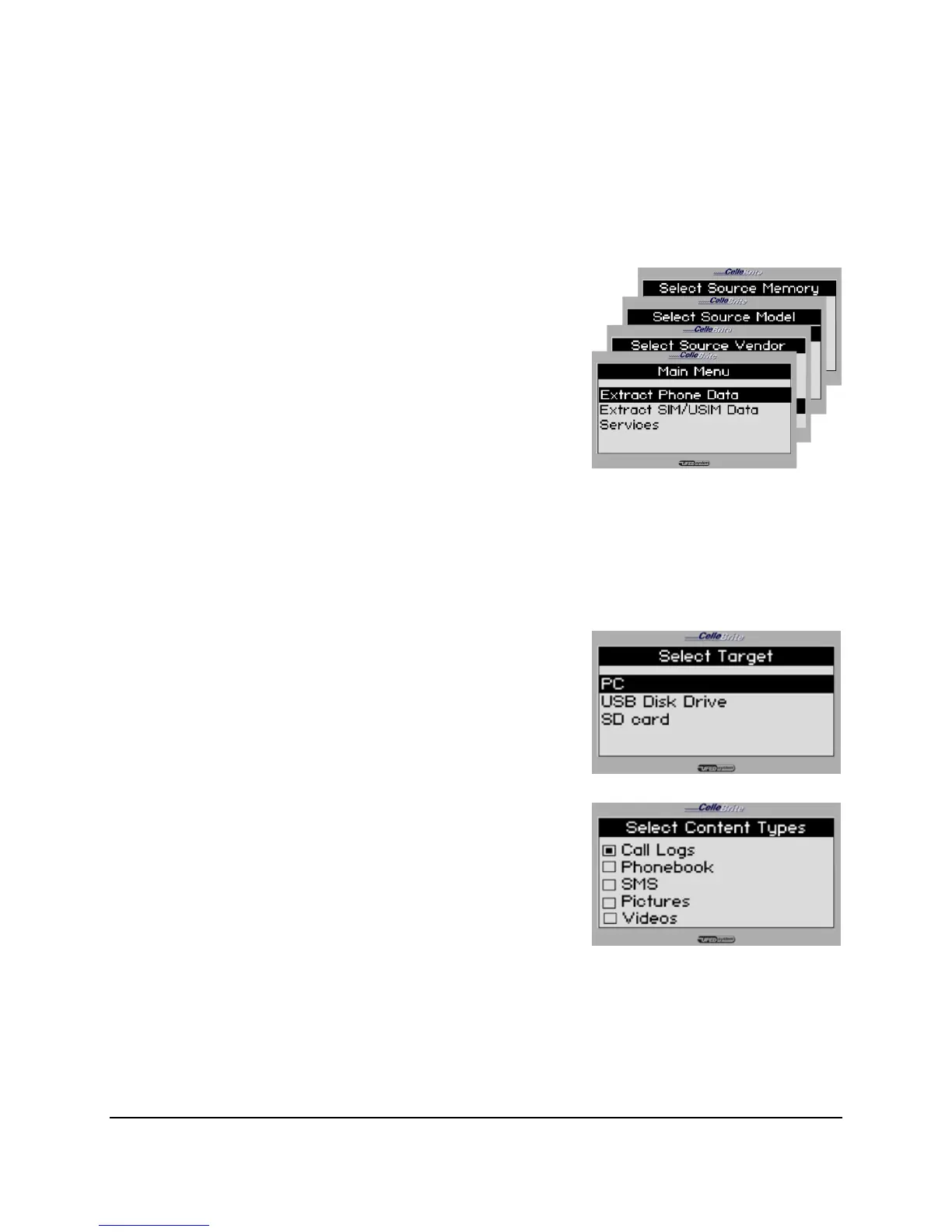
1. Main Menu and Phone Definitions
Select Extract Phone Data from the
main menu, and then select the phone
vendor, model, memory location and
link method.
This part of the process is identical to
the USB Extraction process. (see
Section 4.3).
Use the ▲▼ keys to move between
options. Press OK or ► to continue.
2. Target Selection
Select PC from the target menu.
Use the ▲▼keys to move between
options. Press OK or ► to continue .
3. Content Types
Select content types to be extracted.
The UFED displays the options
according to the capabilities available in
the source phone. (ex. If the phone
does not support video, the “Videos”
option will not appear).
Use the ▲▼ keys to move between
options. Press OK to select an option.



 To Next Page