to continue.
NOTE: Transfer time varies according
to the data types selected.
Selecting all options will increase
the transfer time.
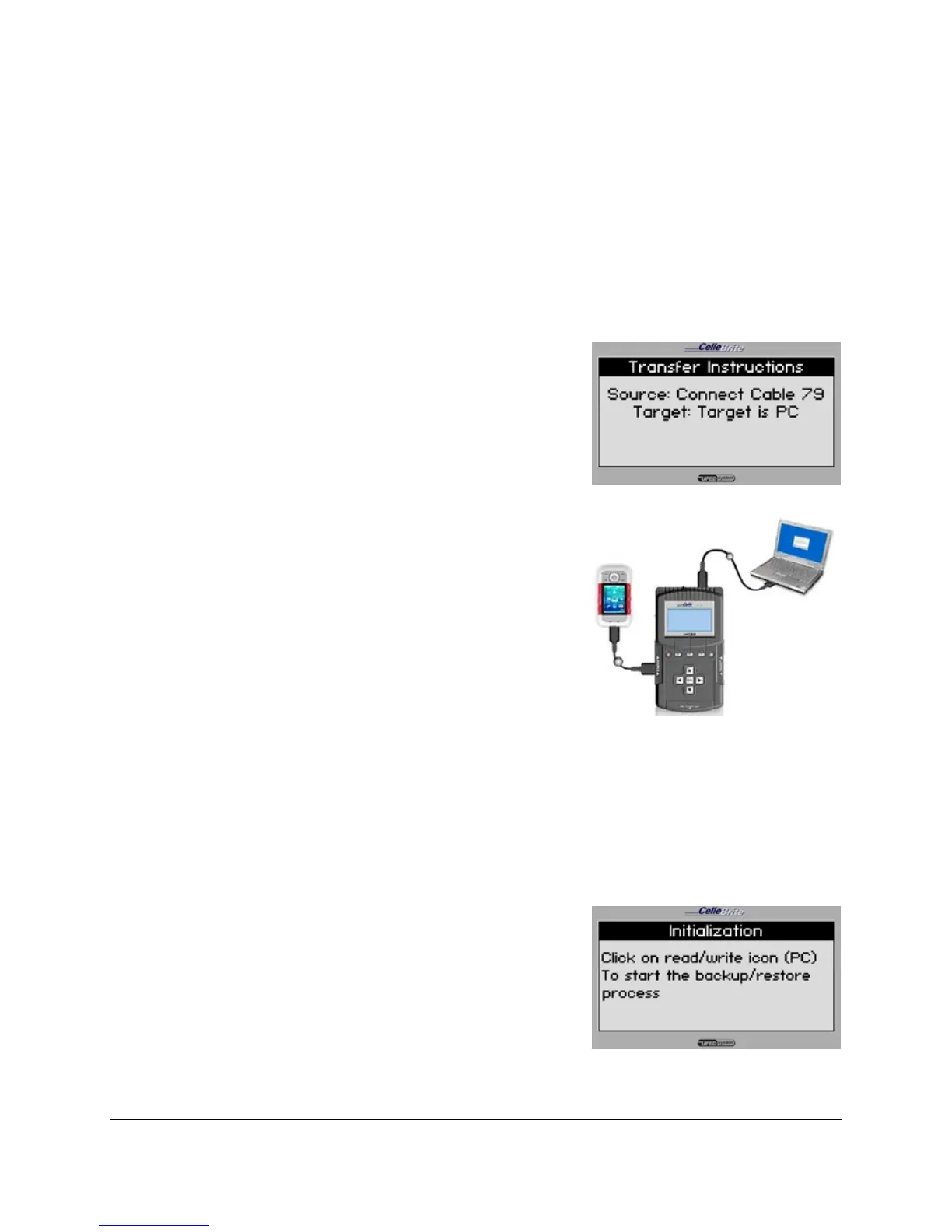
4. Transfer Instructions: Connection
Make sure that the UFED is connected
to the PC using the mini-USB cable.
The UFED displays the cable number to
be used to connect the phone.
NOTE: When connected to the UFED,
some phones will prompt you to
choose an operating mode, such
as “PC Suite” or “Phone Mode”.
Press ► to continue.
The UFED now extracts the selected
data to its internal memory, the
following message will appear at the
end of the extraction:
5. Run the UFED Report Manager
Run the UFED Report Manager
software on your PC by choosing
Start/Programs/Cellebrite Mobile
Synchronization/UFED Report
Manager.



 To Next Page