Upgrade
48 UFED System
1. Configure HTTP Settings (one time
only)
To upgrade from the web, first make
sure that the FTP/HTTP settings are
initialized properly. For most
network environments, the UFED
comes preconfigured properly. In
some cases where network
environments require proxies and
userid/passwords, set these settings
as described in Section 11.5
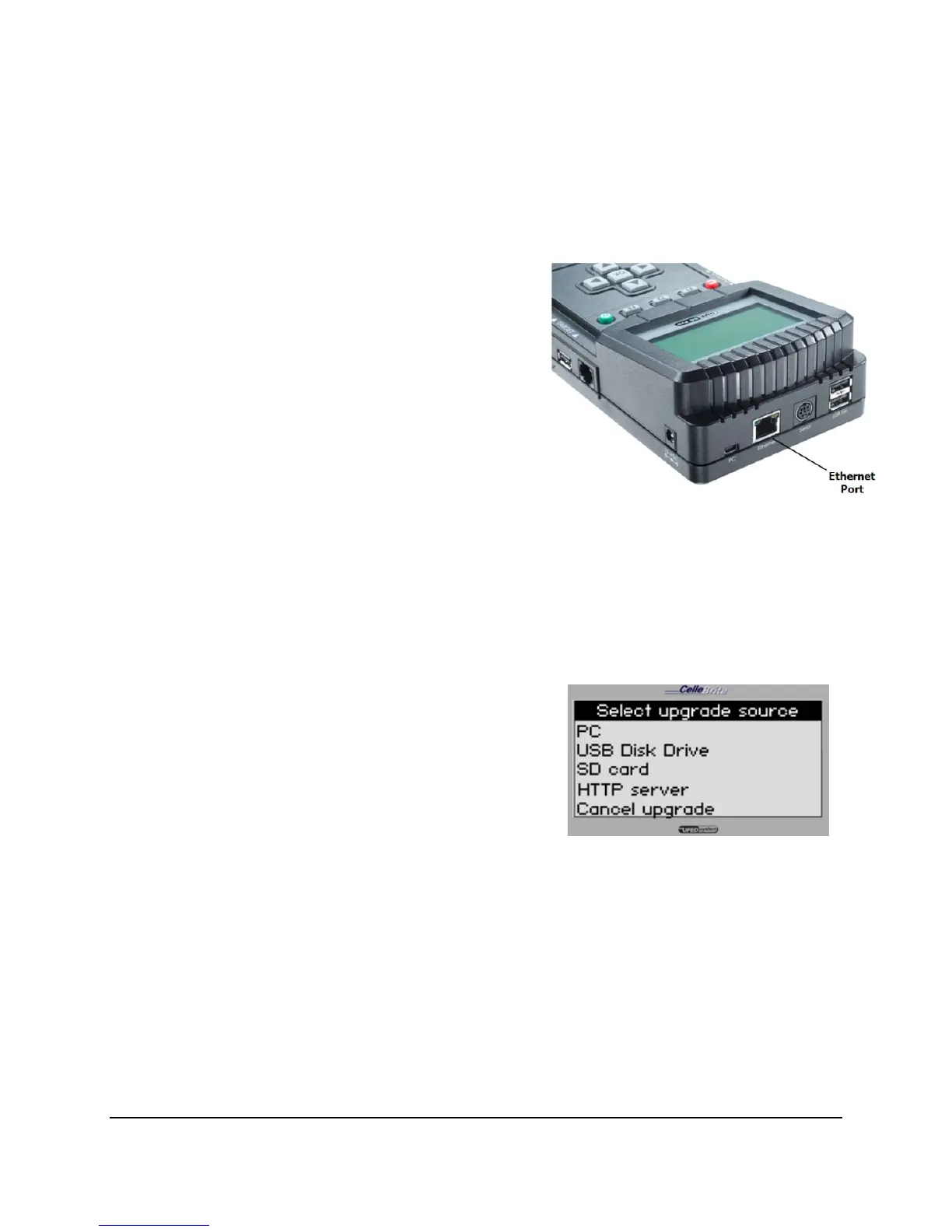
2. Connect the UFED to the network
Connect the UFED device to your
network via the Ethernet port on the
top of the UFED. Use a standard
Ethernet cable for this connection.
3. Select Update Type and Source
On the UFED, after choosing
Services / Upgrade, choose the type
of upgrade (Application or Image)
and select HTTP Server as the
source for the upgrade.
Use the ▲▼ keys to move between
options. Press OK or ► to continue.



 To Next Page