Upgrade
46 UFED System
When upgrading from a PC, the process is similar to that described
above for USB Disk Drive, with a few additional steps on your PC,
as described below.
1. Select Update Type and Source
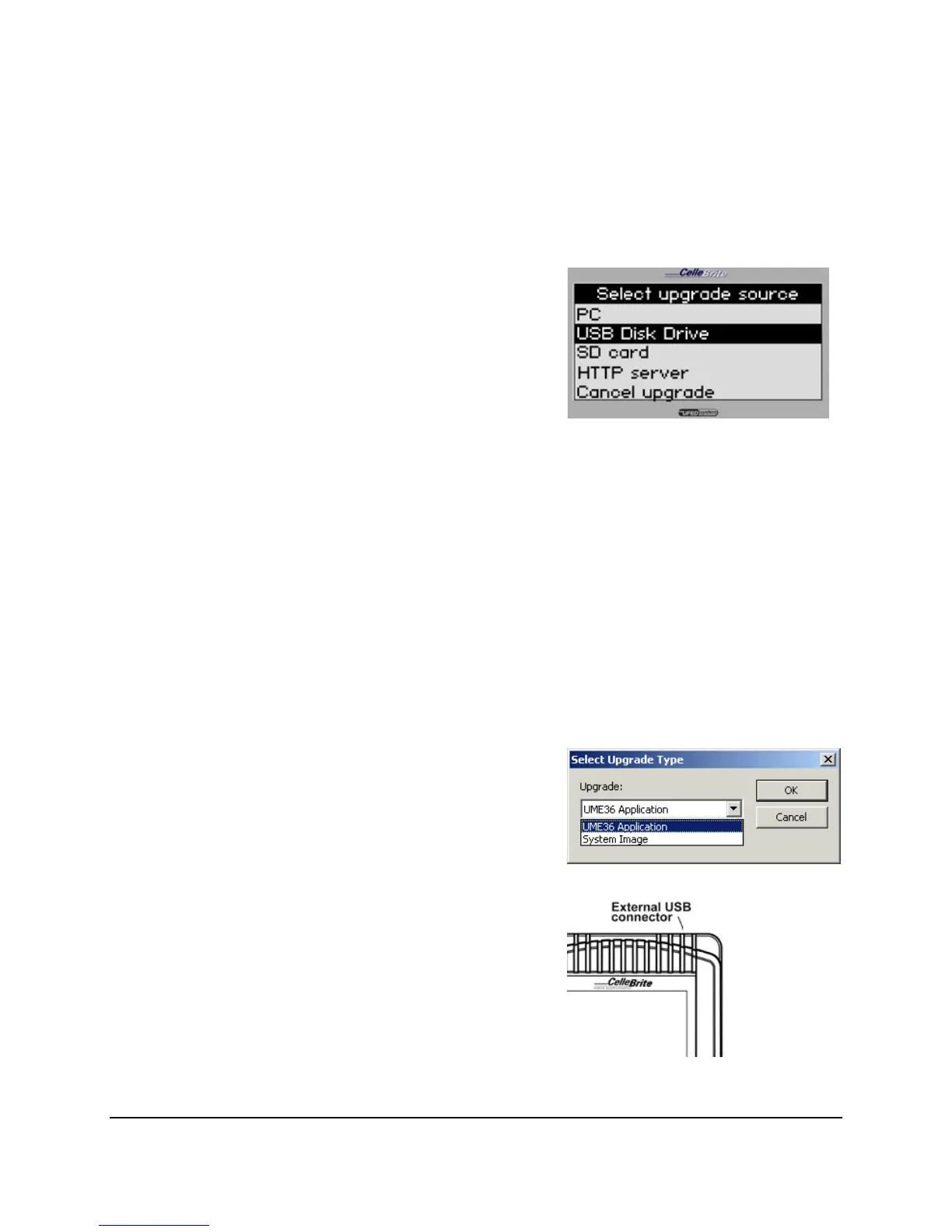
On the UFED, after choosing
Services / Upgrade, choose the type
of upgrade (Application or Image)
and select PC as the source for the
upgrade.
Use the ▲▼ keys to move between
options. Press OK or ► to continue.
2. Run the Upgrade Program on the PC
Run the Upgrade Program, via
“Start / Programs / Cellebrite /
Upgrade Program.”
7. Select Upgrade Type
On your PC, select the upgrade
type, according to the type that you
chose in step 1
8. Connect the UFED to the PC
Connect your UFED to the PC using
the mini-USB cable provided in the
kit. The cable connects to any
standard USB port on the PC.



 To Next Page