26
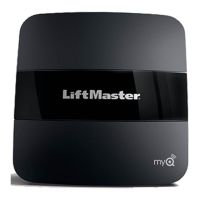
LiftMaster Internet Gateway (notprovided)
To program the operator to the LiftMaster Internet Gateway:
Using the learn button on the operator's control
board
1. Connect the Ethernet cable to the LiftMaster Internet Gateway and the
router.
2. Connect power to the LiftMaster Internet Gateway.
3. Create an online account by visiting www.myliftmaster.com.
4. Register the LiftMaster Internet Gateway.
5. Use an internet enabled computer or smartphone to add devices. The
LiftMaster Internet Gateway will stay in learn mode for three minutes.
6. Press the Learn button twice on the primary operator (the operator will
beep as it enters learn mode). The LiftMaster Internet Gateway will pair
to the operator if it is within range and the operator will beep if
programming is successful.
Using the reset button on the operator
1. Connect the ethernet cable to the LiftMaster Internet Gateway and the
router.
2. Connect power to the LiftMaster Internet Gateway.
3. Create an online account by visiting www.myliftmaster.com.
4. Register the LiftMaster Internet Gateway.
5. Use an internet enabled computer or smartphone to add devices. The
LiftMaster Internet Gateway will stay in learn mode for three minutes.
6. Ensure gate is closed.
7. Give the operator an OPEN command.
8. Within 30 seconds, when the gate is at the open limit press and release
the reset button 3 times (on primary gate) to put primary operator into
High Band Learn Mode (the operator will beep as it enters learn
mode). The LiftMaster Internet Gateway will pair to the operator if it is
within range and the operator will beep if programming is successful.
The status as shown by the LiftMaster Internet Gateway app will be either
“open” or “closed”. The gate operator can then be controlled through the
LiftMaster Internet Gateway app.
Erase Gateway
Note: Doing this will erase all wireless learned devices including
transmitters, keypads and any wireless dual gate programming.
1. Press and release the LEARN button on either operator. The green
XMITTER LED will light.
2. Press and release the LEARN button again on the same operator. The
yellow NETWORK LED will light.
3. Press and hold the LEARN button for 5 seconds. The yellow
NETWORK LED will blink (operator will beep) then turn off indicating
devices have been successfully erased.
Erase All Transmitter and Keypad Codes
1. Press and release the LEARN button (operator will beep and green
XMITTER LED will light).
2. Press and hold the LEARN button again until the green XMITTER LED
flashes and then release the button (approximately 6 seconds). All
remote control codes are now erased.
Erase Limits
1. To erase the limits, press and hold the SET OPEN and SET CLOSE
buttons simultaneously (5 seconds) until both the SET OPEN and SET
CLOSE LEDs blink rapidly and the operator beeps.
2. Release the buttons and the SET OPEN and SET CLOSE LEDs will blink
slowly indicating the limits will need to be set.
Constant Pressure Override (CPO)
Constant Pressure Override is for use with KPW5 and KPW250 keypads
(not provided). The KPW5/KPW250 wireless commercial keypads are
security keypads and can only be programmed to ONE gate operator (see
the KPW5/KPW250 manual for complete programming instructions).
The Constant Pressure Override feature is intended to temporarily override
a fault in the entrapment protection system, in order to operate the gate
until the external entrapment protection device is realigned or repaired. Use
the feature only in line of sight of the gate when no obstructions to travel
are present. External entrapment protection devices include LiftMaster
monitored photoelectric sensors and LiftMaster monitored wired and
wireless edge sensors. Be sure to repair or replace these devices promptly
if they are not working properly.
To use Constant Pressure Override:
1. Enter a valid 4-digit PIN.
2. Press and hold # for 5 seconds to enter CPO. Continue to hold # to
keep the operator in motion. A continuous tone will sound until limit is
met and/or # is released.
3. The operator will stop when either the operator reaches a limit or the
user releases #.
Gate Hold Open Feature
The gate hold open feature will disable the timer and keep the gate at the
open limit. The gate hold open feature can be activated through the Reset
Button as described on page 28 or through the KPW5 and KPW250
keypads (not provided).
To use the gate hold open feature:
1. Enter a valid 4-digit PIN when the gate is at the Open Limit and the
timer is running
2. The Operator will chirp indicating the timer is canceled.
To restart the gate:
1. Re-enter the 4-digit PIN
2. Activate a Hard input or a programmed remote
To Remove and Erase Monitored Entrapment
Protection Devices
1. Remove the entrapment protection device wires from the terminal
block.
2. Press and release the SET OPEN and SET CLOSE buttons
simultaneously. The SET OPEN and SET CLOSE LEDs will turn on
(entering learn limit mode).
3. Press and release both SET OPEN and SET CLOSE buttons again to
turn off the SET OPEN and SET CLOSE LEDs (exiting learn limit mode).
PROGRAMMING




 To Next Page