16
:: Getting Started
Playing a Recorded Program
1 Using the remote control, press DVR.
2 On the DVR Recordings screen, use the arrow buttons on
the remote to highlight the program you want to record. Then
press OK/SELECT.
3 On the Recording Options pop-up, select one of the following
options:
• Resume Playback – Resume playback from where you left
off. This option is available only if you’ve previously played
the recording.
• Play Recording – Play back the recording from the
beginning.
• Delete – Delete the recording.
• Options – Rename or lock the recording.
Deleting a Recorded Program
1 Using the remote control, press DVR.
2 On the DVR Recordings screen, use the arrow buttons on
the remote to highlight the program you want to delete. Then
press OK/SELECT.
3 On the Recording Options pop-up, select Delete.
4 On the Delete Recording pop-up, press OK/SELECT to
confi rm the deletion.
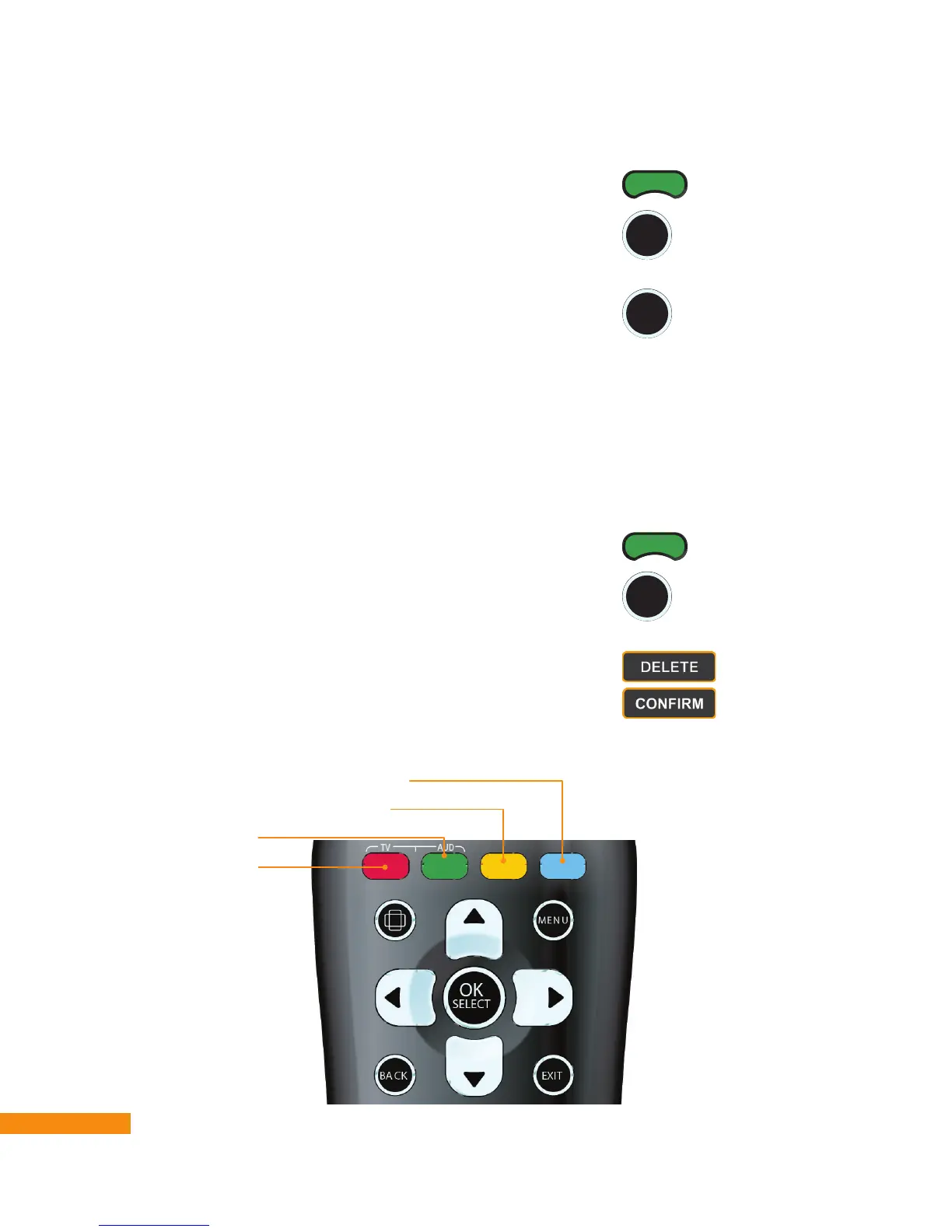
Managing Recordings (DVR Recordings screen)
• View schedule, history, and recordings
• Sort recordings A–Z or by date/time
• Search recordings
• Delete a recording
SELECT
OK
DVR
SELECT
OK
SELECT
OK
DVR


 To Next Page