26
:: Menus and Options
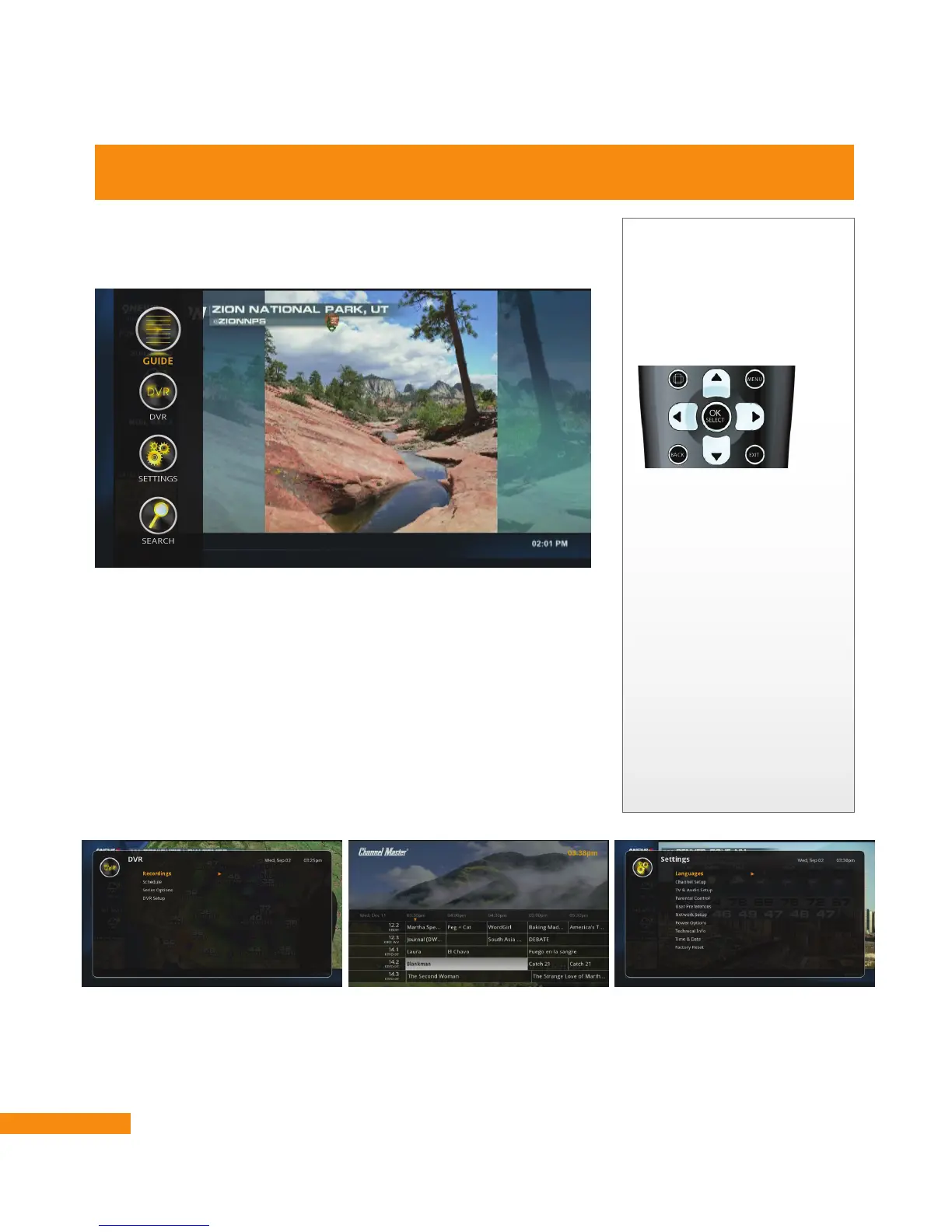
You can access the main menu of your DVR+ by pressing MENU
on the remote control. The main menu displays vertically along the
left side of your TV screen.
Main Menu Items
The following items appear on the DVR+ main menu:
• GUIDE – Browse what’s on now and what’s scheduled to be
broadcast in the future. Highlighting and selecting a program or
event from the guide displays a pop-up options sub-menu.
• DVR – Manage and play back your recordings.
• SETTINGS – Set your user preferences and confi gure a variety
of options available on your DVR+.
• SEARCH – Find a program to watch or record.
DVR+ Main Menu
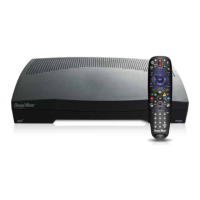
Menu Navigation
You can easily navigate
the menu screens on the
DVR+ using the arrow
buttons toward the top of
the remote control:
Pressing the Up arrow
moves the cursor or
highlight up; pressing
the Down arrow moves it
down; pressing the Right
arrow moves it right;
pressing the Left arrow
moves it left.
Finally, pressing the
OK/SELECT button in
the center will select the
currently highlighted item
(like a program name) or
option (like Confi rm or
Cancel) on your screen.


 To Next Page