21
Resetting the B3075 to Factory Default Settings
If you know the password for the admin account, you can easily restore the factory default settings.
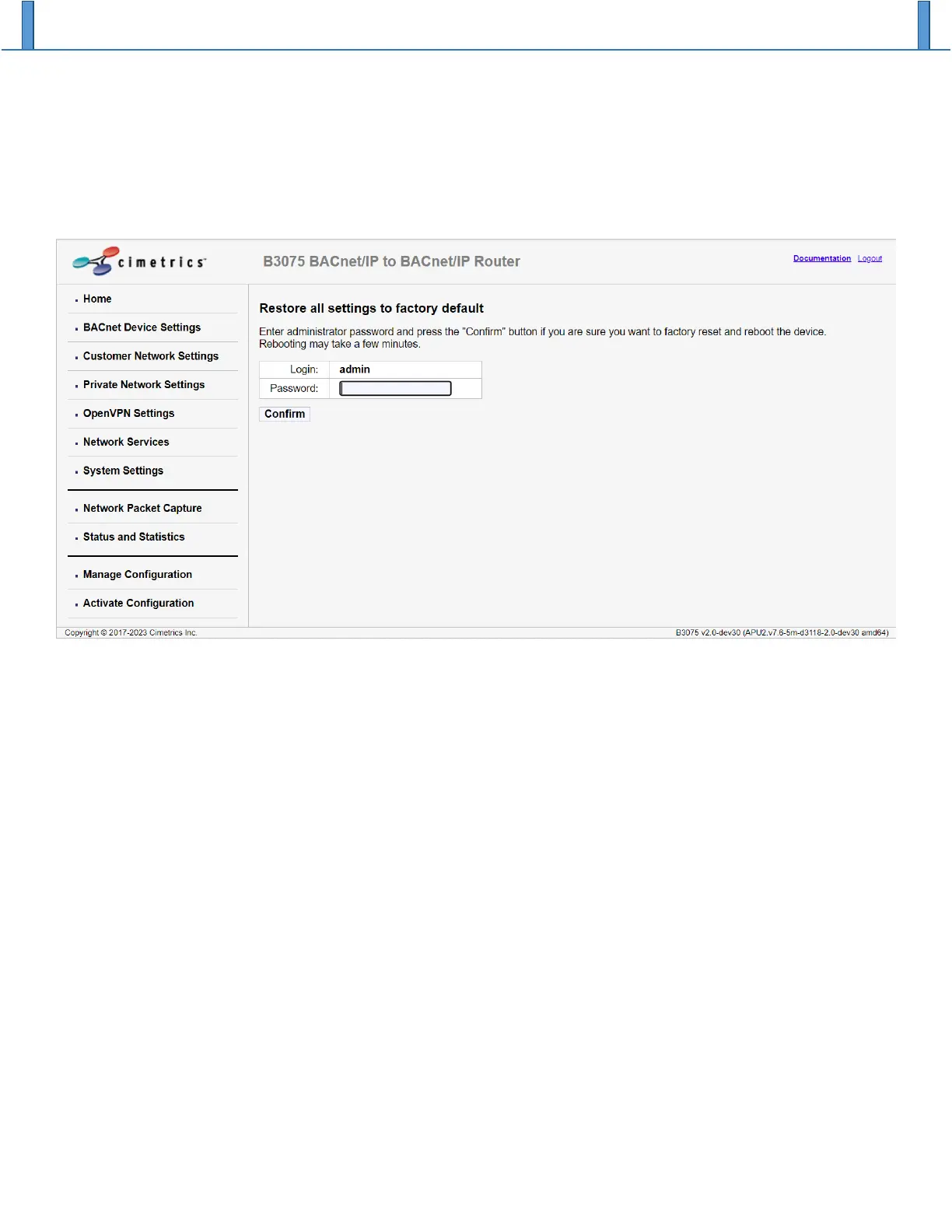
Navigate to the “Manage Configuration” web page. After you click on the “Restore default” button, you will
see the following password challenge:
Once you enter the current admin password and then click on the “Confirm” button, the B3075’s current
configuration will be replaced by the factory default configuration, and the B3075 will reboot. You can
then reconfigure the B3075 as required after you login using the factory default admin password.
How to reset to factory default settings if the admin password is unknown
Even if you don’t know the current password for the admin account, it is still possible to restore all factory
default settings and to recover the factory default admin password. To do this, you will need a USB mouse,
a PC, an Ethernet cable, and physical access to the B3075. The recommended procedure is as follows:
1. Connect a USB mouse to one of the B3075’s USB ports, and then power cycle the B3075 by
disconnecting its external power adapter from AC power for several seconds. It will take a couple of
minutes for the B3075 to reboot after the power is restored.
2. Connect a PC to the B3075’s configuration port using an Ethernet cable, and then using the PC’s
web browser connect to the B3075’s built-in web server as described in the B3075 Quick Start
document.


 To Next Page