Use Your Camera with Webex
Set the Microphone on Your Camera as the Default Microphone
for Webex App
You can configure your Webex App to use the microphone on your camera as the default audio input device
for calls and meetings.
Before you begin
Connect your camera to your computer.
Procedure
Step 1 Click your profile picture and choose Settings > Audio.
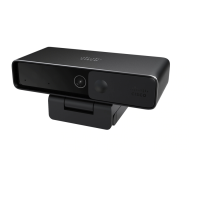
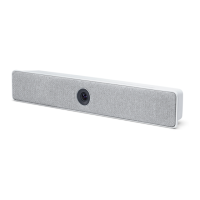
Step 2 Choose Microphone (Cisco Webex Desk Camera) from the Microphone dropdown list.
Step 3 (Optional) Adjust the input level by dragging the Volume slider left or right.
Step 4 Click Save.
Related Topics
Use Your Camera with Webex
Set the Microphone on Your Camera as the Default Microphone for Webex App, on page 15
Webex Desk Camera User Guide
15
Use Your Camera with Webex Apps
Set the Microphone on Your Camera as the Default Microphone for Webex App




 To Next Page