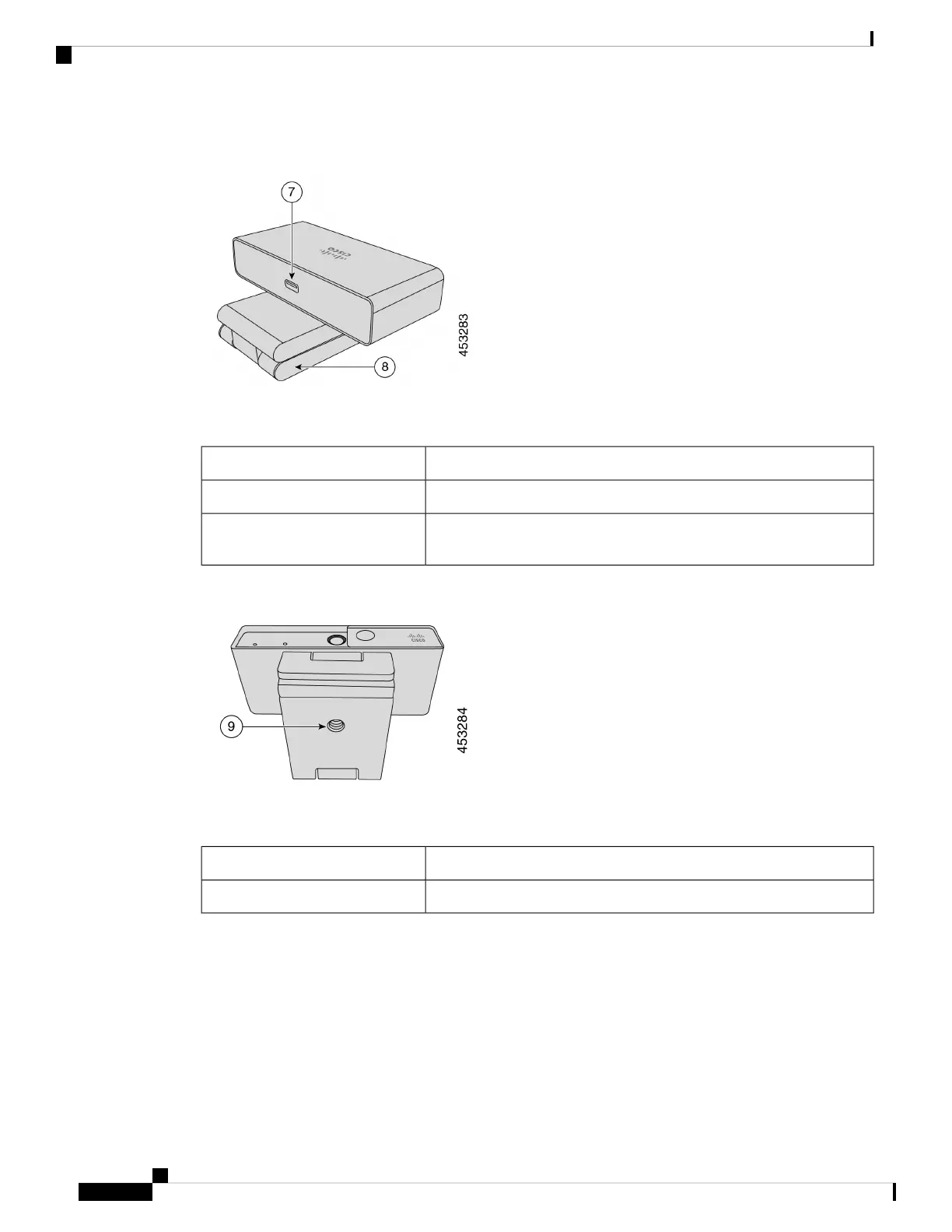
Figure 3: Webex Desk Camera back view
Table 4: Hardware Components at the Back
DescriptionComponent
The USB cable plugs into this port to connect the camera to a computer.7. USB-C port
Supports multiple mounting options on flat surfaces or on top of displays.
The adjustable hinges provides flexible angles.
8. Camera base and clip
Figure 4: Webex Desk Camera bottom view
Table 5: Hardware Component at Bottom
DescriptionComponent
Use the 1/4"-20 screw thread to mount the camera to a tripod.9. Tripod screw thread
Additional Help and Information
If you have questions about the functions available on your camera, contact your administrator.
The Cisco website (https://www.cisco.com) contains more information about the camera.
• For release notes, quick reference guide, and user guide, go to https://www.cisco.com/c/en/us/support/
collaboration-endpoints/webex-desk-camera/model.html#%7Etab-documents.
Webex Desk Camera User Guide
4
Your Camera
Additional Help and Information




 To Next Page