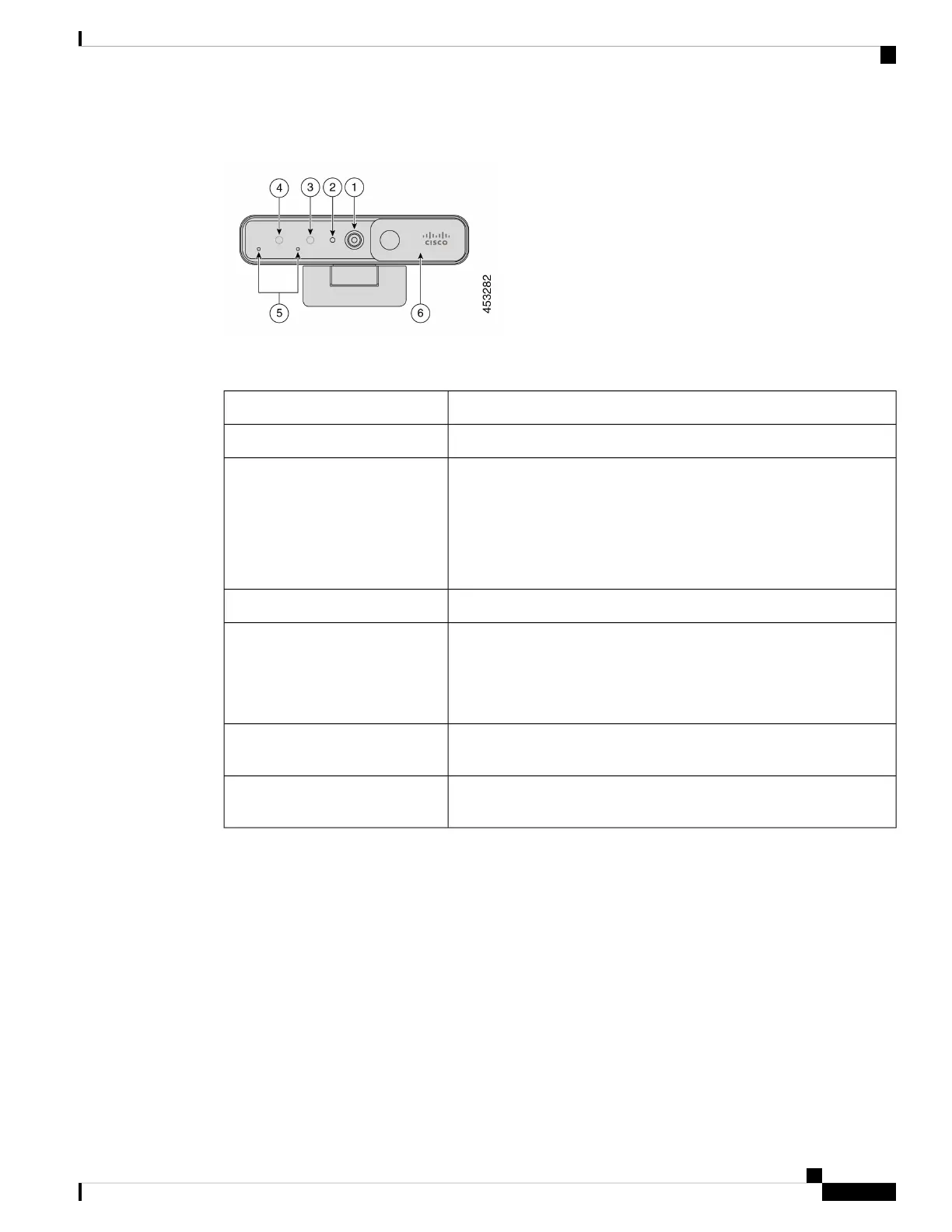
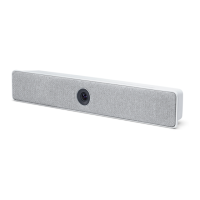
Figure 2: Webex Desk Camera front view
Table 3: Hardware Components on the Front
DescriptionComponent
Supports video stream and static snapshots.1. RGB camera
Indicates the camera status:
• Solid green for 1.5 seconds: camera is booting.
• Solid green: RGB camera is in use.
• Off: RGB camera is in standby mode or the shutter is closed.
2. LED indicator
Supports Windows Hello via the IR sensor.3. IR camera
Indicates the IR camera status:
• Flash red: The IR camera is in use by Windows Hello.
• Off: The IR camera is not in sue.
4. IR LED
The audio input channel of the camera. You can mute the audio or adjust
the input volume from the Webex Desk Camera app.
5. Microphones
Turns the video stream on or off and blocks the camera lens when closed
to protect privacy.
6. Shutter
Webex Desk Camera User Guide
3
Your Camera
Camera Hardware




 To Next Page