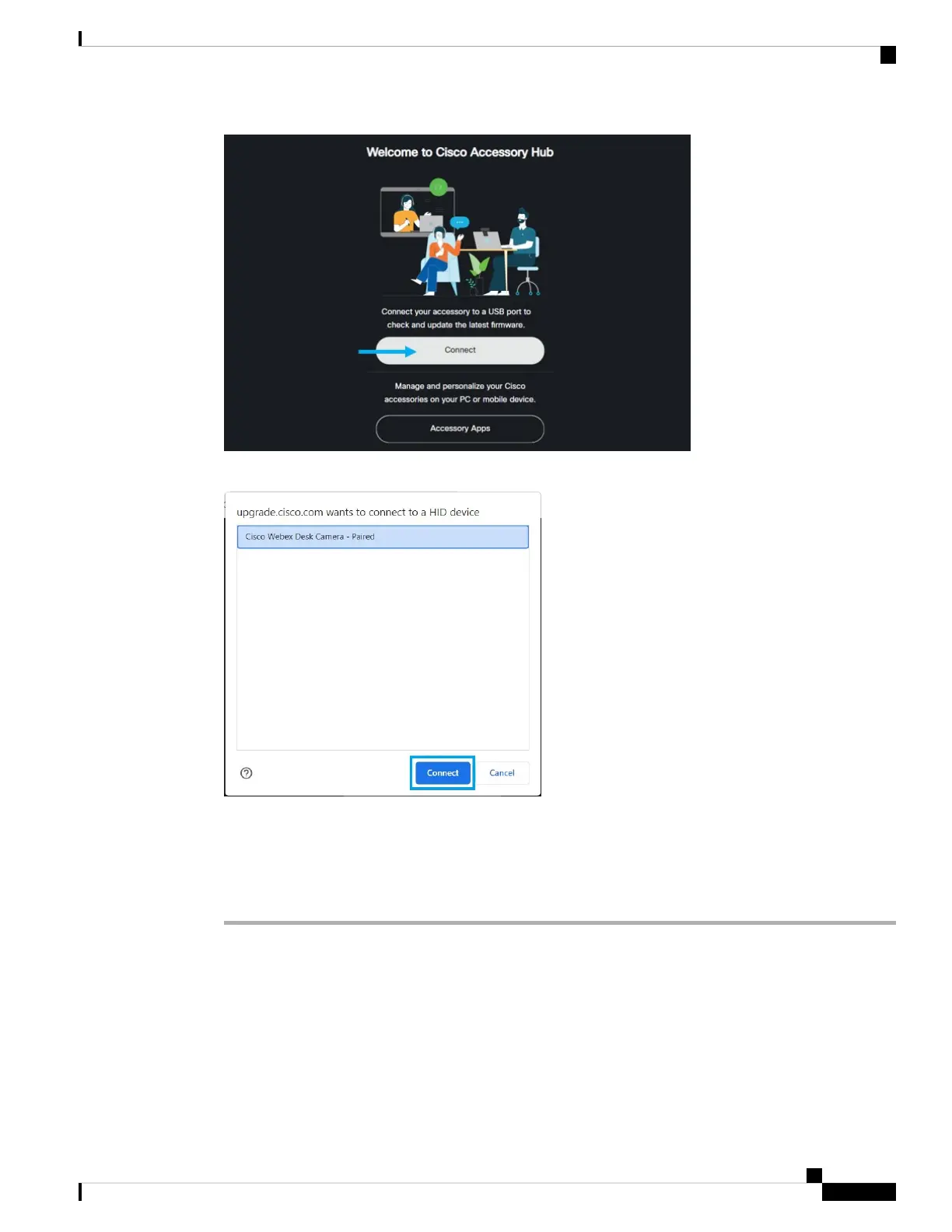
Step 4 Select Cisco Webex Desk Camera from the prompted device list and click Connect.
Step 5 Follow the onscreen instructions.
Keep your camera connected to your computer during the upgrade.
Note
Step 6 When the upgrade completes, wait about 30 seconds for your camera to reboot.
Related Topics
Upgrade the Camera Firmware with the Camera App, on page 25
Reset the Camera Settings
Perform a factory reset if you want to return the camera to the original settings. This can resolve some technical
issues.
Webex Desk Camera User Guide
27
Maintain Your Camera
Reset the Camera Settings




 To Next Page