EasyManua.ls Logo

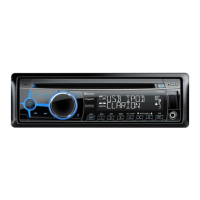
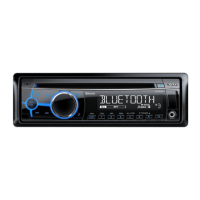
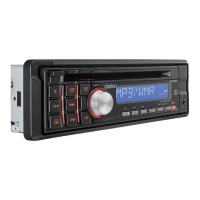
Clarion M502 - User Manual

Clarion M502
21 pages
Print Icon
To Next Page IconTo Next Page
Loading...
//
r'Q
~
~
.
···
····
(._f)~
-
~
3~;;:
~
r,
/
~
\
g
.
~
/
(]
7i
h%
:
(:\i£1
,
''
®
\
\
~
p;J
i%~'
+
f#!
.:,
(J
~.
!.:·\11·
,
1*
.\j
~~
(
·.'
).
crJJ
\
~
! \
,
_J
,
I ,
./
[j
~
Owner's
manual
&
Installation manual
Manual
de instrucciones
y de
instalaci6n
M502
Bluetooth®
USB/MP3/WMA
DIGITAL MEDIA RECEIVER
RECEPTOR
DE
MEDIOS DIGITALES
Bluetooth®
USB/MP3/WMA

Questions and Answers

  • N
    Nicole KirkSep 10, 2025
    Why can't I insert my USB device into the Clarion M502?
    • C
      courtney41Sep 10, 2025
      If you can't insert the USB device, it might be because it's inserted in the wrong direction or the USB connector is broken. Reverse the connection direction of the USB device and try again. If it still doesn't work, replace it with a new USB device.
  • W
    wrightjuanSep 12, 2025
    Why is there no sound when the display shows 'No File' on my Clarion M502?
    • S
      Samantha DavenportSep 12, 2025
      If you see 'No File' and hear no sound, it means there are no MP3/WMA files stored on the USB device. Store these files properly on the USB device.
  • R
    ricejeffreySep 14, 2025
    Why is there no audio output from my Clarion Marine Equipment?
    • H
      hector70Sep 14, 2025
      If you experience no or low audio output from your Clarion Marine Equipment, there might be several reasons: * The volume might be set too low, so try increasing the volume. * There could be an improper audio output connection, in which case you should check the wiring and correct it. * The speakers could be damaged, requiring replacement. * The volume balance might be heavily biased, so adjust the channel balance to the center position. * Speaker wiring might be in contact with a metal part of the car, so insulate all speaker wiring connections.
  • J
    Jacob SmithSep 16, 2025
    Why is the sound quality poor on my Clarion Marine Equipment?
    • S
      shawn49Sep 16, 2025
      Poor sound quality or distortion in your Clarion Marine Equipment could be due to several factors. The speaker power rating might not match the unit, requiring speaker replacement. There might be wrong connections, so you should check the wiring and correct it. The speaker could also be shorted, so check the wiring and correct it as well.

Summary

1. FEATURES

2. PRECAUTIONS

3. CONTROLS

Operational Panel

Visual layout of the control panel and its components.

Names of Button

Identifies and explains the function of each button on the control panel.

Front Panel; Generalities

USB Port

Remote Control (RCX003)

Optional Wired Remote Control Unit Operations

4. OPERATIONS

Basic Operations

Covers fundamental operations like power, volume, source selection, and display.

Volume adjustment

How to adjust the volume level of the audio system.

Playing source selection

How to select and switch between different audio sources.

Display system time

How to view and potentially set the system time display.

RESET

Procedure for resetting the unit to factory default settings.

SiriusXM Satellite Radio Operations

Displaying the Identification (ID) Code

How to display the SiriusXM Radio ID code for service activation.

Storing Channel Presets

Instructions for saving favorite SiriusXM channels to preset memory.

Tuning Channels using Presets

How to select stored channels using the preset memory.

Category Browsing

Navigating and selecting channels by category for SiriusXM.

Preset scan

Scanning through preset SiriusXM channels to find a desired station.

Channel scan (in current category)

Scanning channels within the currently selected SiriusXM category.

iTunes song tagging

Changing the Display

Parental Lock; Unlock

USB Operations

Pausing play

How to pause and resume playback of USB audio files.

Selecting a track

Navigating to the next or previous track on a USB device.

Fast-forward;Fast-reverse

Using fast forward and rewind functions for USB audio playback.

Folder Select

Selecting specific folders on a USB device to play MP3/WMA files.

Search Function

Searching for specific tracks or folders within a USB device.

Top function

Resetting the USB player to the first track of the device.

Other various play functions

Explains scan play, repeat play, and random play for USB devices.

iPod & iPhone Operations

Repeat play

Repeating the current track or all tracks from an iPod/iPhone.

Random play

Playing iPod/iPhone tracks in a random order.

Setting iPod simple control mode

Enabling direct control of the iPod/iPhone from the car unit.

iPod menu alphabet search

Searching iPod menus and content alphabetically.

Listening to PANDORA

AUX Operations

AUX Input sensitivity setting

Adjusting the input sensitivity for AUX audio sources.

Bluetooth Operations

Pairing

Steps to pair a mobile phone with the car's Bluetooth system.

Making a call

How to initiate calls using Bluetooth phone features.

Answering a call

How to answer or reject incoming calls via Bluetooth.

Audio Streaming Operations

How to stream audio wirelessly from a Bluetooth device.

Play;Pause a track

Controlling audio playback from a Bluetooth device.

Selecting a track

Navigating between tracks during Bluetooth audio streaming.

5. TROUBLE SHOOTING

GENERAL

Troubleshooting common issues related to power, buttons, display, and audio output.

USB Devices

Troubleshooting problems specific to USB device connection and playback.

6. ERROR DISPLAYS

Display

Lists error codes and their corresponding causes and measures.

7. SPECIFICATIONS

8. INSTALLATION; WIRE CONNECTION GUIDE

Before Starting

Preparations and safety precautions before installing the unit.

Package Contents

Lists all items included in the product package.

General Cautions

Important general safety and handling precautions during installation.

Cautions on Installation

Specific warnings and guidelines related to the installation process.

Installing the Source Unit

Step-by-step instructions for physically installing the main unit.

Removing the Source Unit

Disassemble trim ring

Steps to remove the trim ring from the unit.

Wiring and Connections

Connecting the accessories

Instructions for connecting external accessories like amplifiers and tuners.

Clarion M502 Specifications

General IconGeneral
BluetoothYes
USB InputYes
AUX InputYes
Pandora ControlYes
iHeartRadio ControlYes
HD RadioNo
Remote ControlYes
Video PlaybackNo
Power Output50W x 4
Tuner TypeAM/FM
Peak Output50W x 4
Audio FormatsMP3/WMA

Related product manuals