12 VTM1
English
Using the General Setup page:
1. Press the SETUP button on the remote control. The DVD Setup menu opens.
2. Press or to select the General Setup page, then the list opens.
3.
Press or to select from the following options: TV DISPLAY - ANGLE MARK - OSD LANG
5.
CAPTIONS and SCREEN SAVER.
4.
Press ENTER to open the list, then press or to choose the setting. Press ENTER again to confirm.
Press the SETUP button on the remote control. The DVD Setup menu opens.
Press or to select the Speaker Setup page, then the list opens.
Press SETUP to exit this setup menu.
Using the Speaker Setup page:
1.
2.
3. Press or to select from the following options: DOWNMIX - DUAL MONO and DYNAMIC.
Customizing DVD settings
VTM1 12
01-12-201
6.
4. Press ENTER to open the list, then press or to choose the values. Press ENTER again to confirm.
5. Press SETUP to exit this setup menu.
Using the Preference page:
Note: This setting is only available in STOP mode or when a disc is not loaded in your player
1. Press the SETUP button on the remote control. The DVD Setup menu opens.
2. Press or to select the Preference page, then the list opens.
3. Press or to select from the following options: TV TYPE - AUDIO - SUBTITLE - DISC MENU
PARENTAL - PASS WORD and DEFAULT.
4. Press ENTER to open the list, then press or to choose the setting. Press ENTER again to confirm.
5. Press SETUP to exit this setup menu.
Note: This icon indicates that it is locked. You cannot change the Parental Control Level rating.
This icon indicates that it is unlocked. You can change the Parental Control Level rating.
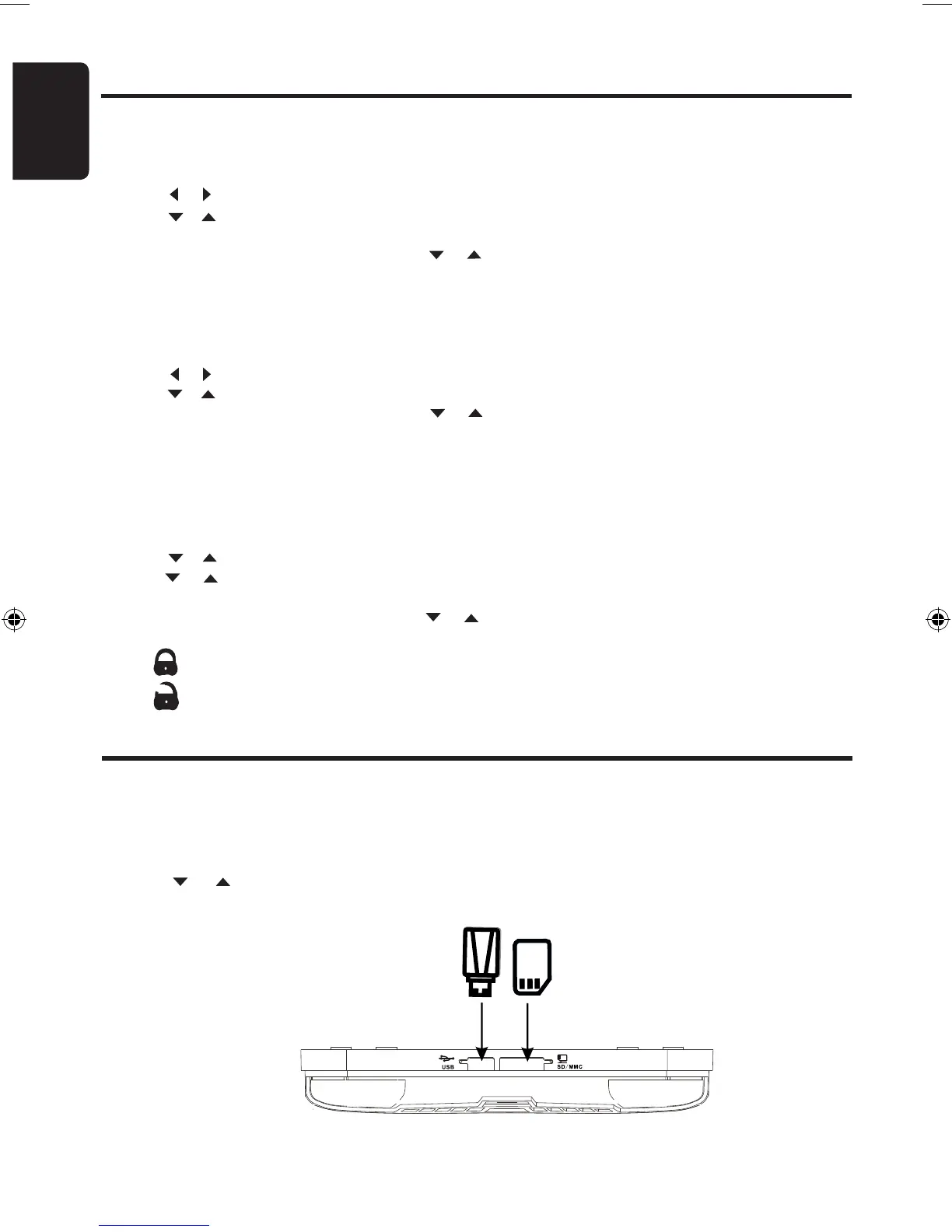
USB Stick and SD Memory Card use
USB Stick
SD or MMC Card
Playing USB or SD/MMC Devices
1. Insert the USB Stick or SD/MMC Card into the appropriate socket on the VTM1 as shown.
2. Using the SRC button on your Remote Control select DVD-IN mode, then press and hold the SRC
button for >2 sec. The VTM1 will read the contents of your memory device and display its contents.
3. Press or to navigate through this menu and press ENTER to make your selection.
Note: USB products such as Portable Hard Drives (FAT 32) and MP3 Players are not supported.


 To Next Page