8 VTM1
English
3 . OPERATIONS
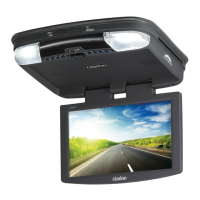
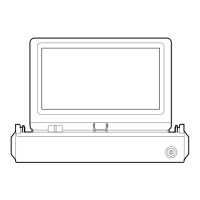
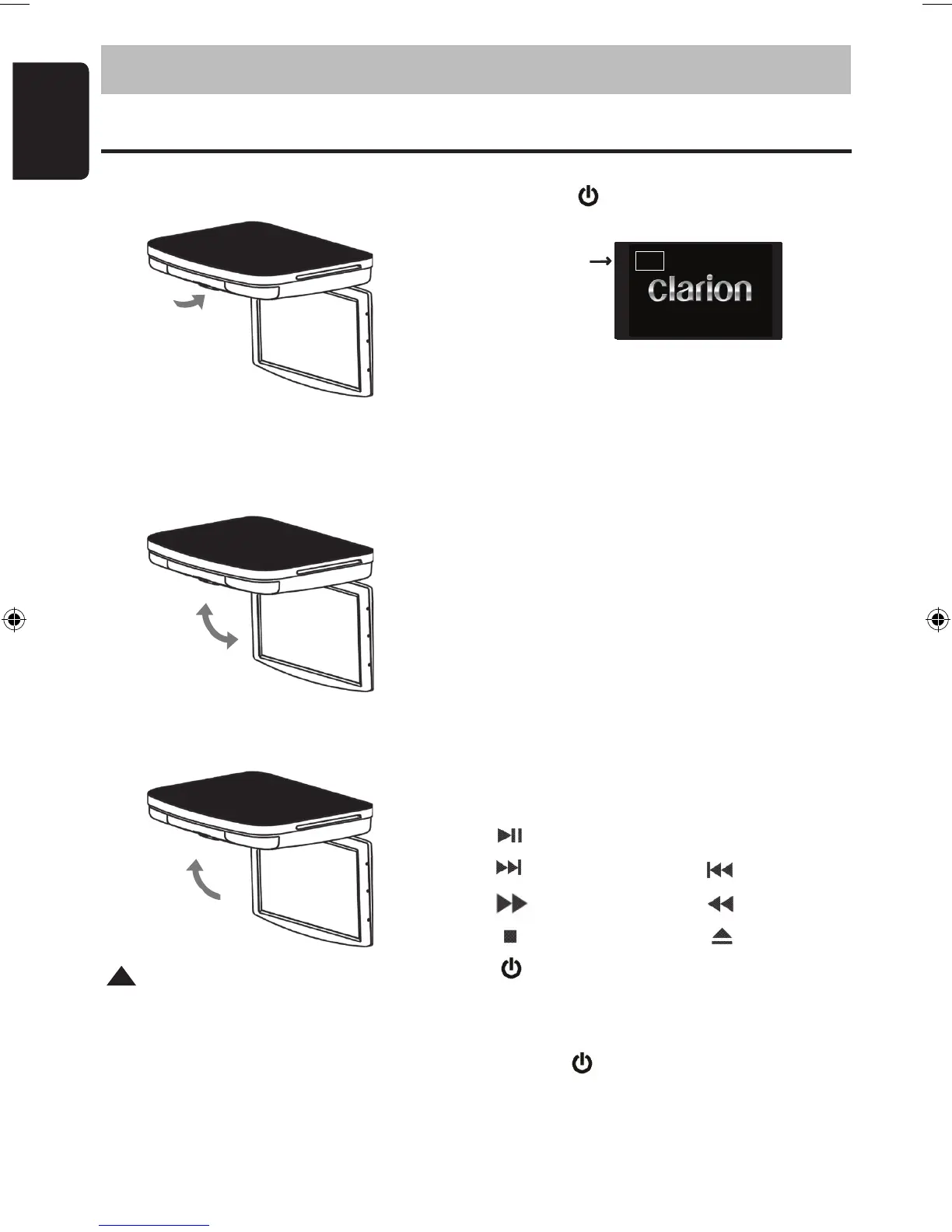
To open the DVD player
Press Open Button to unlock the LCD panel.
Swing the monitor downward to the desired
angle. Note : The LCD display opens to a maxi-
mum angle of 150° degrees. Do not attempt to
open it further.
To close the DVD player, swing the LCD panel
upward until you hear the lock click.
Make sure that cords and other items do
not get caught in the panel when you close it.
For your safety, be sure to close the LCD panel
when not use it.
Turning on the player
Press the button on the remote control or
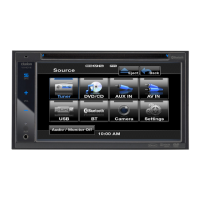
the player. The Input source appears as shown:
Note: The default source is DVD-IN.
Selecting the Input Source
1. When power is ON, sequentially press SRC button
to cycle from one mode to another.
2. The operating modes changes in the following
order : DVD-IN > AV1 > AV2 > DVD-IN etc..
3. To select USB or SD modes select DVD-IN,
then press & hold SRC > 2 sec.
4. To switch between USB & SD press SRC >2sec.
Playing a Disc
The player must be turned on and the mode must be
DVD-IN. "NO DISC" will be displayed if a disc is not
already loaded. Note: A disc cannot be loaded or
ejected if the player is in AV1, AV2 or switched off.
Play (or Resume Play) and Pause button
Next Chapter/Track Prev. Chapter/Track
Skip Forward Review/Reverse
Stop Eject Disc
Power
!
Basic DVD Operation
DVD-IN
PAL
• Input Source: DVD
• Video System
auto-sets to
NTSC or PAL
Item
Name
Function or control
1
Power
Press to turn the OHM107VD On or Off.
2
Setup
Press to access the setup menu to modify the DVD player settings.
3
Mute
Press to turn the Sound On or Off.
4
Eject
Press to Eject the disc.
5
0-9
Press to enter Track Numbers directly or
for changing some settings.
6
Previous
Press to go to the Previous Chapter on DVD
or Track on CD.
7
Play or
Pause
Press to Play or Pause the CD or DVD.
8
Audio
DVD: Press to change the Audio Language during DVD playback.
VCD/CD: Press to change the Audio Channel (Left, Right, Stereo) during VCD / CD playback.
9
Arrows and ENTER
buttons
Press to navigate in a DVD Menu and change setting values in the Display Menu.
10
Skip back
Press to Fast Reverse playback at 2x, 4x, 8x,16x and 32x speeds.
11
Random
Press to play chapters or tracks in random order.
12
A-B
Press to repeat playback from point A to point B.
13
SRC
Press to select the desired Video Input Mode (DVD-IN, AV IN1 and AV IN2).
14
Return
Press to return the main menu, press again to return the last position of playback.
15
Angle
Press to select a different filming Angle.
Please note that this feature only works if the DVD is recorded with multiple angles.
16
Zoom
Press to set the Zoom for movie viewing.
17
Repeat
DVD Repeat: Press 1x Chapter, 2x Title, 3x All.
CD Repeat: Press 1x Track, 2x All.
18
Title
Press to view the DVD disc’s Title Menu.
19
Skip forward
Press to Fast Forward playback at 2x, 4x, 8x,16x and 32x speeds.
20
Subtitle
Press to select and turn on DVD Subtitles during playback.
21
Menu
Press to view the DVD Main Menu.
Press and hold it to display the Display Menu.
22
VOL - / VOL+
Press to Decrease / Increase the volume.
23
Next
Press to go to the next Chapter on DVD or Track on CD.
24
Stop
Press to stop playback, press [PLAY] or [ENTER] button to start playing at the last position;
Press [STOP] button twice to fully stop playback, Press [PLAY] or [ENTER] button to start
playing at the beginning of DVD.
25
Display
Press to Display the Playback Information-
(Title, Chapter, Track and Time).
REMOTE CONTROL FUNCTIONS
26
Go To
Press to Start Playback at a selected Chapter, Track or Time.
Item
Name
Function or control
1
Power
Press to turn the OHM107VD On or Off.
2
Setup
Press to access the setup menu to modify the DVD player settings.
3
Mute
Press to turn the Sound On or Off.
4
Eject
Press to Eject the disc.
5
0-9
Press to enter Track Numbers directly or
for changing some settings.
6
Previous
Press to go to the Previous Chapter on DVD
or Track on CD.
7
Play or
Pause
Press to Play or Pause the CD or DVD.
8
Audio
DVD: Press to change the Audio Language during DVD playback.
VCD/CD: Press to change the Audio Channel (Left, Right, Stereo) during VCD / CD playback.
9
Arrows and ENTER
buttons
Press to navigate in a DVD Menu and change setting values in the Display Menu.
10
Skip back
Press to Fast Reverse playback at 2x, 4x, 8x,16x and 32x speeds.
11
Random
Press to play chapters or tracks in random order.
12
A-B
Press to repeat playback from point A to point B.
13
SRC
Press to select the desired Video Input Mode (DVD-IN, AV IN1 and AV IN2).
14
Return
Press to return the main menu, press again to return the last position of playback.
15
Angle
Press to select a different filming Angle.
Please note that this feature only works if the DVD is recorded with multiple angles.
16
Zoom
Press to set the Zoom for movie viewing.
17
Repeat
DVD Repeat: Press 1x Chapter, 2x Title, 3x All.
CD Repeat: Press 1x Track, 2x All.
18
Title
Press to view the DVD disc’s Title Menu.
19
Skip forward
Press to Fast Forward playback at 2x, 4x, 8x,16x and 32x speeds.
20
Subtitle
Press to select and turn on DVD Subtitles during playback.
21
Menu
Press to view the DVD Main Menu.
Press and hold it to display the Display Menu.
22
VOL - / VOL+
Press to Decrease / Increase the volume.
23
Next
Press to go to the next Chapter on DVD or Track on CD.
24
Stop
Press to stop playback, press [PLAY] or [ENTER] button to start playing at the last position;
Press [STOP] button twice to fully stop playback, Press [PLAY] or [ENTER] button to start
playing at the beginning of DVD.
25
Display
Press to Display the Playback Information-
(Title, Chapter, Track and Time).
REMOTE CONTROL FUNCTIONS
26
Go To
Press to Start Playback at a selected Chapter, Track or Time.
Item
Name
Function or control
1
Power
Press to turn the OHM107VD On or Off.
2
Setup
Press to access the setup menu to modify the DVD player settings.
3
Mute
Press to turn the Sound On or Off.
4
Eject
Press to Eject the disc.
5
0-9
Press to enter Track Numbers directly or
for changing some settings.
6
Previous
Press to go to the Previous Chapter on DVD
or Track on CD.
7
8
Audio
DVD: Press to change the Audio Language during DVD playback.
VCD/CD: Press to change the Audio Channel (Left, Right, Stereo) during VCD / CD playback.
9
Arrows and ENTER
buttons
Press to navigate in a DVD Menu and change setting values in the Display Menu.
10
Skip back
Press to Fast Reverse playback at 2x, 4x, 8x,16x and 32x speeds.
11
Random
Press to play chapters or tracks in random order.
12
A-B
Press to repeat playback from point A to point B.
13
SRC
Press to select the desired Video Input Mode (DVD-IN, AV IN1 and AV IN2).
14
Return
Press to return the main menu, press again to return the last position of playback.
15
Angle
Press to select a different filming Angle.
Please note that this feature only works if the DVD is recorded with multiple angles.
16
Zoom
Press to set the Zoom for movie viewing.
17
Repeat
DVD Repeat: Press 1x Chapter, 2x Title, 3x All.
CD Repeat: Press 1x Track, 2x All.
18
Title
Press to view the DVD disc’s Title Menu.
19
Skip forward
Press to Fast Forward playback at 2x, 4x, 8x,16x and 32x speeds.
20
Subtitle
Press to select and turn on DVD Subtitles during playback.
21
Menu
Press to view the DVD Main Menu.
Press and hold it to display the Display Menu.
22
VOL - / VOL+
Press to Decrease / Increase the volume.
23
Next
Press to go to the next Chapter on DVD or Track on CD.
24
Stop
Press to stop playback, press [PLAY] or [ENTER] button to start playing at the last position;
Press [STOP] button twice to fully stop playback, Press [PLAY] or [ENTER] button to start
playing at the beginning of DVD.
25
Display
Press to Display the Playback Information-
(Title, Chapter, Track and Time).
REMOTE CONTROL FUNCTIONS
26
Go To
Press to Start Playback at a selected Chapter, Track or Time.
Item
Name
Function or control
1
Power
Press to turn the OHM107VD On or Off.
2
Setup
Press to access the setup menu to modify the DVD player settings.
3
Mute
Press to turn the Sound On or Off.
4
5
0-9
Press to enter Track Numbers directly or
for changing some settings.
6
Previous
Press to go to the Previous Chapter on DVD
or Track on CD.
7
Play or
Pause
Press to Play or Pause the CD or DVD.
8
Audio
DVD: Press to change the Audio Language during DVD playback.
VCD/CD: Press to change the Audio Channel (Left, Right, Stereo) during VCD / CD playback.
9
Arrows and ENTER
buttons
Press to navigate in a DVD Menu and change setting values in the Display Menu.
10
Skip back
Press to Fast Reverse playback at 2x, 4x, 8x,16x and 32x speeds.
11
Random
Press to play chapters or tracks in random order.
12
A-B
Press to repeat playback from point A to point B.
13
SRC
Press to select the desired Video Input Mode (DVD-IN, AV IN1 and AV IN2).
14
Return
Press to return the main menu, press again to return the last position of playback.
15
Angle
Press to select a different filming Angle.
Please note that this feature only works if the DVD is recorded with multiple angles.
16
Zoom
Press to set the Zoom for movie viewing.
17
Repeat
DVD Repeat: Press 1x Chapter, 2x Title, 3x All.
CD Repeat: Press 1x Track, 2x All.
18
Title
Press to view the DVD disc’s Title Menu.
19
Skip forward
Press to Fast Forward playback at 2x, 4x, 8x,16x and 32x speeds.
20
Subtitle
Press to select and turn on DVD Subtitles during playback.
21
Menu
Press to view the DVD Main Menu.
Press and hold it to display the Display Menu.
22
VOL - / VOL+
Press to Decrease / Increase the volume.
23
Next
Press to go to the next Chapter on DVD or Track on CD.
24
Stop
Press to stop playback, press [PLAY] or [ENTER] button to start playing at the last position;
Press [STOP] button twice to fully stop playback, Press [PLAY] or [ENTER] button to start
playing at the beginning of DVD.
25
Display
Press to Display the Playback Information-
(Title, Chapter, Track and Time).
REMOTE CONTROL FUNCTIONS
26
Go To
Press to Start Playback at a selected Chapter, Track or Time.
VTM1 8
Switching the player Off
Press the button on the remote control or the
player once again to turn it off. If a disc remains
loaded within the player it will continue playback
from this position when power is resumed.
Note that leaving media in the player when you
are away from your vehicle is not recommended.
1. Insert a disc (face up) into the slot on the right side
of the player. LOADING will appear on the screen.
2. DVD disc playback will commence automatically.
3. Use the Up, Down, Left, Right and ENTER keys
on your remote control to navigate the DVD menu.
Please note the following DVD functions:


 To Next Page
 Loading...