GRMON3-UM
June 2019, Version 3.1.0
60 www.cobham.com/gaisler
On Linux the GRMON binary must have read and write permission. This can be achieved by creating a udev
rules file, /etc/udev/rules.d/51-gaisler.rules, containing the line below and then reconnect the
USB cable.
SUBSYSTEM=="usb", ATTR{idVendor}=="1781", ATTR{idProduct}=="0aa0", MODE="666"
On Windows a driver has to be installed. The first the time the device is plugged in it should be automatically
detected as an unknown device, as seen in Figure 5.3. Follow the instructions below to install the driver.
Figure 5.3.
1. Open the device manager by writing 'mmc devmgmt.msc' in the run-field of the start menu.
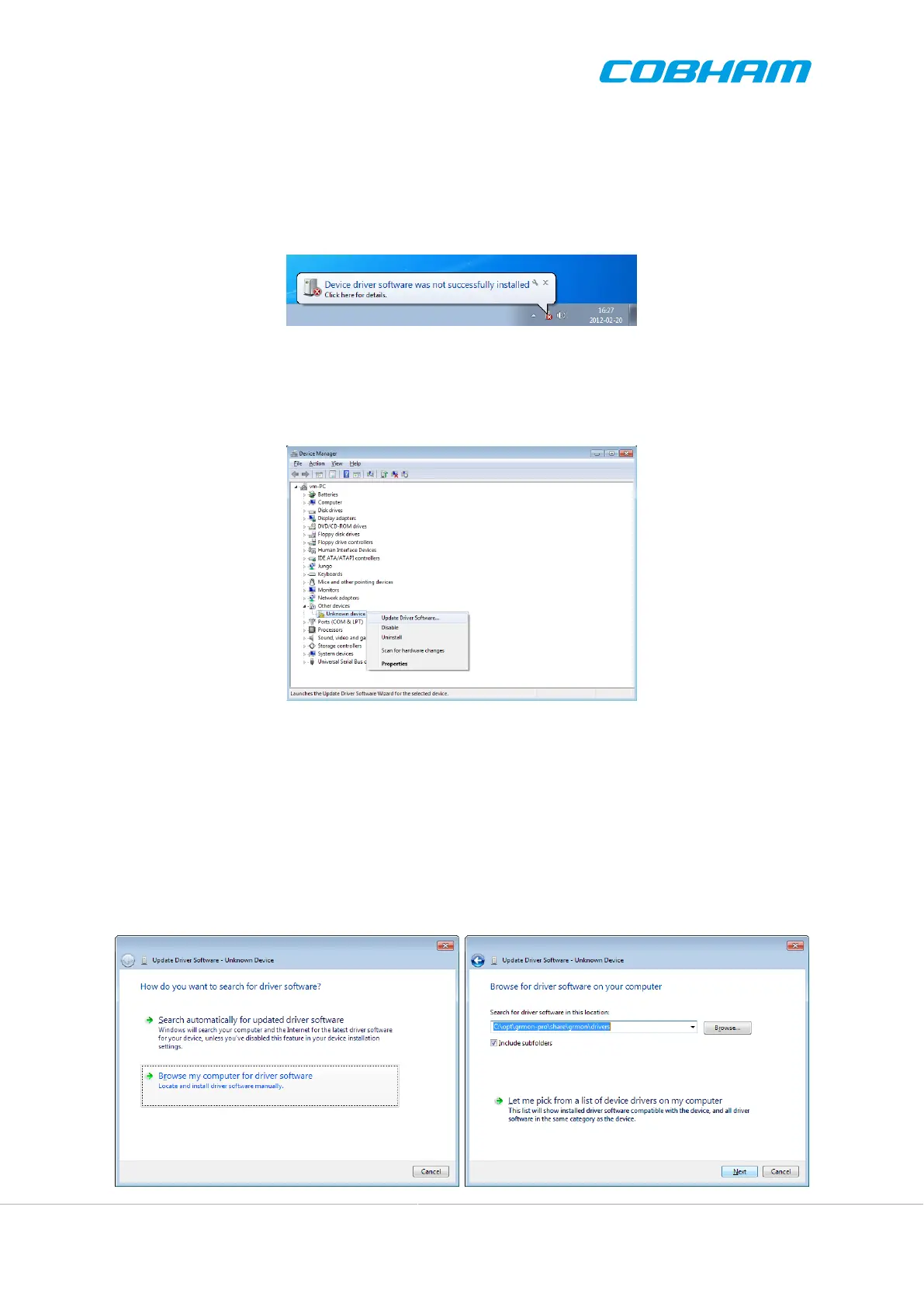
2. In the device manager, find the unknown device. Right click on it to open the menu and choose 'Update
Driver Software...' as Figure 5.4 shows.
Figure 5.4.
3. In the dialog that open, the first image in Figure 5.5, choose 'Browse my computer for driver
software'.
4. In the next dialog, press the Browse button and locate the path to <grmon-win32>/share/gr-
mon/drivers, where grmon-win32 is the path to the extracted win32 folder from the the GRMON
archive. Press 'Next' to continue.
5. A warning dialog might pop-up, like the third image in Figure 5.5. Press 'Install this driver
software anyway' if it shows up.
6. Press 'Close' to exit the dialog. The USB DCL driver is now installed and GRMON should be able to
connect to the target system using the USB DCL connection.



 To Next Page