Using the Nucleus Smart App
to adjust volume settings
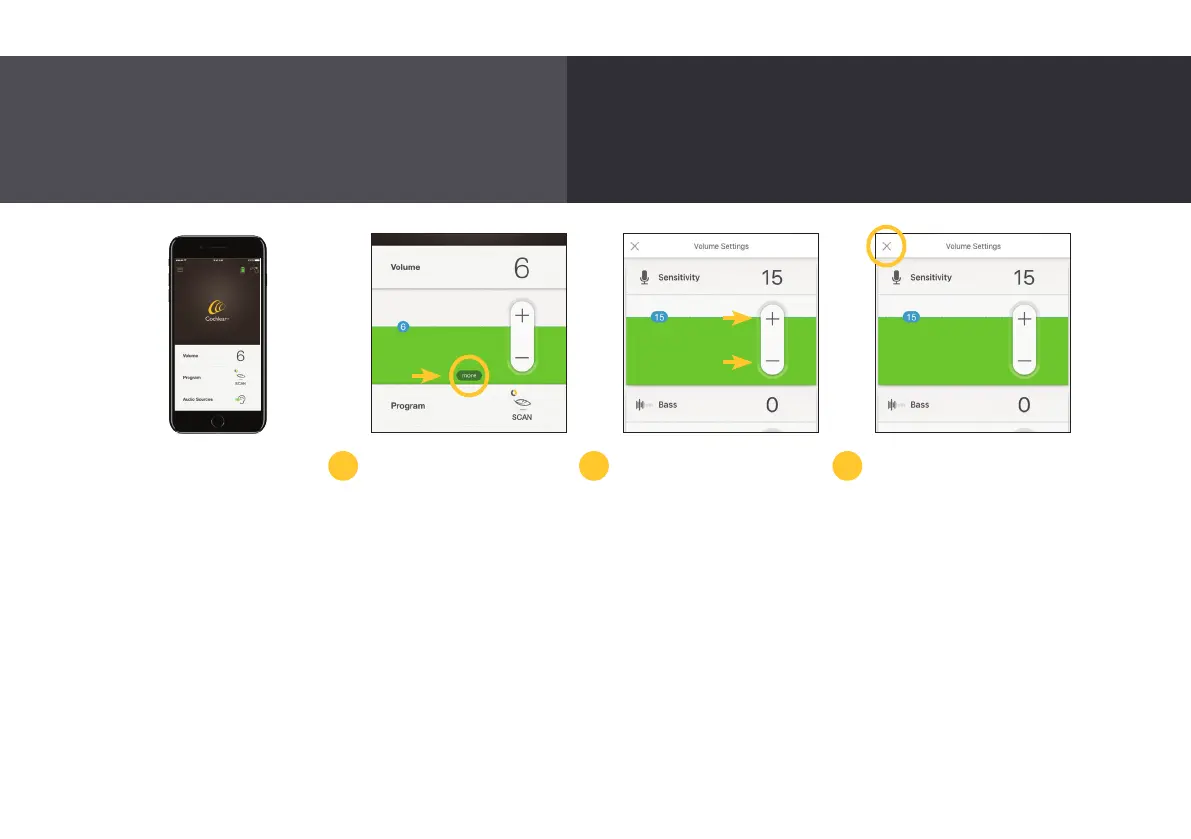
To get started, download
the Nucleus Smart App
from the Apple App or
Google Play Store to
a compatible Apple or
Android
™
device.
*
Once installed, open the
app and swipe left through
the introduction screens.
To start using the app, you
will need to log in with your
Cochlear Family account. If
you do not have one, you
can create one in the app.
If enabled by your clinician,
the Nucleus Smart App
allows you to adjust the
sensitivity, bass, treble and
master volume limit levels
of your sound processor.
You can also adjust the
level of sound from your
streamed audio compared
to the level of sound
from your processor
microphones.
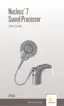
Tap ‘Volume’ to open the
volume control panel and
then ‘more’ to open the
volume settings control
panel.
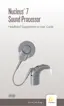
You can change the
sensitivity, bass, treble and
master volume limit levels
by tapping the ‘plus’ or
‘minus’ buttons.
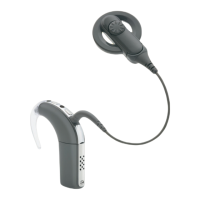
Tap the ‘X’ in the top left of
your device screen to close
the volume settings control
panel.
Sensitivity level will return
to the default setting
when you turn your sound
processor off whereas
treble, bass and master
volume limit changes will
be saved.
1 2 3
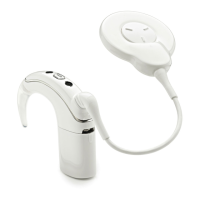
With the Nucleus Smart App, you can control and monitor
your Nucleus 7 Sound Processor without the need for an
additional remote control.
*
The Nucleus Smart App is compatible with iPhone 5 (or later) and iPod 6th generation devices (or later) running iOS 10.0 or later. To use the Nucleus Smart App for Android, your device will need to run
Android 5.0 (Lollipop) or later and support Bluetooth 4.0 or later. For a list of verified devices visit http://www.nucleussmartapp.com/android.
20



 To Next Page