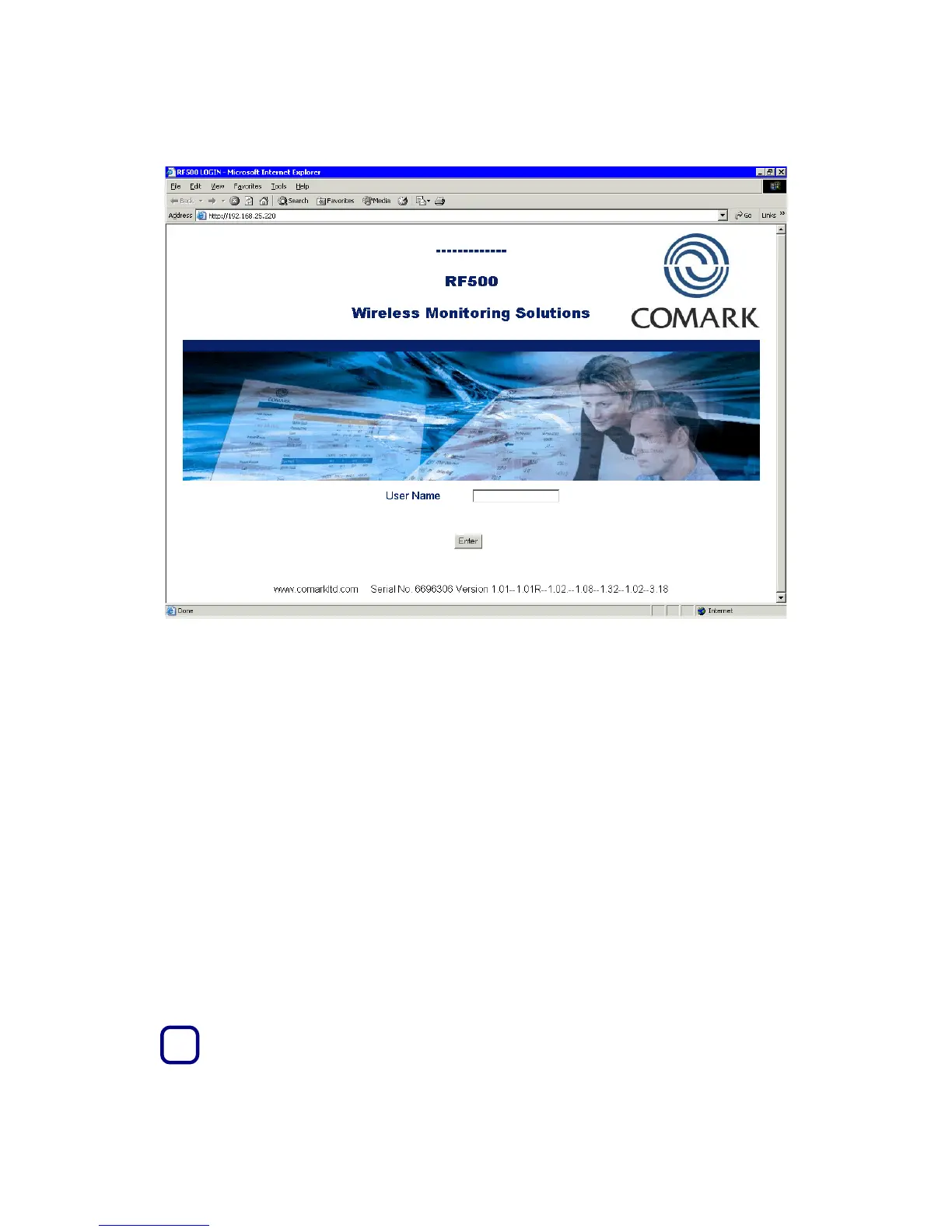
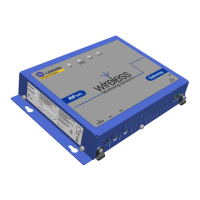
The Gateway login screen will be displayed.
Figure 15 - Gateway Login Screen
Setup of First Administrator
As shipped, the Gateway has no users configured except for a special “one-time-use”
installation user which enables an installer to add the main Administrator to the Gateway.
Thereafter this Administrator’s username is used to perform all subsequent commissioning.
1. At the Gateway user login screen, type the Username “comark” and click Enter.
2. At the password screen enter “42”.
3. You will be logged into the Gateway as the installation user.
4. The Gateway will inform you that “You are about to commission a new system”
5. Click on the “Enter Administrator” Details button.
6. When the Add 1st Administrator screen appears fill in the fields with the Username and
Password of your choice.
7. In the top left box, marked “Password Required”, enter the installation password:”42” and
then click the Submit button.
8. If successful the Gateway will return the message “New user added”.
9. Click the OK button to return to the Gateway user login screen.
10. Login as the new Administrator you just created.
Gateway Name
A Gateway name is required for email operation.
Click the Administration button then the Gateway Name button.
i



 To Next Page