DX-80 INSTALLATION AND MAINTENANCE MANUAL
P7290 IMM 3-58
d) Proper programming of local area code(s) and long distance prefix are required to assure accurate redial of
CID numbers from the Caller ID Table.
Default Settings
Call Handling – CID Programming Code – International Prefix = Null.
(Range is – any 4 digits.)
Call Handling – CID Programming Code – Country Code = Null.
(Range is – any four digits.)
Call Handling – CID Programming Code – Long Distance Prefix = Null. (Empty.)
Call Handling – CID Programming Code – Local Area Code – Area Code eight tables are set at Null.
(Empty.)
Call Handling – CID Programming Code – Local Area Code – Area Prefix eight tables are set at Null.
(Empty.)
Programming Abstract
• Program the International Prefix (typically not required in the USA or Canada).
• Program the Country Code (typically not required in the USA or Canada).
• Program the Long Distance Prefix (usually 1).
• Program the Local Area Codes and enter them as the prefix to dial if it is required for callback.
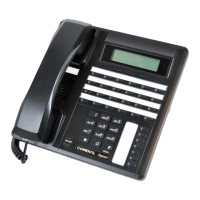
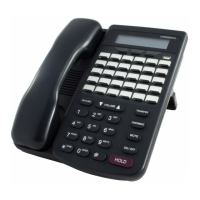
Programming via the DET (Digital Extension Terminal)
Note: [back], [next], [show], [chg], [bksp], and [save] are LCD interactive button operations. Use the
three buttons below the LCD display to actuate the associated operation.
• Enter Database Administration using the feature code !+* and then enter the DB Admin password
“++++++++.” (Note: This eight-character password can be changed.)
• Press [show ]. The DB Item Select screen displays.
Program CID codes required for seamless CID callback operations in the DX-80:
• Input 03-25 to program the International Prefix.
Or…
• Input 03-26 to program the Country Code.
Or…
• Input 03-27 to program the Long Distance Prefix.
Or…
• Input 03-28 to program the Local Area Code Tables.
• Press [save ]. This advances to the selected database item.
• Press [show ] to view the contents of this database item.
• Press [chg] (change) the contents of this database item.
• Input the actual code required for the selected function. (For example, “011” for international code.)
• Press [save ].
• Press the Volume button (up or down) to return to the DB Item Select screen. Or… use the [back] or
[next ] button to skip to the appropriate database item.





 To Next Page