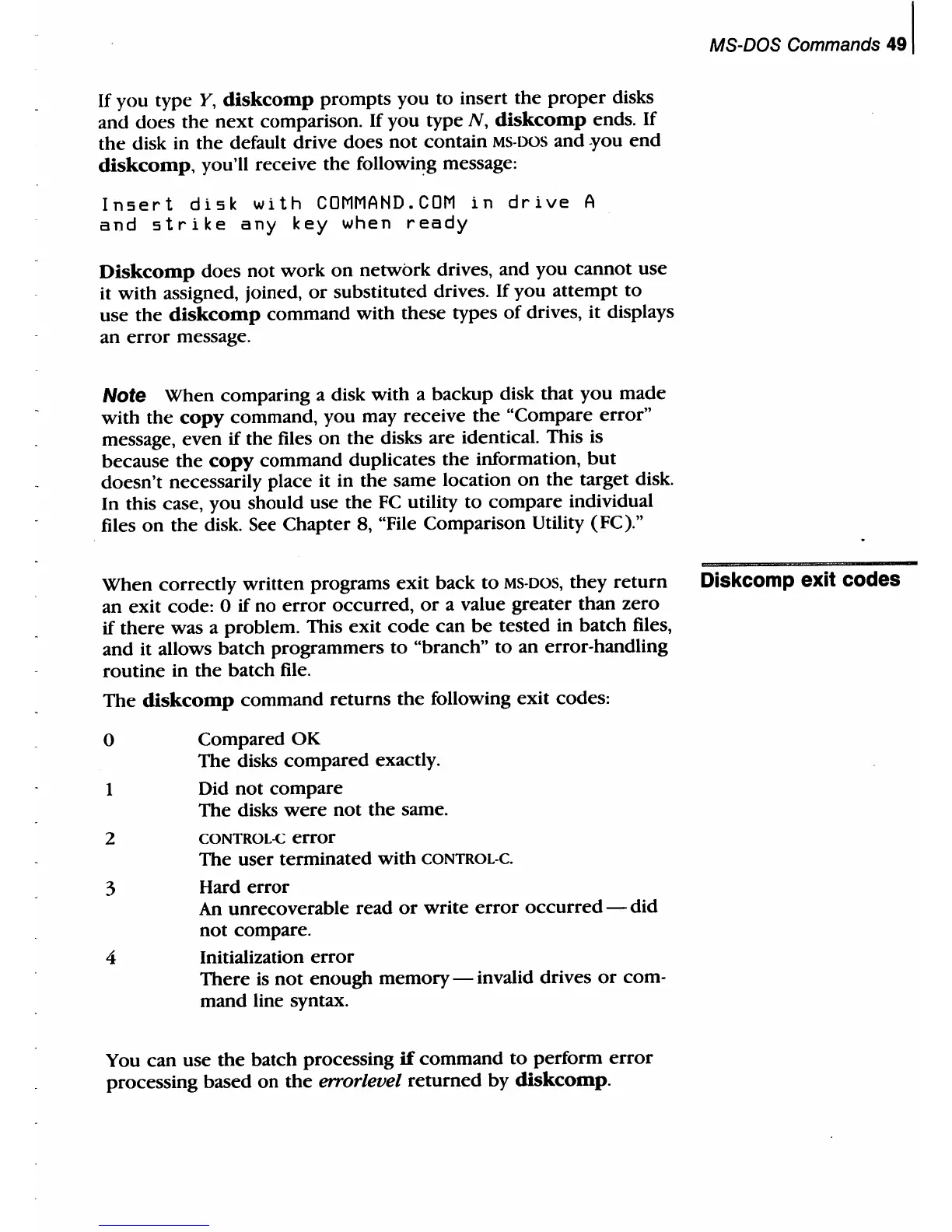
If
you type
Y,
diskcomp
prompts you to insert the
proper
disks
and does
the
next
comparison.
If
you type
N,
diskcomp
ends.
If
the
disk in the default drive does
not
contain
MS-DOS
and
-you
end
diskcomp,
you'll receive
the
followiJ:~g
message:
Insert
disk
with
COMMAND.COM
in
drive
A
and
strike
any
key
when
ready
Diskcomp
does not work
on
network drives, and you cannot use
it with assigned, joined,
or
substituted drives.
If
you attempt
to
use
the
diskcomp
command with these types
of
drives, it displays
an
error
message.
Note When comparing a disk with a backup disk that you made
with the
copy
command, you may receive
the
"Compare error"
message, even
if
the files
on
the disks are identical. This is
because
the
copy
command duplicates the information,
but
doesn't necessarily place it in the same location
on
the target disk.
In this case, you should use the
FC
utility
to
compare individual
files
on
the disk. See Chapter 8, "File Comparison Utility (FC)."
MS-DOS Commands
491
When correctly written programs exit back
to
MS-DOS,
they
return
Diskcomp exit codes
an exit code: 0
if
no
error
occurred,
or
a value greater than zero
if
there was a problem. This exit
code
can
be
tested in batch files,
and it allows batch programmers
to
"branch"
to
an error-handling
routine in the batch file.
The
diskcomp
command returns
the
following exit codes:
o Compared OK
The disks compared exactly.
1 Did not compare
The disks
were
not
the same.
2
CONTROL-C
error
The user terminated with CONTROL-C.
3 Hard
error
An unrecoverable read
or
write
error
occurred
-
did
not compare.
4 Initialization
error
There
is
not
enough memory - invalid drives
or
com-
mand line syntax.
You can use
the
batch processing
if
command
to
perform
error
processing based
on
the
en-orlevel returned by diskcomp_



 To Next Page