F5
Purpose:
Creates a
new
template.
Comments:
When you press the
F5
key,
edlin
copies
the
current
line
to
the
template and deletes
the
previous contents. Pressing F5 also
displays an
@ ("at" symbol), and outputs a
RETURN
and a UNEFEED.
When you press F5,
edlin
empties
the
current
line and turns off
insert mode.
Note
F5
performs
the
same function as
the
ESC
key,
except
that it
changes
the
template, printing an @ instead
of
a backslash.
Example:
As
an example
of
how
to
use
the
F5 key with
edlin,
type
the
following line:
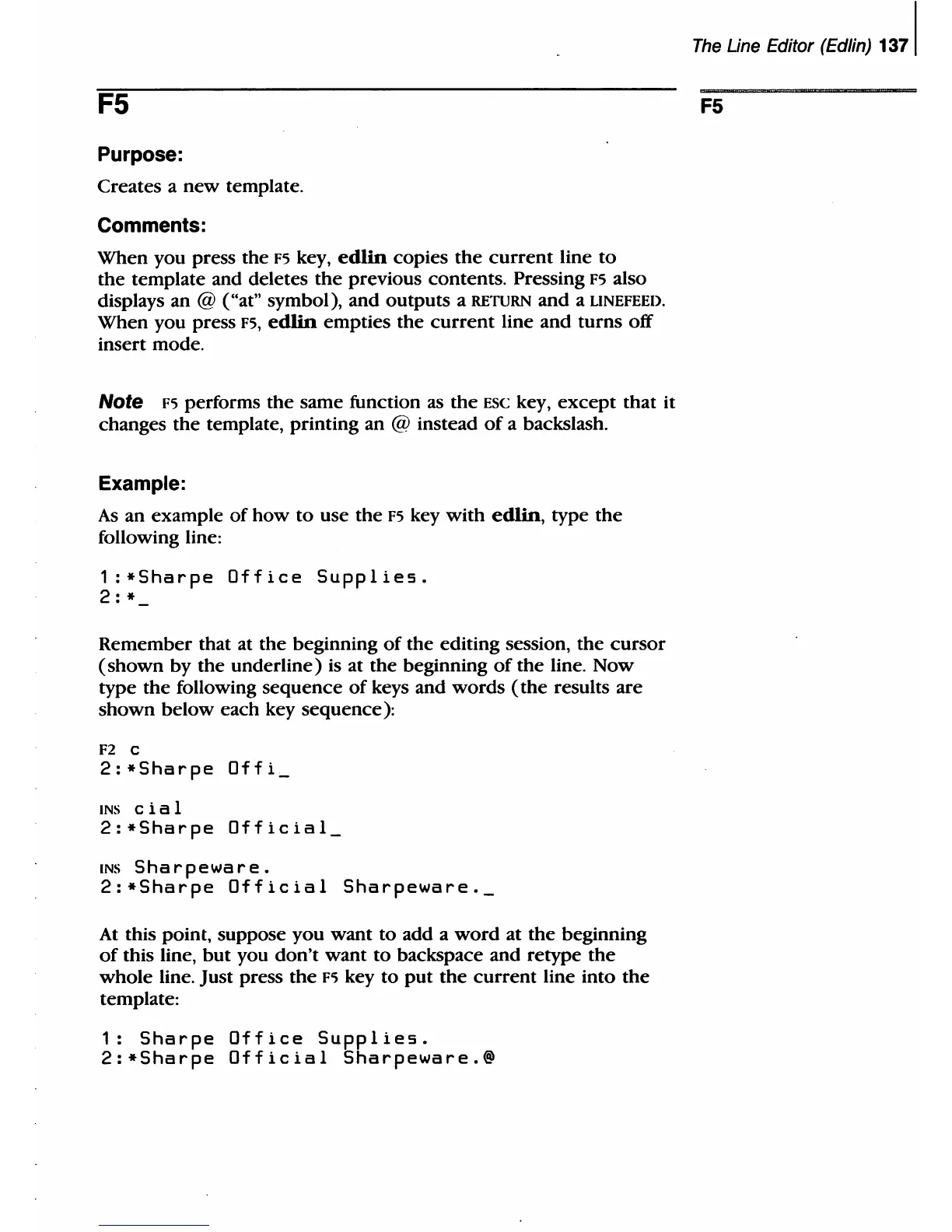
1
:*Sharpe
Office
Supplies.
2:*
Remember that at
the
beginning
of
the
editing session, the cursor
(shown
by
the
underline) is at the beginning
of
the
line.
Now
type
the
following sequence
of
keys and words
(the
results are
shown below each key sequence):
F2 c
2:*Sharpe
Offi
INS
cial
2:*Sharpe
Official
INS
Sharpeware.
2:*Sharpe
Official
Sharpeware._
At
this point, suppose you want
to
add a
word
at
the
beginning
of
this line,
but
you
don't
want
to
backspace and retype
the
whole line. Just press
the
F5 key
to
put
the
current line into
the
template:
1:
Sharpe
Office
Supplies.
2:*Sharpe
Official
Sharpeware.@
The
Une Editor (Edlin)
1371
F5



 To Next Page