Section 2: Basic Operation
13
Menu Navigation
Most screens found on the instrument follow a standard format,
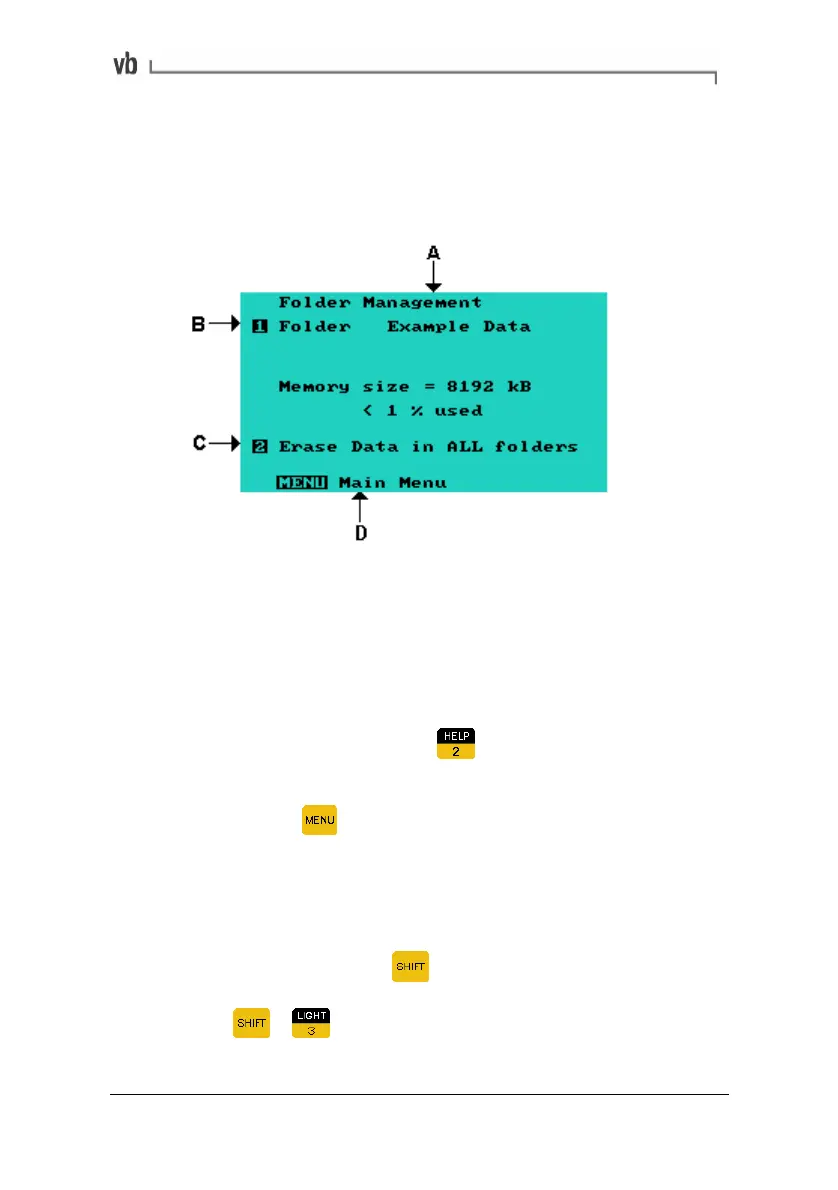
making menu navigation easy and intuitive. The following diagram
shows the components of a typical screen:
A
The menu title is displayed at the top of each screen.
B
The name of the currently selected
folder/route/machine etc is displayed.
C
Navigation of all menus is accomplished by pressing
the key corresponding to the number or word beside
the menu item e.g. pressing
will display the Erase
Data Menu.
D
Pressing the
key will either open the Main Menu,
return you to the previous screen or display a pop-up
menu (depending on your current location). Key
prompts are displayed at the bottom of each screen as
needed.
Pressing and holding down the
key together with a number key
will access the function labeled on the upper command of that key
e.g. pressing
+ allows you to toggle the LCD backlight on
and off.
Artisan Technology Group - Quality Instrumentation ... Guaranteed | (888) 88-SOURCE | www.artisantg.com



 To Next Page