the scale is set so that the entire task is visible. After take-off detection, the map is oriented
depending on your setting in the map-property page (see page 66) and magnified in order to show
your position and the next waypoint.
You can override C-Pilot EVO setting and change manually the scale by touching the top-right or
bottom-right corners of the map (see Figure 36). If you touch the area marked with the “Auto zoom”
label in Figure 36, you can restore the automatic scale (an “A” appears in the bottom right corner)
and the automatic panning of the map.
You can manually pan the map by moving your finger on the screen, within the “panning” area. If the
manual panning is active, the map is always shown North-up.
The activation of the thermal autozoom is signalled by a “T” in the bottom right corner, and the scale
changes to the value set in the map-configuration page (see page 59).
Map settings
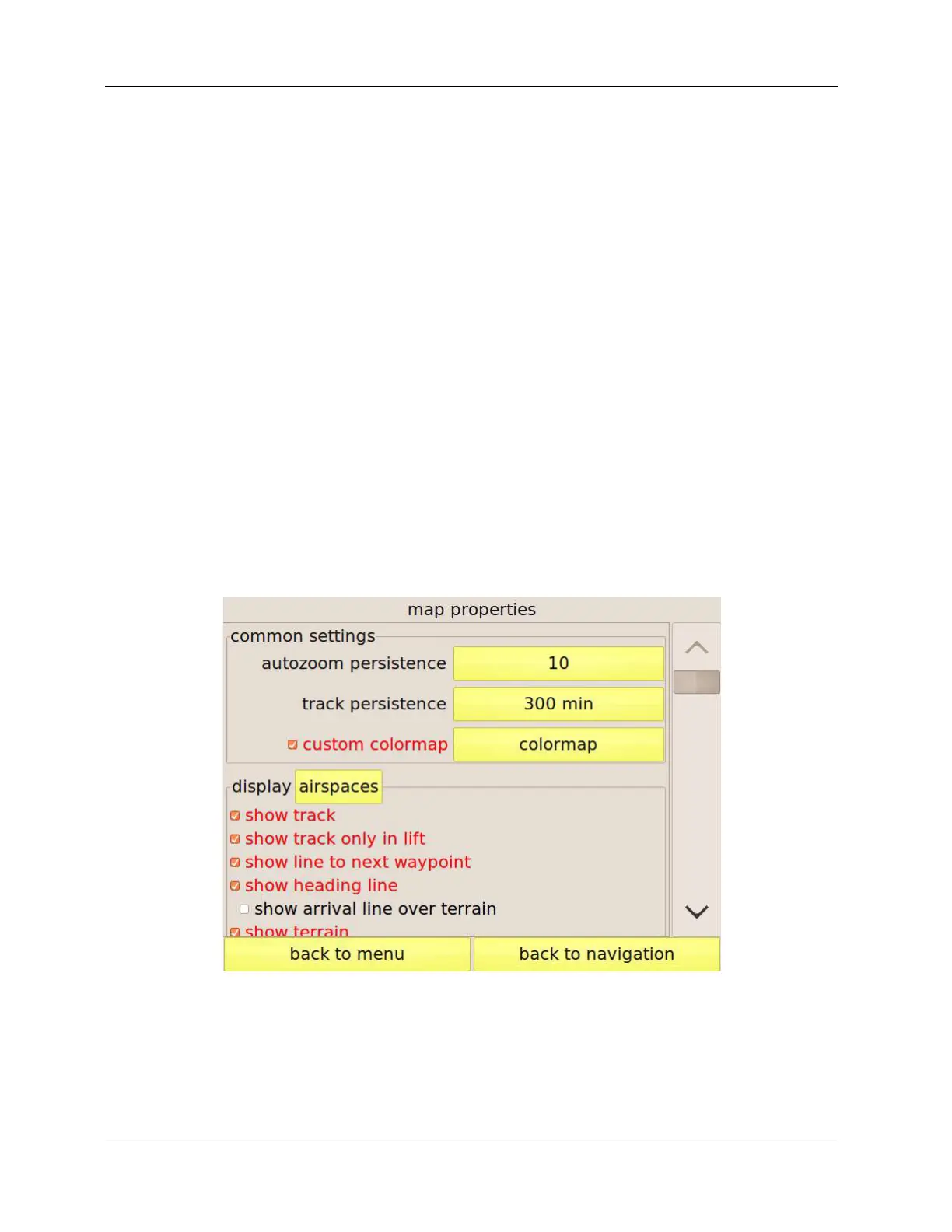
The “map properties” page (Figure 37) allows customising the map appearance for each display.
The “common settings” frame groups the parameters that affect the maps of all the displays. The
first option is the “autozoom persistence,” that regulates for how long, after exiting from a thermal,
the thermal autozoom should stay active.
Figure 37: map setup page
When you start circling in a thermal, C-Pilot EVO activates the display assigned to the “thermal”
situation (see page 49), if there is one. When you stop climbing, the previous display is shown. It
may happen, especially when centring the thermal, that you hit sink for some time. During this


 To Next Page