- 17 -
• Also set SN3, SN4, SN5 and SN6 in a similar way as above discribed.
• After setting the appropriate SN6 value, touch the menu button. Then the
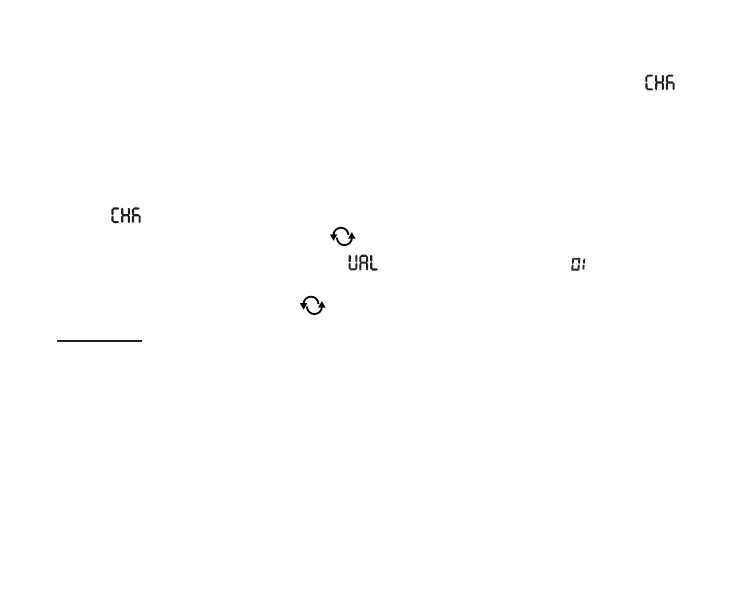
sign will appear on the right side of the thermostat display, and a two-digit num-
ber will appear on the left side, which is a verication code. If this number does
not match with the last two digits of the number sequence on the receiver unit,
one of the SN values has been set incorrectly. In this case, start the alignment
again and check the set values.
• If the value displayed on the thermostat matches the last two digits of the
number on the receiver, press the button again.
• The thermostat’s display shows the text on the right and the number on
the left. This funcion may be used in a future development of the product. Do
not change this value, just tap to complete the syncronization.
Attention! After a short time when nishing synchronization, the “Sy-
nchronize with receiver” function is automatically disabled and remains
disabled until it is re-enabled.
The thermostat repeats the on/o commands to the receiver unit every 5 mi-
nutes.
8. SETTING UP THE INTERNET CONTROL
8.1. Installing the application
The thermostat can be controlled by both a smartphone and a tablet with the
help of free application
COMPUTHERM
E Series. Application
COMPUTHERM


 To Next Page