- 22 -
according to the selected operating mode.
Attention! Make sure that any settings for the thermostat in the event of a power
failure are stored on an external server and it will take a few seconds to update the
data on the server. Therefore, if you modify any of the settings of the thermostat
(eg operating settings, programming, set temperature, etc.) and then the power
supply to the appliance is cut o within a few seconds, the changed settings not
be saved.
10. BASIC SETTINGS
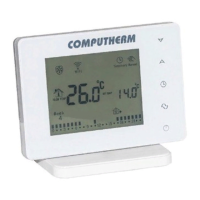
After the application has been started,
COMPUTHERM
E Series thermostats
assigned to the application concerned appear on page “My Thermostat’s”.
10.1. Renaming the thermostat assigned to the application
To modify the factory name, tap and hold the thermostat concerned within the
application until a pop-up window with the name of “Edit Thermostat” ap-
pears. Here you can modify the name of the thermostat within the application
by tapping the “Modify current thermostat” icon.
10.2. Disabling further connections of the thermostat assigned to the
application
If you want to prevent other users from assigning the thermostat to their phone
applications then tap and hold the thermostat concerned within the application
until a pop-up window with the name of “Edit Thermostat” appears. Tapping the


 To Next Page