Dri ver rec order
POW ER OFF
11. A Automatic Screen Saversbout
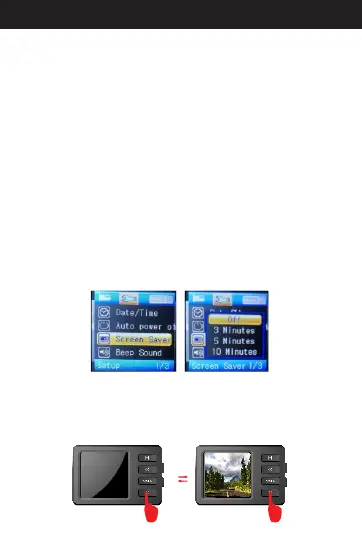
When in standby mode, press menu button two times
to menu items and select “Screen Savers”. Then,
press “OK”. You'll see “Off”,“Three Minute”, “Five
Minute” and ‘“Ten Minute” options. If you choose “Off”,
t h e c a m e r a w o n ' t s h o w u p S c r e e n S a v e r s
automatically during recording. If you choose“Three
Minute”, the camera will show up Screen Savers
automatically when recording time is more than three
minutes. If you choose “Five Minute”, the camera will
show up Screen Savers automatically when recording
time is more than five minutes. If you choose “Ten
Minute”, the camera will show up Screen Savers
automatically when recording time is more than ten
minute. Setting Screen Savers will help you save more
power battery while recording. Select the option you
need and press “OK” to save the setting. When
finished, press the menu button two times back to
standby mode.
12. A Manual Screen Saversbout
17
When in recording mode or standby mode, press and
hold the power button will enter into manual Screen
Savers. Then, press the power button again to close
screen saver mode.
Directions for your Conbrov T17 Camera



 To Next Page