22 23
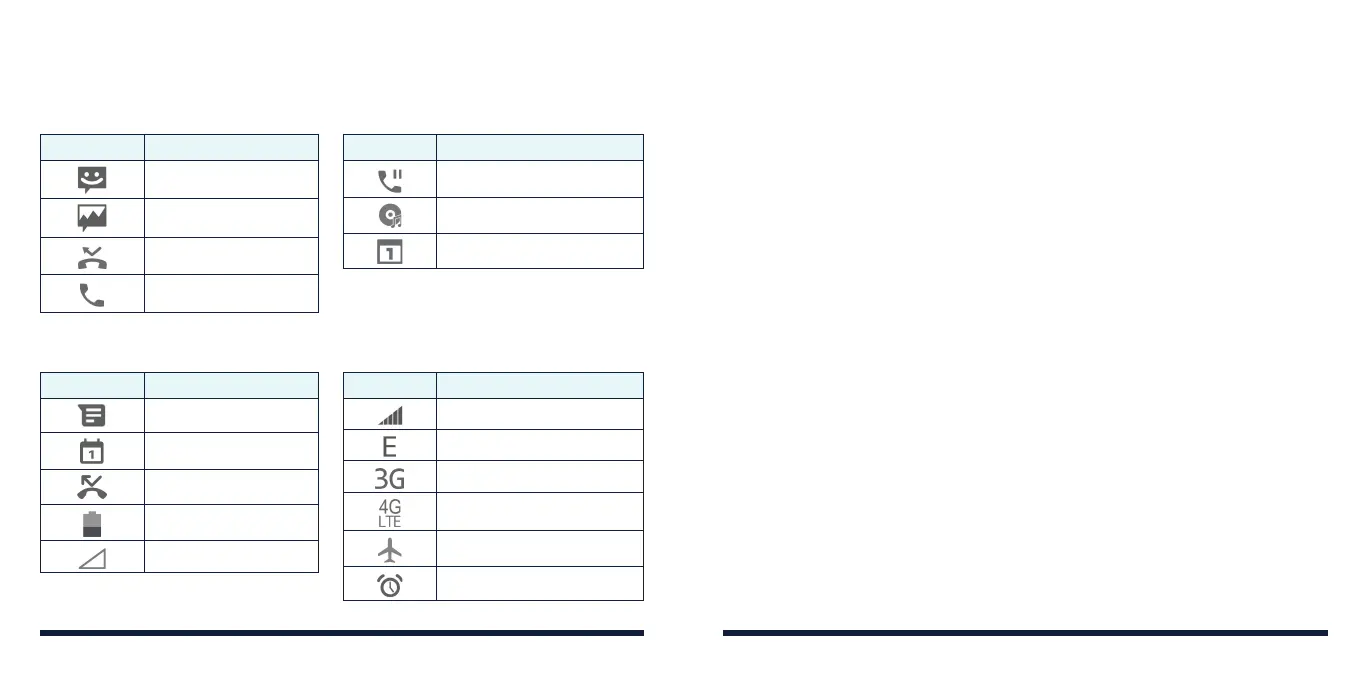
NOTIFICATION ICONS
The status bar at the top of the home screen provides notification icons on
the left side. Below are some of the icons you may see.
Indicator What it means
New SMS
New MMS
Missed call
Call in progress
Indicator What it means
Call on hold
Song playing
Upcoming event
EXTERNAL DISPLAY ICONS
Indicator What it means
New SMS/MMS
Upcoming event
Missed call
Battery level
No signal
Indicator What it means
Signal strength
2G network
3G network
4G LTE network
Airplane mode
Alarm set
ENTERING TEXT
Changing the Input Mode or Language
You can enter text using the following input modes: abc, Abc, ABC, T12 abc,
T12 Abc, T12 ABC, and 123 (number input.)
When entering text, the current input mode is displayed on the right side of
the status bar.
• To change the input mode, press and hold the Vibration Mode Key and
select a text entry mode.
• To change the input language, press and hold the * Key.
Entering Letters (abc, Abc, and ABC Modes)
• Press a number key (2 Key through 9 Key) multiple times until the correct
letter is shown on the screen. Press once to enter the first letter on the
keypad, twice quickly to enter the second, and so on.
• Press the 0 Key to insert a space.
• Press the * Key to select a symbol.
• Press the Clear Key to delete the letter left of the cursor. Press and hold
the key to delete all entered text left of the cursor.
NOTE: When using Abc mode, only the first letter will be capitalized. Then the
entry mode will change to abc automatically.
Entering Numbers
In numeric (123) mode, you can enter numbers directly using the number keys.
KNOWING THE BASICSKNOWING THE BASICS



 To Next Page