www.cool-icam.com
To take an image, aim the Cool-iCam Plus by looking through the viewfinder and press the Shutter
Button once. A beep means you have taken an image.
To record an audio clip, place the microphone on Cool-iCam Plus close to the object you want to record.
Press and hold down the Shutter Button. Release the Shutter Button to finish the recording. A "beep"
means recording is started and a second "beep" means recording is finished.
(see Page 15)
To take a movie clip, press and hold the Shutter Button to start taking continuous images when in the
ContinuousMode.
(see page 16)
To start the 9 second Self-Timer, simply press the Shutter Button when the Cool-iCam Plus is in the
Self-Timer Mode.
(see page 16)
To clear the last image/audio clip/last movie clip or all images that you have taken, simply press the
Shutter Button twice when you are in the Delete/Clear Mode.
(see page 16)
The Shutter Button can be used to switch between Normal Resolution and Economy Resolution settings.
(see page 17)
To start the time lapse photography, press the Shutter Button once when the Cool-iCam Plus is in the
Time Lapse Mode. Select the duration of time lapse and press shutter button once to confirm.
(see page
17)
© 2001 TCG. UK Version 1 0301
Page 12
7.1 Shutter Button
The Shutter Button has 7 functions. Although these are covered in more detail later in this manual,
please find below a brief description.
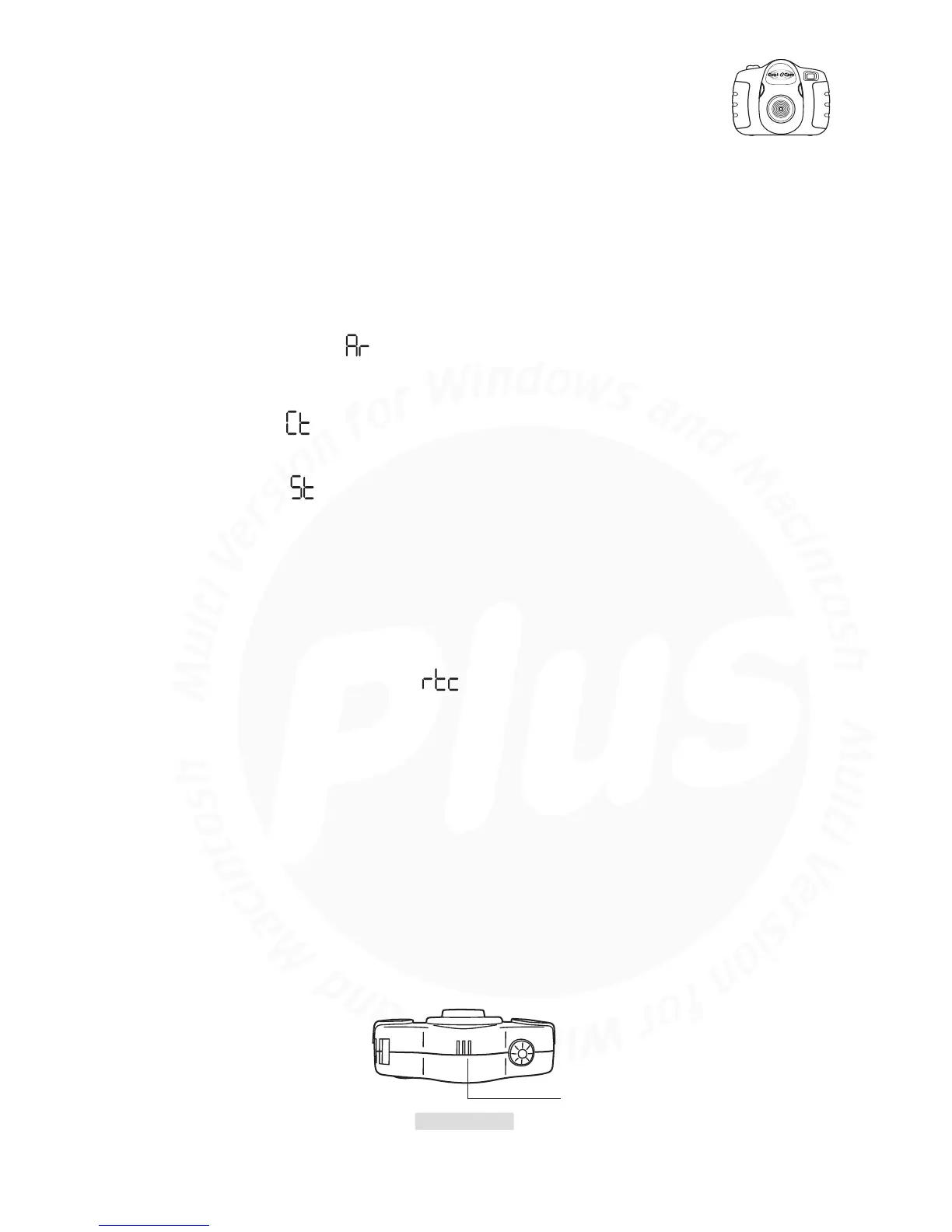
7.2 Viewfinder
The viewfinder is the window you look through when you aim the Cool-iCam Plus. Make sure you center
the subject in the viewfinder before taking an image.
7.1.1 Still Image
7.1.5 Delete Image/Audio Clip/Movie Clip/Clear Memory
7.1.6 Change Resolution
7.1.7 Time Lapse Photography
7.1.4 Self-Timer
7.1.3 Movie Clip
7.1.2 Audio Recording
7.3 Microphone
The Microphone is located on the top of your Cool-iCam Plus. Put it close to the sound source to record
an audio clip.
Top View
Microphone



 To Next Page