www.cool-icam.com
© 2001 TCG. UK Version 1 0301
Page 14
7.6 Power
Important Notes:
When the low battery power segment is displayed, you must upload any stored images within 6 hours. Do not replace your battery before you have
downloaded or saved your images to your PC or Mac.
Important Notes:
It is important to note that any images stored in your Cool-iCam Plus's memory will be lost if the battery is totally drained or removed (and the USB
cable is not connected to your Cool-iCam Plus and to your powered on PC or Mac). Please make sure your wanted images are uploaded to your PC or
Mac via the USB cable before changing or installing batteries.
7.6.1 Stand-by Mode
After a period of 30 seconds inactivity, the Cool-iCam Plus will switch to Stand-by Mode automatically
and the LCD will go blank. All images taken will not be lost as they are stored in the Cool-iCam
Plus's memory. Simply press the Mode Button to reactivate your Cool-iCam Plus.
7.6.2 Low Battery
When your Cool-iCam Plus has full power, the Battery indicator 3 segment display will be displayed.
When power is low, the single segment will be displayed. This indicates that the batteries are weak and
need to be replaced.
Full Battery Power
Low Battery Power
7.7 Tripod Adaptor and Cool-iCam Plus Stand
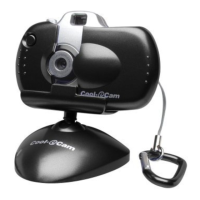
When you want to use your Cool-iCam Plus as a web-cam, use the enclosed stand
and position suitably, e.g. on top of your monitor. This is also ideal for use when
using the Self-Timer and Time Lapse Photography Modes.
Important Notes:
To use as a web-cam, you will require Internet access. To talk and listen, you will require a sound
card, speakers and microphone (not supplied).
Place the Cool-iCam Plus
on top of your monitor.
The Tripod Adaptor allows you to mount your Cool-iCam Plus on a tripod
(not supplied)
.



 To Next Page