23
2 PGM
Preview
The program scene, or the on-air video output of the system.
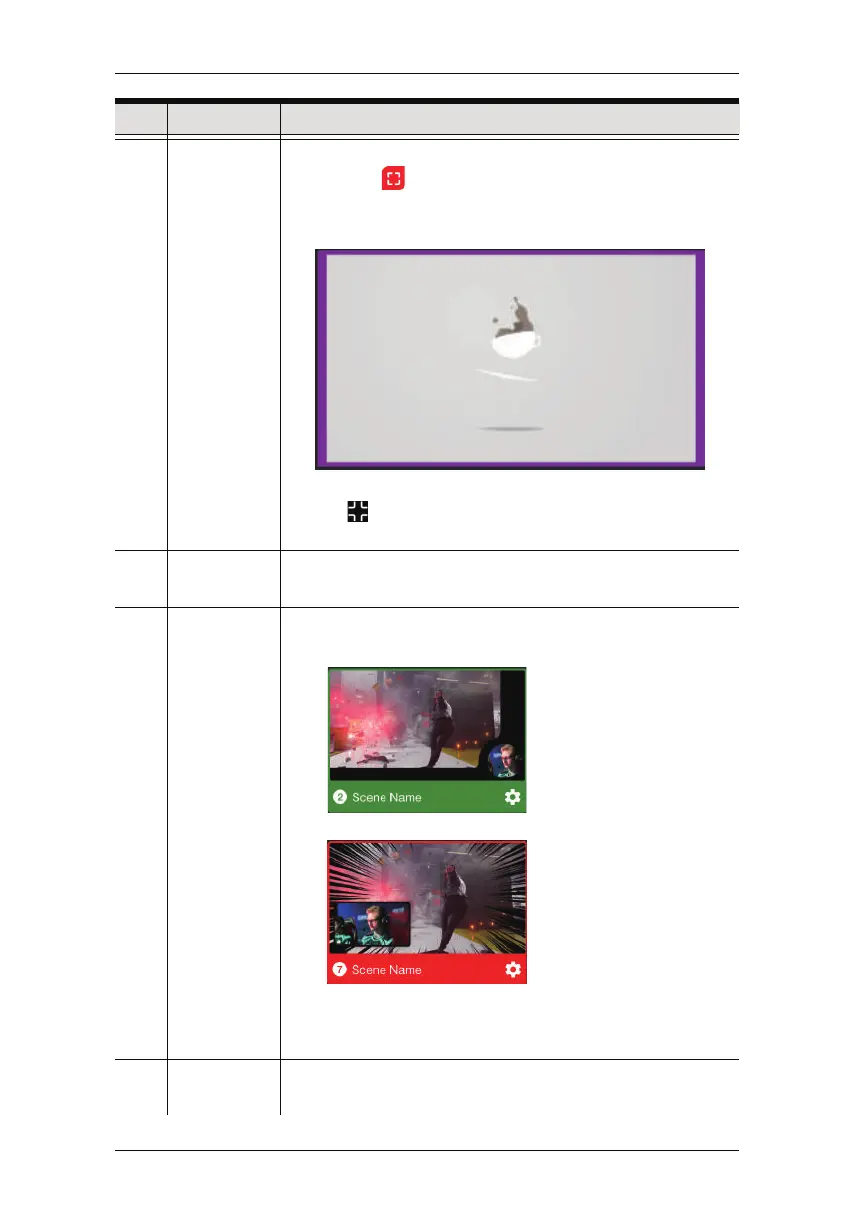
You can tap on the bottom right-hand corner to view the
video source in full screen mode. An example is shown
below:
Tap the icon on the bottom right-hand corner to return to
the previous page.
3 Volume
Control
Tap and drag the volume slider to adjust MIC or PGM volume.
4 Scene
Selector
8 scenes are shown here.
Green outline scene = PRV Preview.
e.g.
Red outline scene = PGM Preview.
e.g.
Tap a scene to put the scene into the PRV Preview section.
To put the scene in PRV Preview to PGM Preview, use the
Transition Control (explained below).
5 Scene
Editor
You can configure each individual scenes by tapping this icon.
Refer to Scene Editor on page 25 on how to edit each scene.
No. Component Description
Chapter 4. StreamEnjin App & Video Mixer



 To Next Page