StreamEnjin User Manual
24
6 Transition
Control
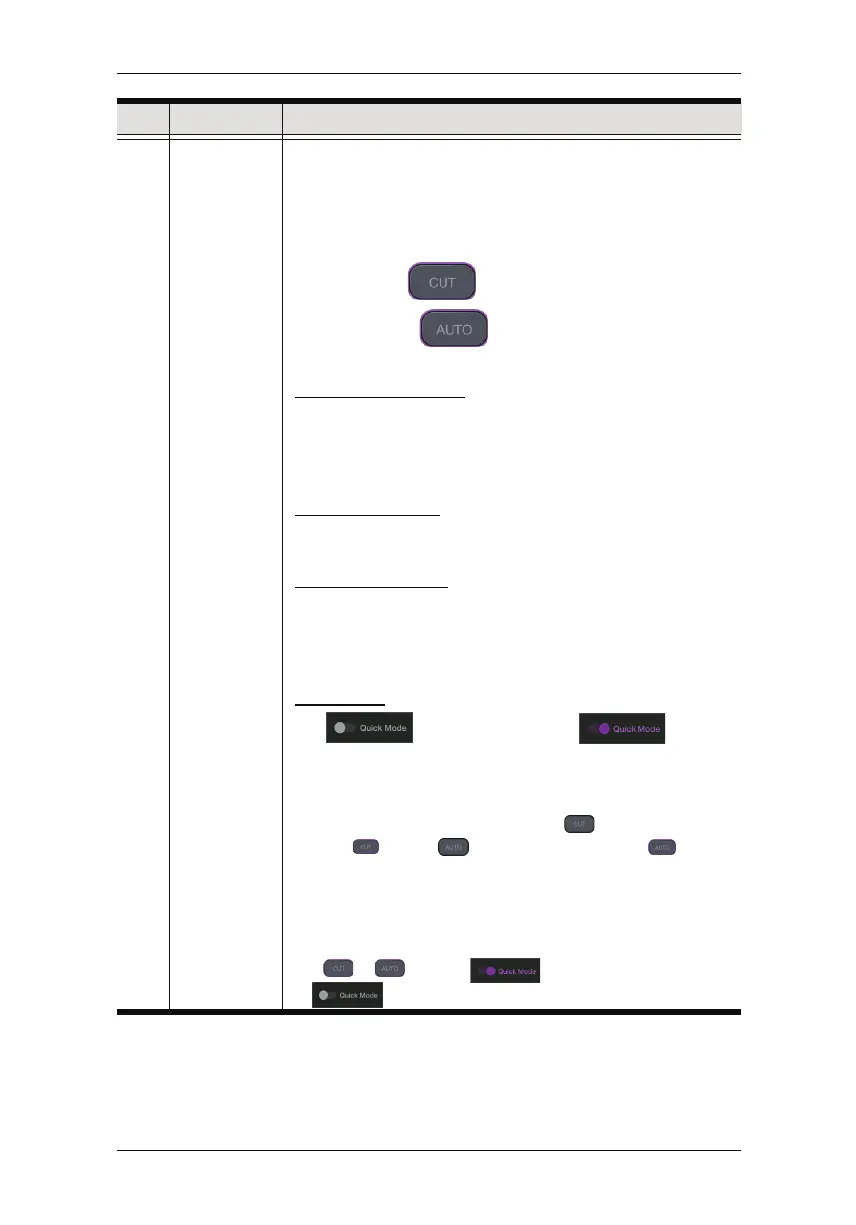
Controls the switching between the current stream (PGM)
scene and the preview (PRV) stream.
To switch,
1. slide the transition bar all the way to the top or bottom; or
2. tap the Cut button; or
3. tap the Auto button.
Using the Transition Bar
When using the transition bar, the scene transition speed
depends on how fast you slide the bar.
You can create different effects by sliding it slowly, quickly or
even hold it half way.
Using the Cut button
The transition happens immediately when you tap the Cut
button.
Using the Auto button
Tapping the Auto button will begin the transition after a
specified time (0.3-3.0 seconds). Go to the Setting Deck and
refer to page 37 on how to modify this specified time.
Quick Mode
Tap to start Quick Mode ( ).
During Quick Mode, PRV preview disappears and you can tap
any of the scenes to broadcast the scene as the PGM
preview.
Two Quick Modes are available: Tap for “Cut Quick
Mode” ( ) or tap for “Auto Quick Mode” ( ).
Under Cut Quick Mode, tapping a scene will instantly
broadcast that scene as the PGM preview.
Under Auto Quick Mode, tapping a scene will broadcast that
scene after the specified time (0.3-3.0 seconds).
Tap or , or tap again to exit Quick Mode
( ).
No. Component Description



 To Next Page