10
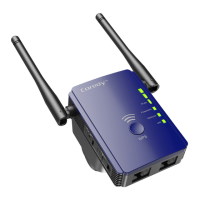
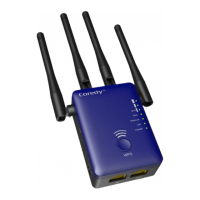
WLAN WAN LAN1 LAN2 LAN3 LAN4 WPS
WiFi
WPS
WAN/LAN
LAN
POWER
WPS
5.
In the Key (Network password) field, type the existing WiFi
network password (also called the passphrase or security
key) and click the Apply button, wait 1 minute to reboot the
extender.
Note: Click the Refresh button if the wireless Network list
couldn't loads completely or successfully.
7.
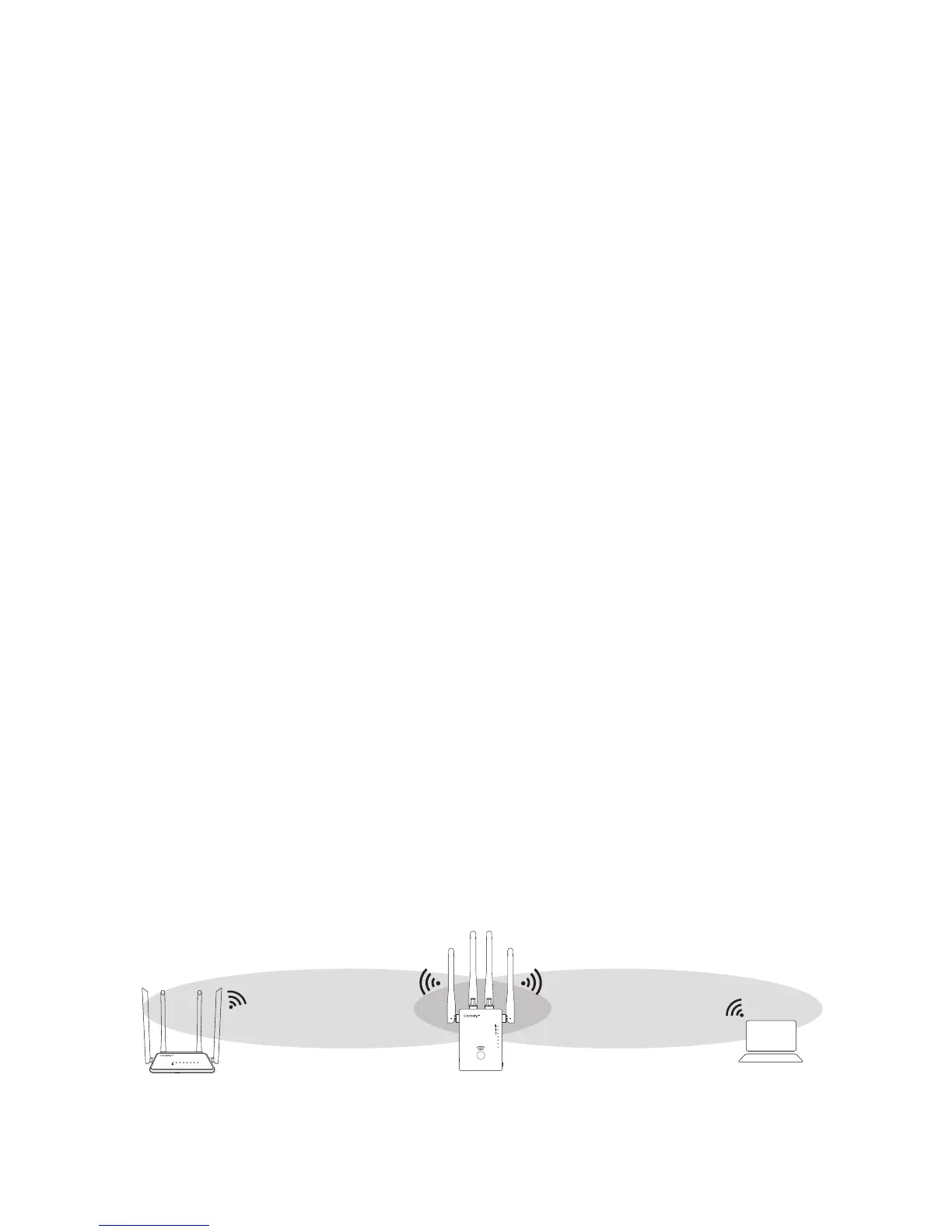
Unplug the extender and move it to a new location that is
about halfway between your router and the area with a
poor router WiFi signal.
6.
Find and connect to the new extended WiFi network on
your computer or WiFi device.
The extender creates a new extended WiFi network. The
extender’s new WiFi network name is “Coredy
CX-E120_2.4G_EXT”, use the same WiFi password that
you use for your WiFi router.
Note: If the extender doesn’t connect to the router, the
WLAN LED 1 keeps blinking and the extender’s new WiFi
network name doesn’t change to “Coredy
CX-E120_2.4G_EXT” .
If the WLAN LED 1 keeps blinking and the extender’s new
WiFi network name change to “Coredy
CX-E120_2.4G_EXT” , you might type the incorrect
password during on step 5.


 To Next Page