MOBILTEX® DATA LTD.
Calgary, Alberta
www.corTalk.com
TITLE: RMU1 Installation and Configuration Guide
DOCUMENT NO.:
RMU1-MAN-001
6.2 Software Installation
To install the configuration application and driver software, insert the media that came with the programming interface
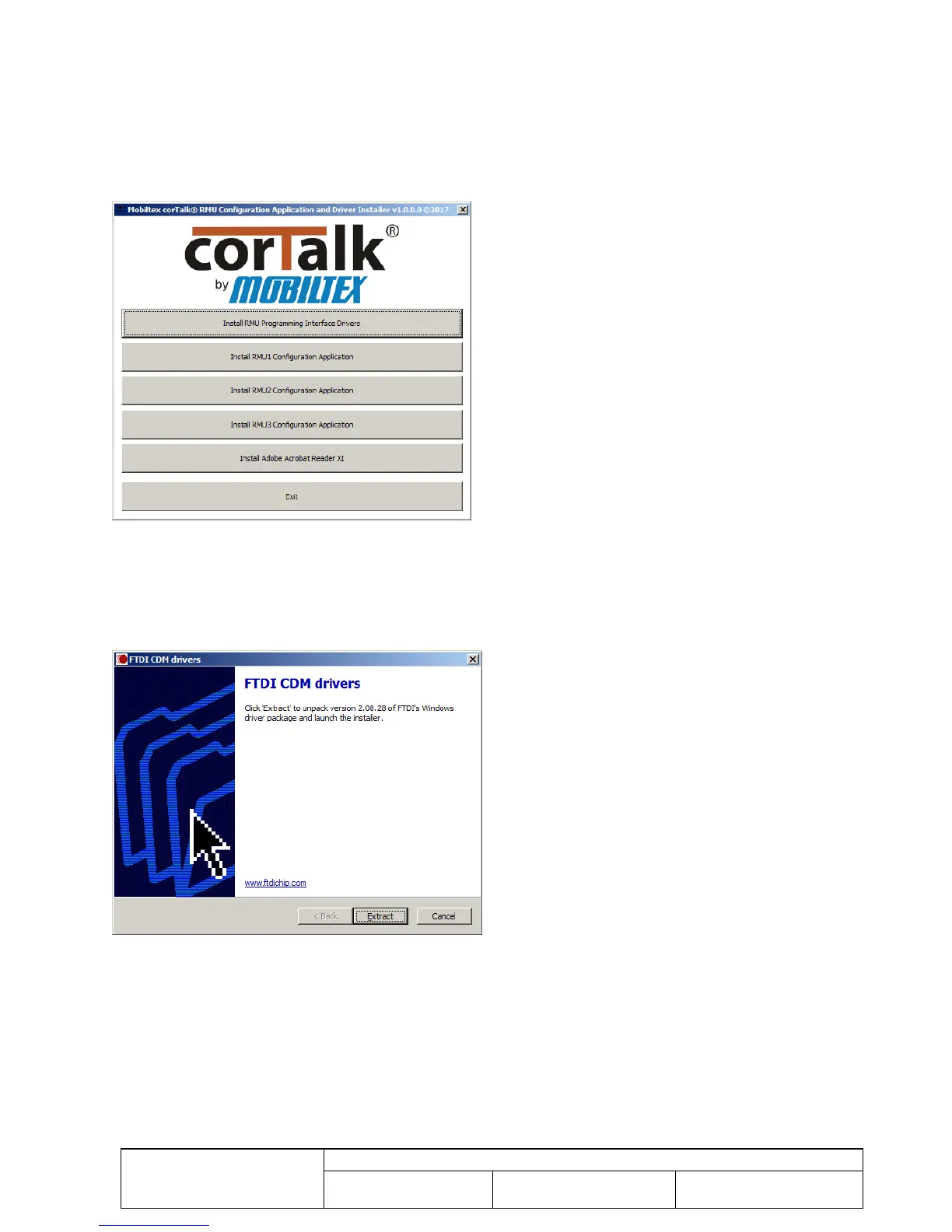
into the CD drive or USB port on the PC. If “autorun” is enabled on the PC, the following screen in Figure 30 will
appear.
If “autorun” is not enabled, or the contents of the media have been copied to a local directory, use Windows Explorer to
navigate to the drive and directory containing the installation software. Double-click on the “RMUINSTALLER.exe”
application. The dialog on Figure 30 will appear.
Figure 30 RMU1Installer Dialog
6.2.1 Driver Installation
From the RMU1 Installer screen, click the “Install RMU Programming Interface Drivers” button. Note that to install
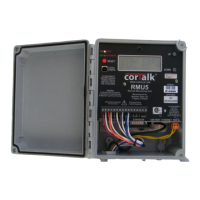
drivers, you must be logged into the PC with an account that has administrative privileges. The following screen
should display. Follow the installation instructions presented by the driver installer application.
Figure 31 Driver Installation Screen
Once the driver installer completes, you may then plug in the RMU1 programming interface hardware into an available
USB port on the PC.
As an alternative method, the drivers may be installed using the Windows “Found New Hardware Wizard” by plugging
the RMU1 programming interface into the PC first. If the “Found New Hardware Wizard” does not appear, it is possible
that drivers for the programming interface are already installed. Complete the following steps:


 To Next Page