44
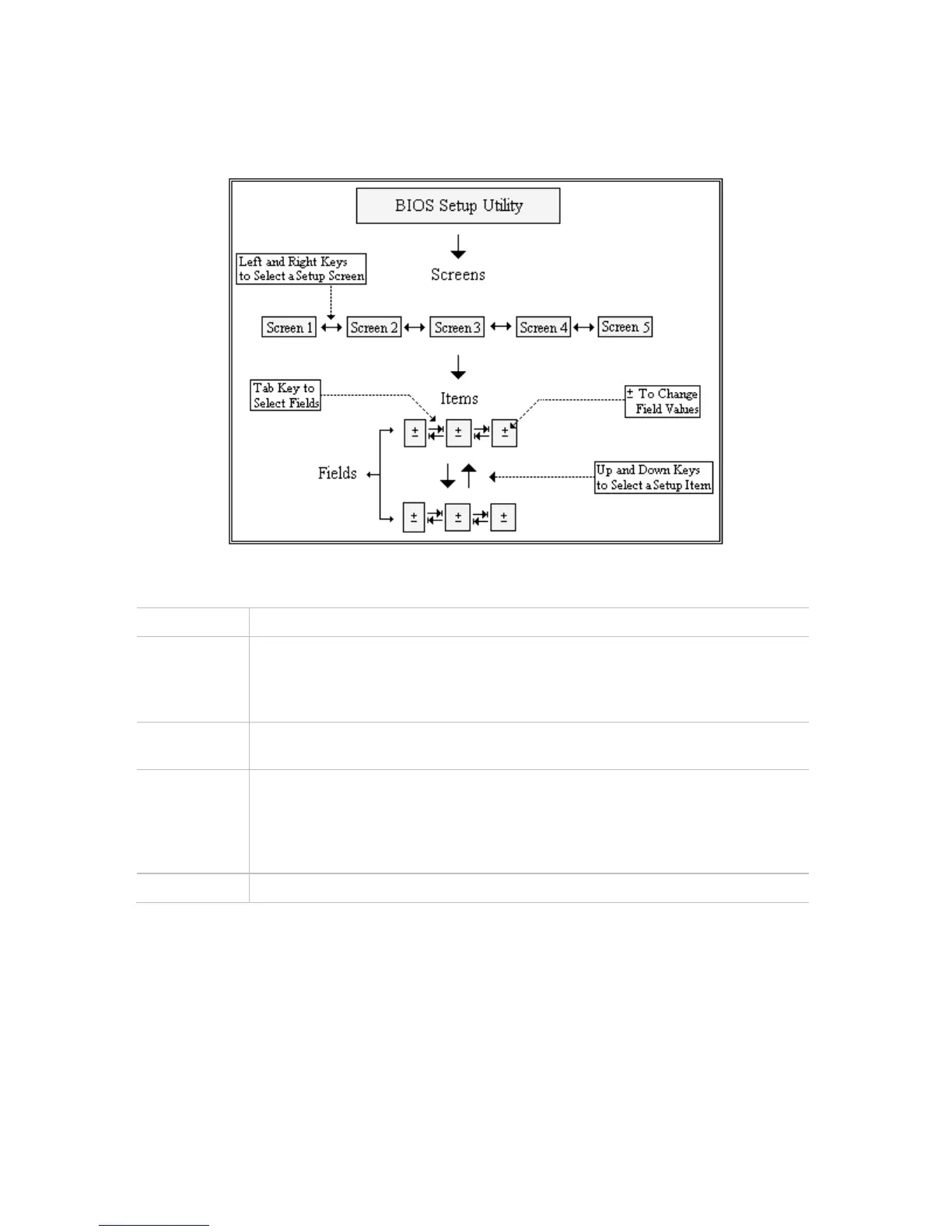
The CMOS BIOS setup/utility uses a key-based navigation system called hot keys. Most of the setup
utility hot keys can be used at any time during the setup navigation process. These keys include
<F1>, <F10>, <Enter>, <ESC>, <Arrow> keys, and so on.
Note:
There is a hot key legend located in the right frame on most setup screens.
HOT KEY DESCRIPTION
→
→→
→←
←←
←
Left/Right
The Left and Right <Arrow> keys allow you to select a setup screen.
For example: Main screen, Advanced screen, Chipset screen, and so on.
↑
↑↑
↑↓
↓↓
↓
Up/Down The Up and Down <Arrow> keys allow you to select a setup item or sub-
screen.
+-
Plus/Minus
The Plus and Minus <Arrow> keys allow you to change the field value of a
particular setup item.
For example: Date and Time.
Tab
The <Tab> key allows you to select setup fields.
Note:
The <F8> key on your keyboard is the Fail-Safe key. It is not displayed on the key legend by
default. To set the Fail-Safe settings of the BIOS, press the <F8> key on your keyboard. It is located
on the upper row of a standard 101 keyboard. The Fail-Safe settings allow the motherboard to boot
up with the least amount of options set. This can lessen the probability of conflicting settings.



 To Next Page