CowTech Ciclop 3D Scanning Guide
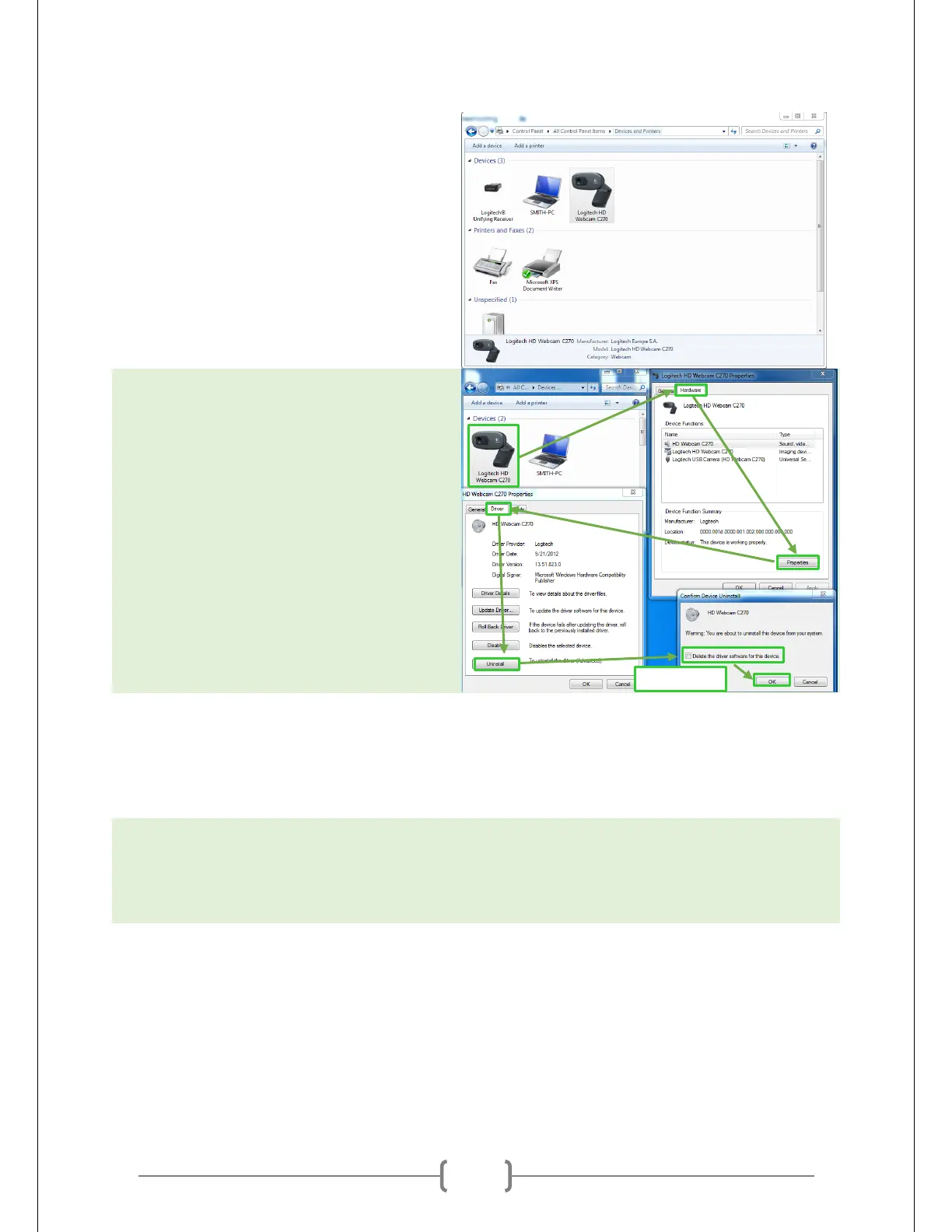
Third thing to try: Quit out of Horus. Plug in the
camera. Click Windows Icon -> Control Panel ->
Devices and Printers. Right click the icon
labeled “Logitech HD Webcam C270.”
If you don’t see the icon, the issue is not with
Horus but with the Logitech drivers. Check the
Logitech website to troubleshoot:
http://support.logitech.com/en_us/product/hd
-webcam-c270
Click Properties -> Hardware -> Properties ->
Change Settings -> Driver -> Uninstall. There
may be a box asking if you want to delete the
driver files, make sure it is checked and then
click ok. The picture at right shows this series
of clicks graphically.
Now unplug the camera and plug it back in. Windows should begin automatically reinstalling the
drivers. Once installation is complete, open up Horus and now the camera should be recognized when
pressing the connect button. If not, try once again changing the values of “Camera ID” and “Serial
Name” like you did earlier.
Fourth thing to try: Close Horus and reinstall the Logitech drivers. They can be found at the link below:
http://support.logitech.com/en_us/product/hd-webcam-c270
Installing these drivers will require Windows to restart.


 To Previous Page