DigitalMedia Switchers Product Manual – DOC. 8418A
To view the entire contents of the page, use the up ( ) and down ( ) buttons
on the right side of the page.
Update Firmware Using a USB Flash Drive
To update firmware using a USB flash drive:
1. Insert a USB flash drive into the USB port of a computer.
2. Download the latest firmware file from the Crestron website to the root
directory on the flash drive—do not download the file to a subfolder on the flash
drive. The firmware file is named digitalmedia_
x.xx.xx
.puf (
x.xx.xx
represents the
version number), for example, digitalmedia_3.02.10.puf.
3. Remove the USB flash drive from the computer, and then insert the flash drive
into the USB port of the DMC-CPU3 card.
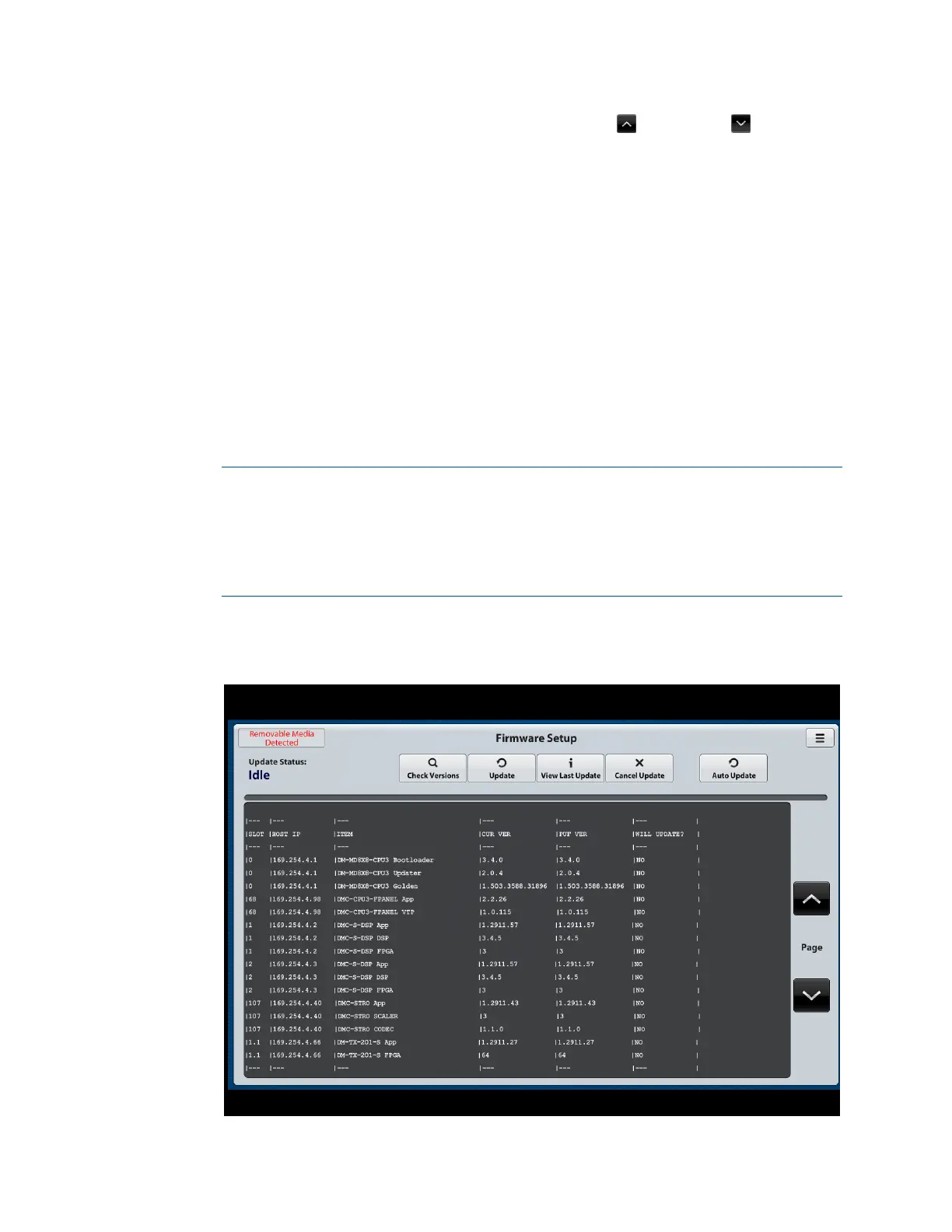
4. On the Firmware Setup page of the web interface, click the Update button.
The firmware update process begins.
NOTES:
• The message “Removable Media Detected” appears in red in the upper-left
corner of the page. The message indicates that a USB flash drive is inserted
into the USB port of the DMC-CPU3 card.
• The update process can be canceled by clicking the Cancel Update button.
A list of DigitalMedia system components and corresponding information
appears.
Sample Firmware Setup Page – Update Using a USB Flash Drive



 To Next Page
 Loading...