Supplemental Guide – DOC. 7844E CCS-UC-1: Crestron Mercury Tabletop Conference System • 5
• AIRMEDIA configures the device’s AirMedia
®
presentation gateway
functionality.
Log Out from the Device
To log out from the device and return to the welcome screen, click .
Configure the Device
Configure the device as required for the installation.
HDMI INPUT
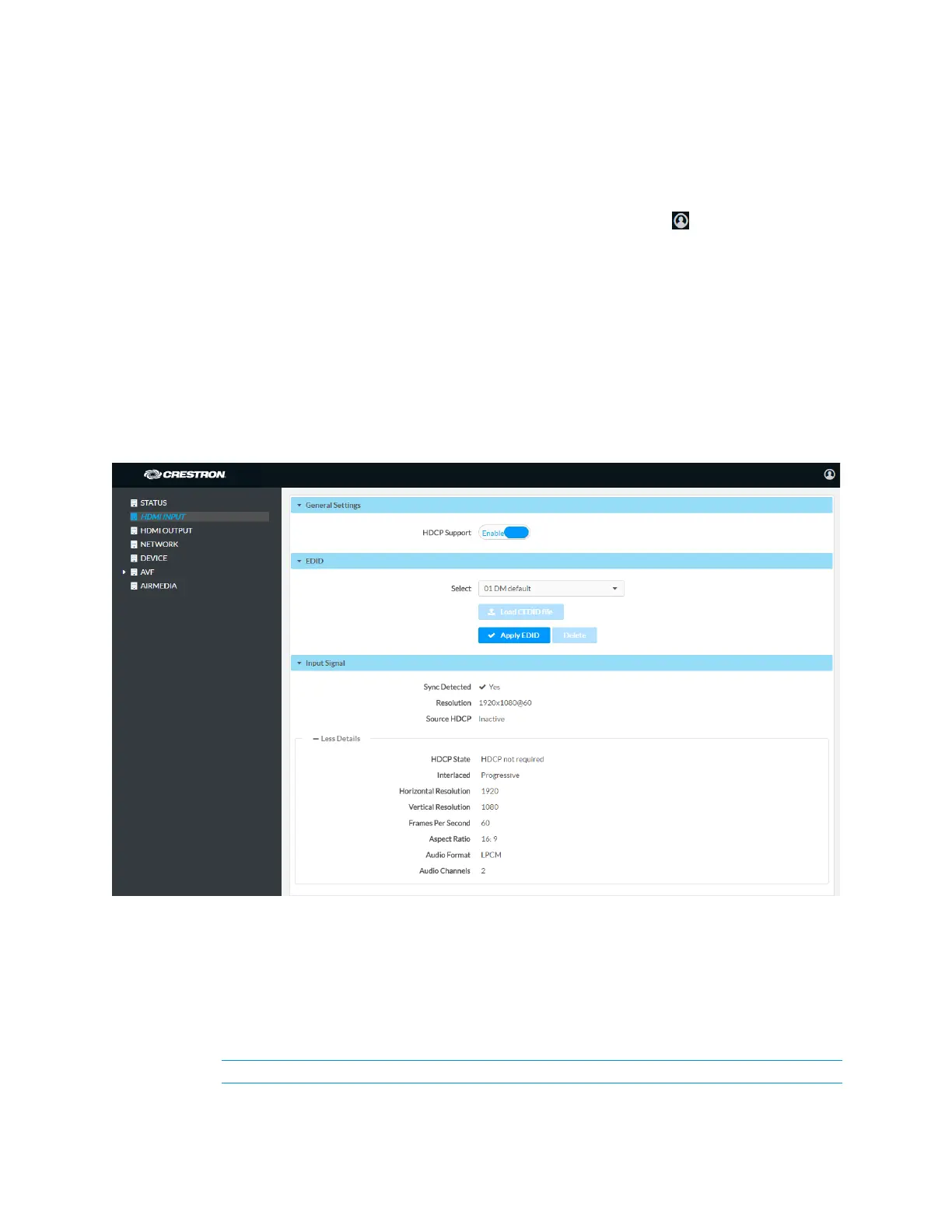
Click HDMI INPUT to configure the HDMI input. The screen displays a selector for HDCP
support, Extended Display Identification Data (EDID) profile selection, and information about
the input signal (if present).
HDMI INPUT Screen
General Settings
Select whether HDCP support should be enabled or disabled. When HDCP support is
enabled, source signals that require HDCP compliance are allowed to pass through to the
connected display that is connected to the HDMI output. When HDCP support is disabled,
source signals that require HDCP compliance are not allowed to pass through to the
connected display.
NOTE: When HDCP is enabled, the connected display must be HDCP compliant as well.



 To Next Page
 Loading...